
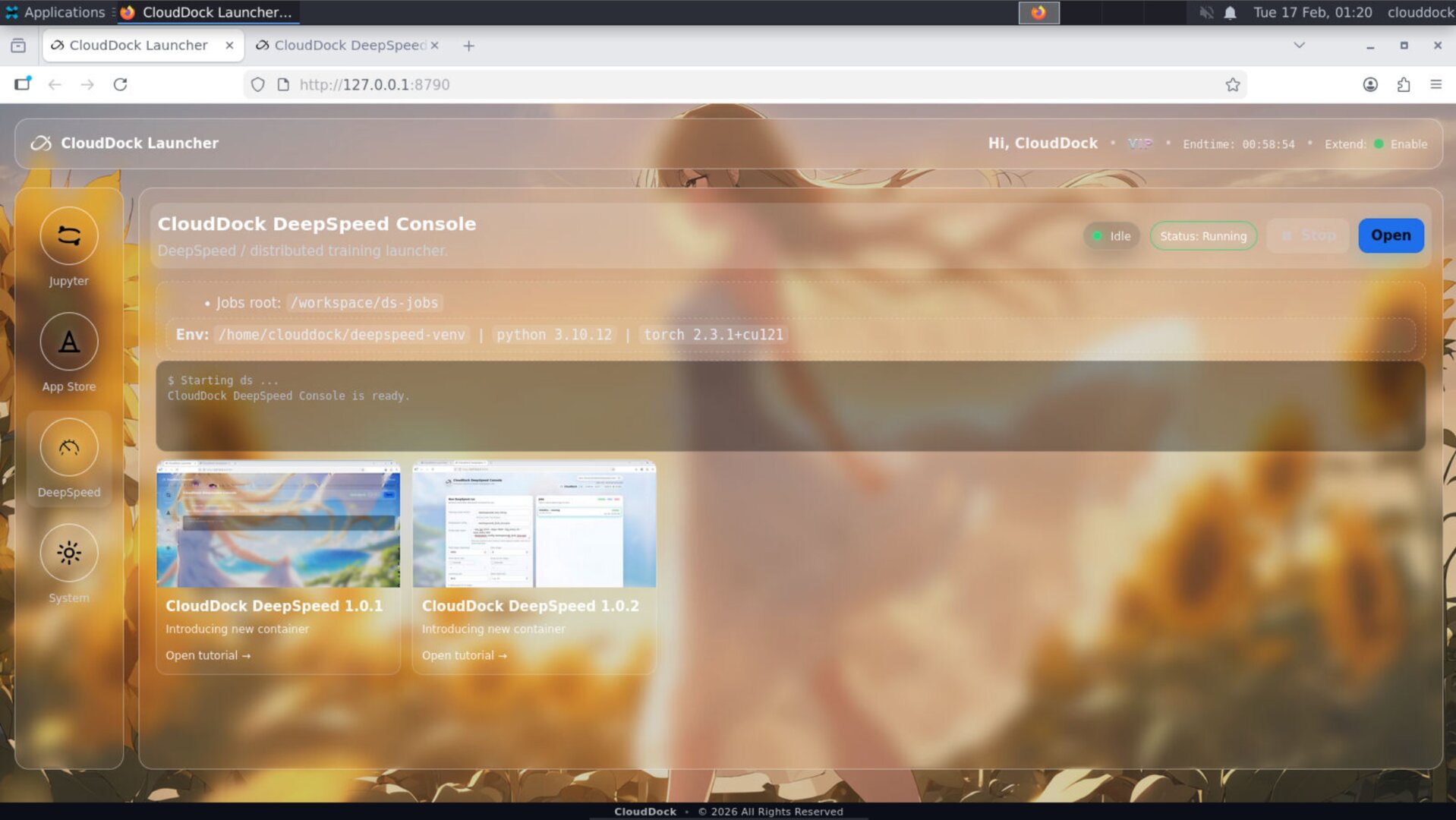
What’s new in 1.0.3 (vs 1.0.2)
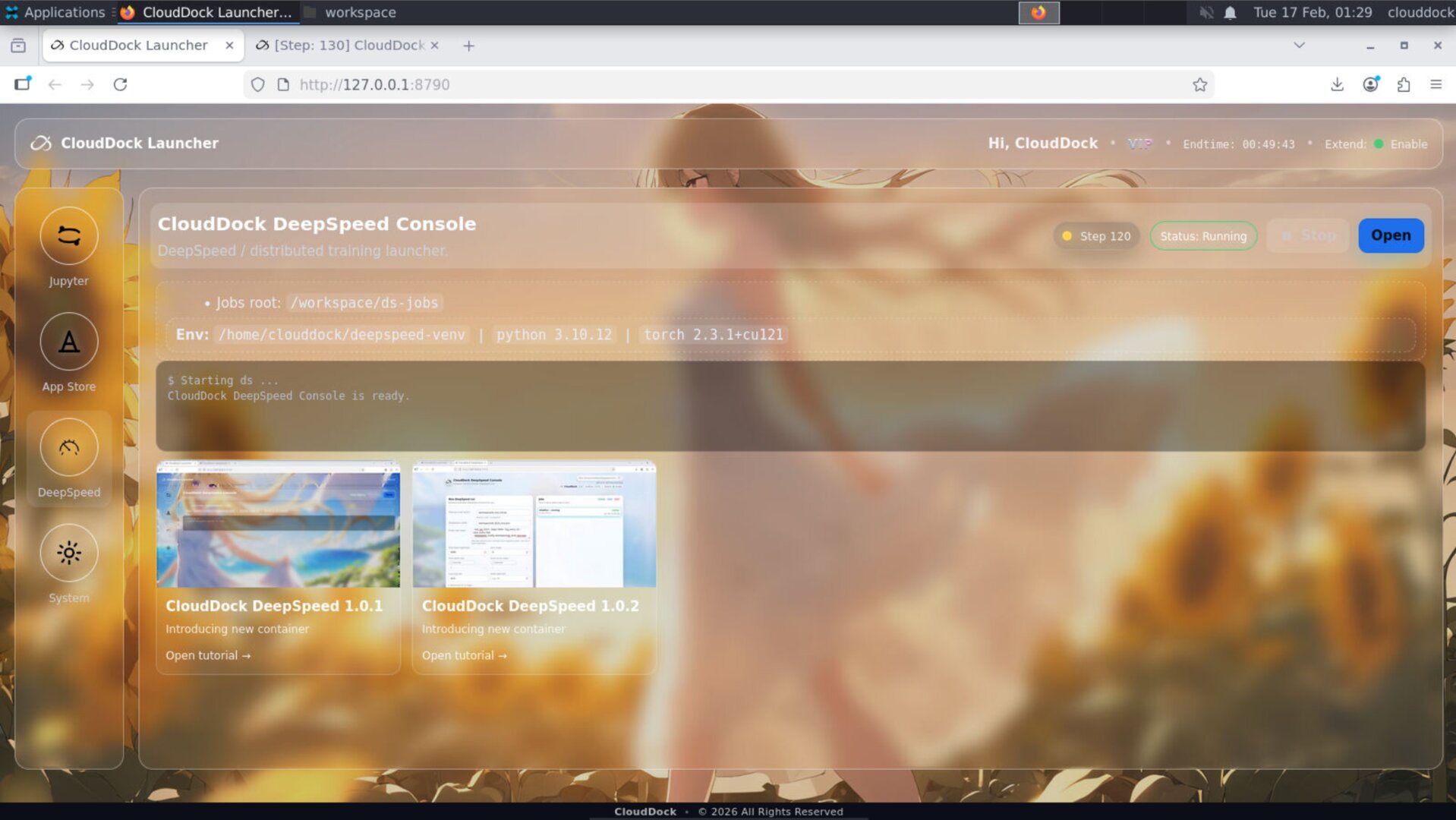
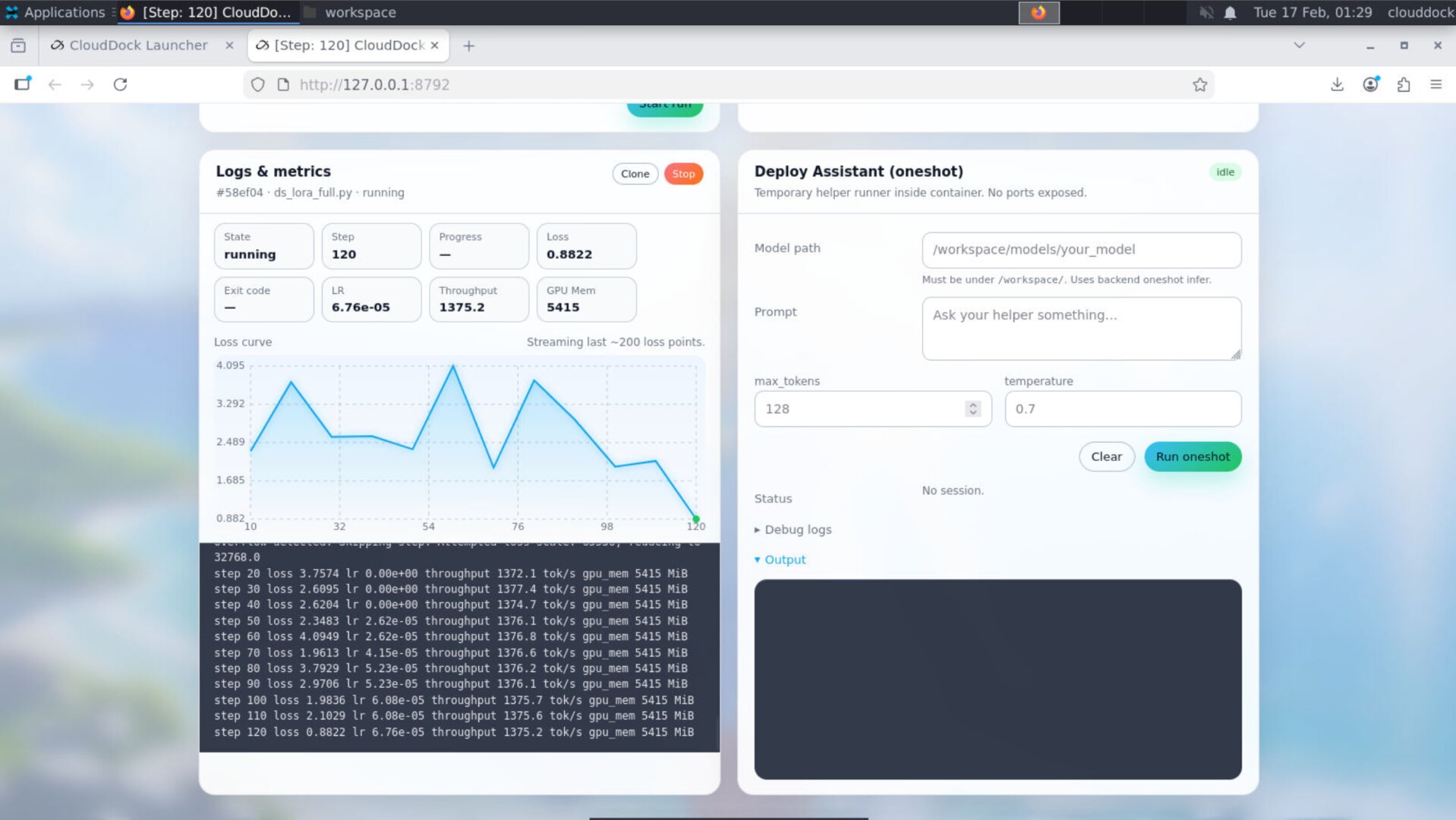
- Console tabs now display running-job steps: the active job’s step counter is surfaced directly in the tab UI (so you can track progress without switching panels or scrolling logs).
- Launcher: DS Console status indicator: the Launcher DeepSpeed Console page now shows a clear status light / state indicator (busy/idle + quick health signal at a glance).
- Universal Usagi 4.1.5 base (security uplift): 1.0.3 inherits stronger safety defaults from the latest Universal Usagi baseline. This is intentionally documented at a high level.
- JupyterLab environment split: TensorFlow (DS/ML/Kaggle) is separated into its own kernel, while PyTorch stays in its own venv. Result: fewer “it worked yesterday” dependency conflicts.
DeepSpeed Console upgrade: Steps shown in tabs
1.0.3 adds a small but high-impact UI improvement: the Console’s job tabs can now display the current running job’s step count. This is meant to answer one question instantly: “Is it actually moving?”
- When a job is running: the active tab shows live step updates.
- When no job is running: tabs remain clean (no noisy placeholders).
- Fallback behavior: if step is temporarily unavailable, the UI stays stable and does not “blink” aggressively.
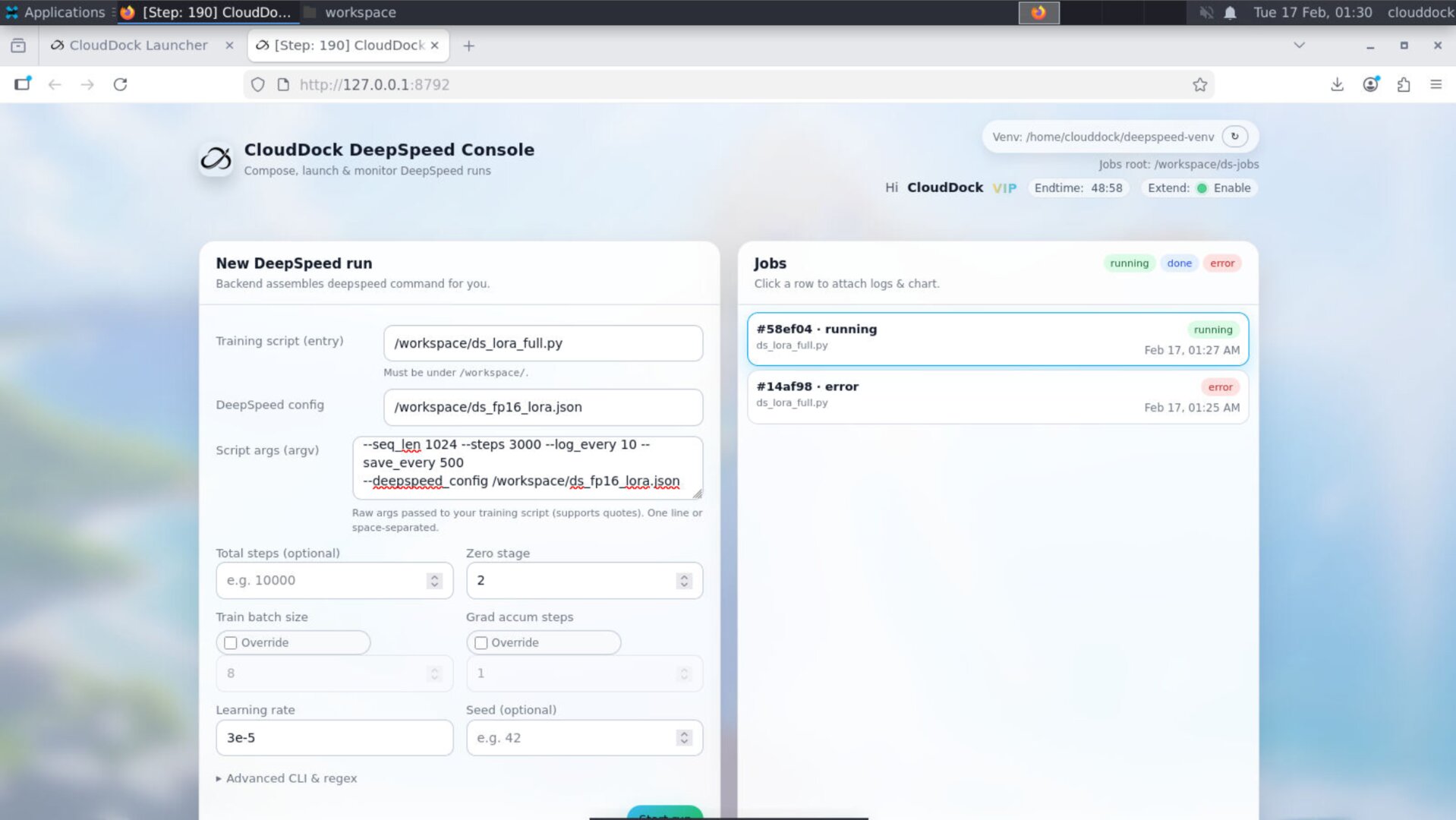
Launcher integration: DS Console status indicator
The Launcher DeepSpeed Console page now includes a dedicated status indicator so you can see whether the Console is busy/idle and healthy without opening the full Console UI. This improves “instance navigation” especially when you’re juggling multiple tools.
JupyterLab: TensorFlow kernel split (no more dependency fights)
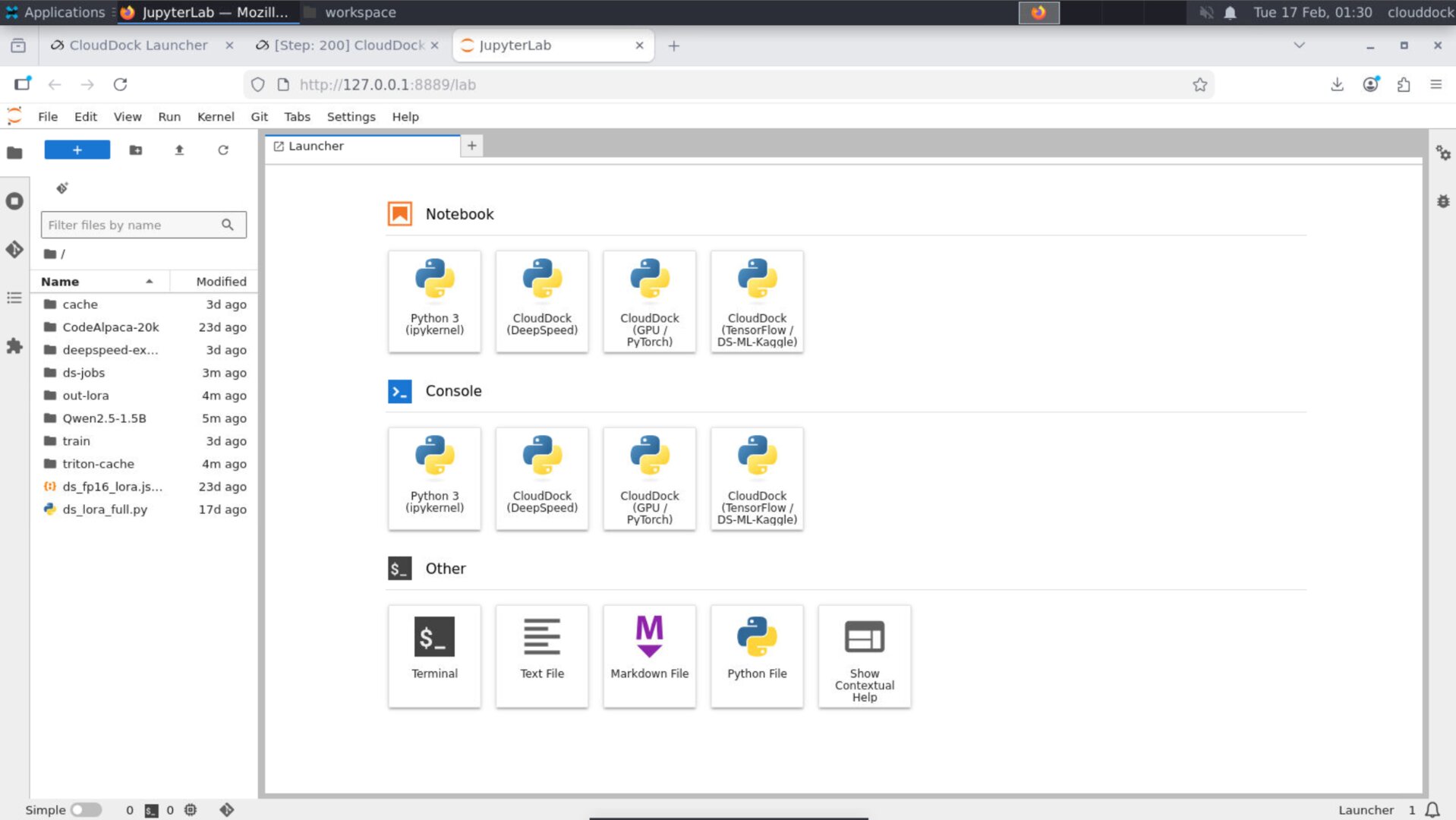
DeepSpeed users often overlap with DS/ML/Kaggle workflows. In previous setups, installing or upgrading one stack could break the other. In 1.0.3, JupyterLab is structured so environments remain predictable:
- PyTorch: stays in a dedicated venv (your PyTorch “daily driver”).
- TensorFlow (DS/ML/Kaggle): moved into a separate Jupyter kernel.
How to select the right kernel
- Open JupyterLab.
- Create a new notebook.
- In the kernel picker, choose:
- PyTorch kernel/venv for torch + deepspeed workflows
- TensorFlow (DS/ML/Kaggle) kernel for tf workflows
Two ways to run training
1) CLI mode (terminal)
CLI remains the highest-control path. Your scripts, your flags, your configs. 1.0.3 does not remove power-user freedom — it improves visibility around what is running.
# Example (single GPU)
deepspeed --num_gpus=1 train.py \
  --dataset /workspace/data \
  --output_dir /workspace/output \
  --lr 3e-5 --epochs 1 --batch_size 8


# Recommended: keep datasets + outputs in /workspace for clean transfers.
2) GUI mode (CloudDock DeepSpeed Console)
GUI remains the fastest “blank instance → first run” path. In 1.0.3, job tracking is easier because you can see step progress directly in tabs.
Recommended folder convention
/workspace/
  train.py
  data/
  output/
  configs/
  notebooks/
Upgrade notes (from 1.0.2)
- Console tabs show steps automatically: no action needed — just start a run and you’ll see step updates where it matters.
- Launcher status indicator: if you rely on Launcher as your entry point, you’ll notice DS Console state immediately.
- Jupyter changes: if you previously installed TensorFlow into your PyTorch environment manually, stop doing that — use the dedicated TensorFlow (DS/ML/Kaggle) kernel instead.
- Compatibility expectation: existing DeepSpeed scripts should run the same — 1.0.3 focuses on safer baseline + better visibility, not changing how your jobs are launched.