
Overview
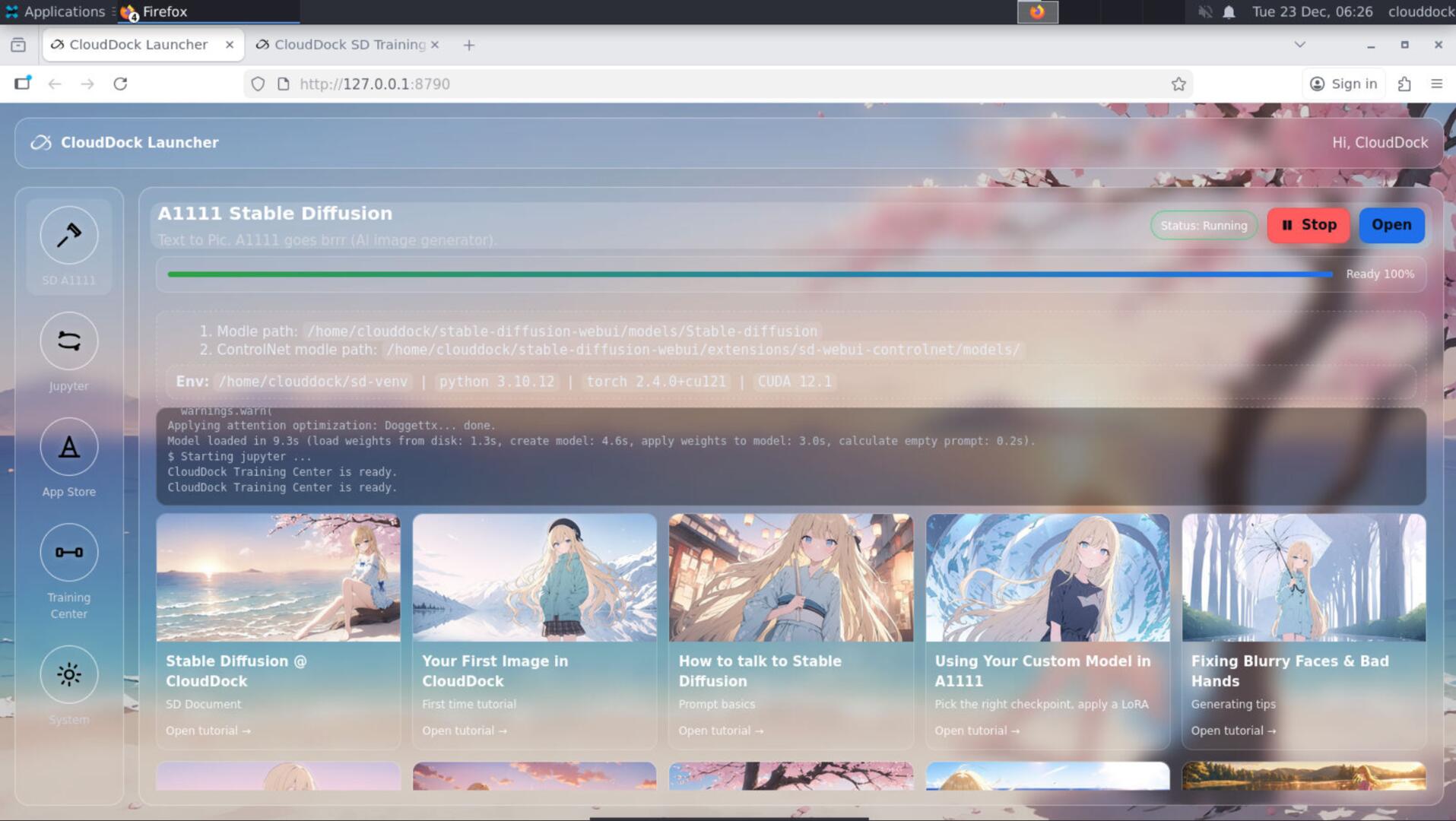
CloudDock doesn’t want you juggling ports, SSH sessions, and “which tab is which machine.” Instead, each container has a CloudDock Launcher — a consistent home screen that opens the right tools for that container.
Universal containers: SD + Jupyter (daily workflow)
Universal Usagi / Momonga are built for Stable Diffusion creators. They include:
- Stable Diffusion (A1111)
- JupyterLab
- CloudDock App Store
- and the same CloudDock Launcher to open them
Why DeepSpeed is a separate container
Deep learning tooling and SD tooling look similar on the surface, but they serve different users:
- Universal focuses on image generation: iterate fast, create, train SD models, follow tutorials.
- DeepSpeed container focuses on deep learning workloads: LLM training/inference workflows, consoles, and heavier dev tools.
We keep them separate for two reasons:
- Different audiences — SD creators and DeepSpeed/LLM users are usually not the same crowd.
- Smaller images — splitting the stacks reduces container size, boot time, and maintenance complexity.
How to switch to CloudDock DeepSpeed (step-by-step)
DeepSpeed is not an “app inside Universal.” It’s a separate container. To switch, you will go back to the Dashboard and restart into the DeepSpeed image.
- Go back to the CloudDock Dashboard (the machine control page).
- Click Restart container (or the equivalent restart action).
- Select CloudDock DeepSpeed as the container image.
- Read the warning: restarting a container wipes the session. (Yes — data inside the container will be lost. This is expected behavior.)
- When prompted, type
Confirmin the input box (case-sensitive). - Wait for the restart to complete.
- Click Continue to enter the new container.
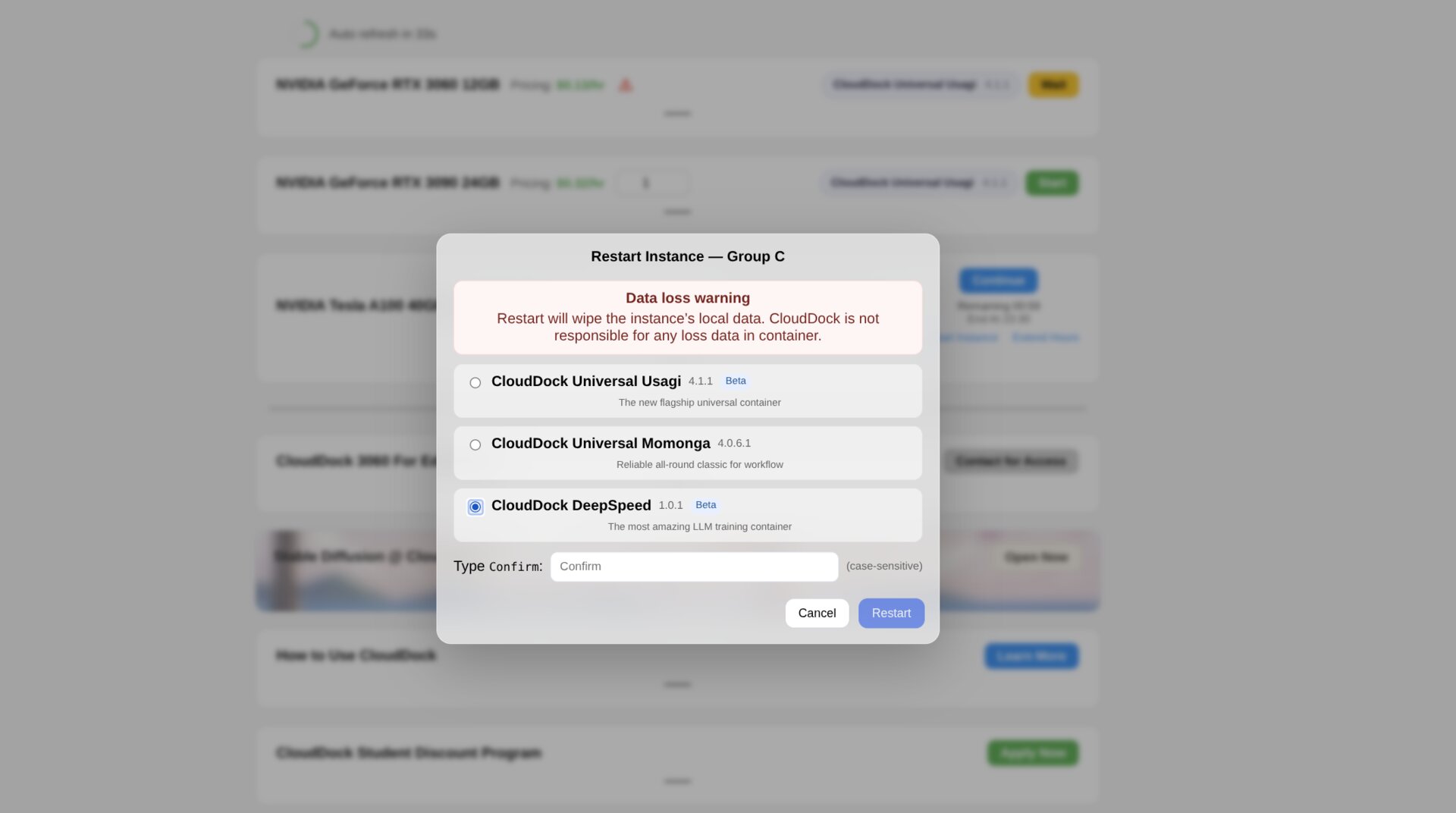
Confirm → restart.What changes after switching
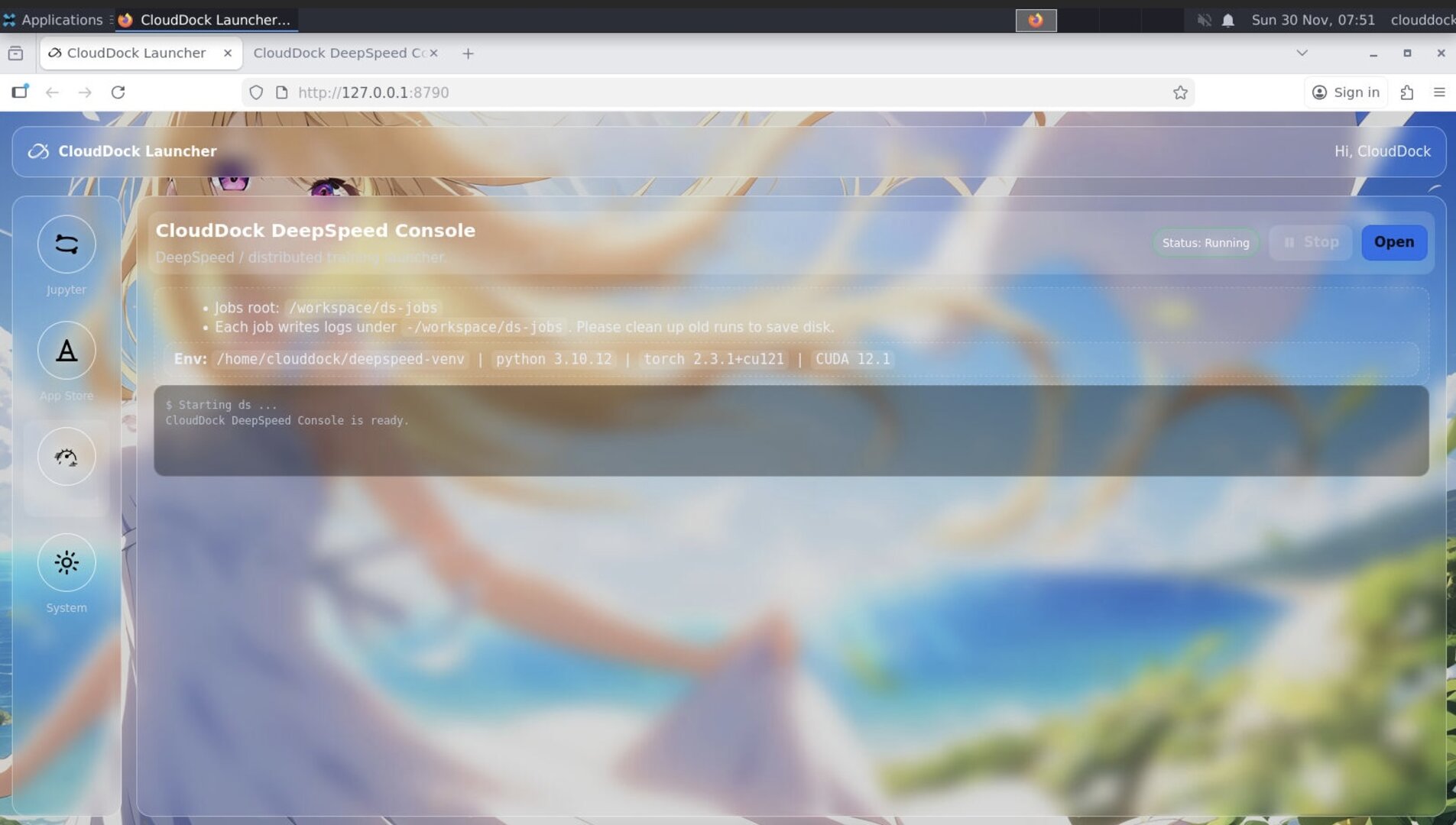
Once you enter the DeepSpeed container, you’ll see something familiar: an identical CloudDock Launcher.
But the buttons reflect the DeepSpeed workflow:
- JupyterLab
- DeepSpeed Console
- CloudDock App Store
- (No Stable Diffusion button) — because this container is not SD-focused.
How to go back to Stable Diffusion
To return to SD, you’ll do the same process in reverse:
- Go back to the Dashboard.
- Restart container and select Universal Usagi or Universal Momonga.
- Type
Confirm(case-sensitive) and restart. - Click Continue → you’re back in the Universal container with SD.
Why A group doesn’t recommanded the DeepSpeed container
You might notice: A group machines do not recommanded the CloudDock DeepSpeed container. This is intentional.
- A group is optimized for SD creators and lightweight workflows.
- DeepSpeed workloads are heavier — they typically demand more VRAM headroom, memory bandwidth, and longer sustained runs.
- To keep A group fast, cost-efficient, and beginner-friendly, we focus A group on the Universal SD workflow instead of shipping every heavy stack everywhere.
FAQ
“Why do I have to type Confirm?”
Because switching containers is destructive to the current session. The Confirm step prevents accidental restarts (and accidental data loss).
“Why is the Launcher the same in both containers?”
Consistency. You shouldn’t have to relearn navigation just because you changed workflows. The doors change; the hallway stays the same.
“So restarting always wipes everything?”
Yes, the container session resets. Treat the container like a disposable workspace. Save/export important work before switching images.
What’s next?
-
Launcher · App Store: what they do for you (and why we built them).
Go to “Launcher · App Store →” -
Universal Usagi & Momonga: beta lane vs stable lane.
Go to “Usagi & Momonga →” -
Choosing Your Machine: pick A/B/C/D based on workflow.
Go to “Choosing Your Machine →”