
Why Launcher and App Store exist
Most “GPU cloud” experiences are the same story: you start a machine, then you’re left guessing — which port is Stable Diffusion, which tab is Jupyter, which window is “that A100,” and why everything needs SSH just to do normal work.
CloudDock takes a different approach: workflow first. The Launcher is the cockpit. The App Store is how your container evolves without turning into dependency soup.
CloudDock Launcher: one glass panel, zero confusion
The Launcher is the first screen you should see. It’s designed to answer two questions instantly:
- Where do I go? (SD / Training / App Store / DeepSpeed / Model Store)
- What state is my session in? (running, busy, resource usage, safe to proceed)
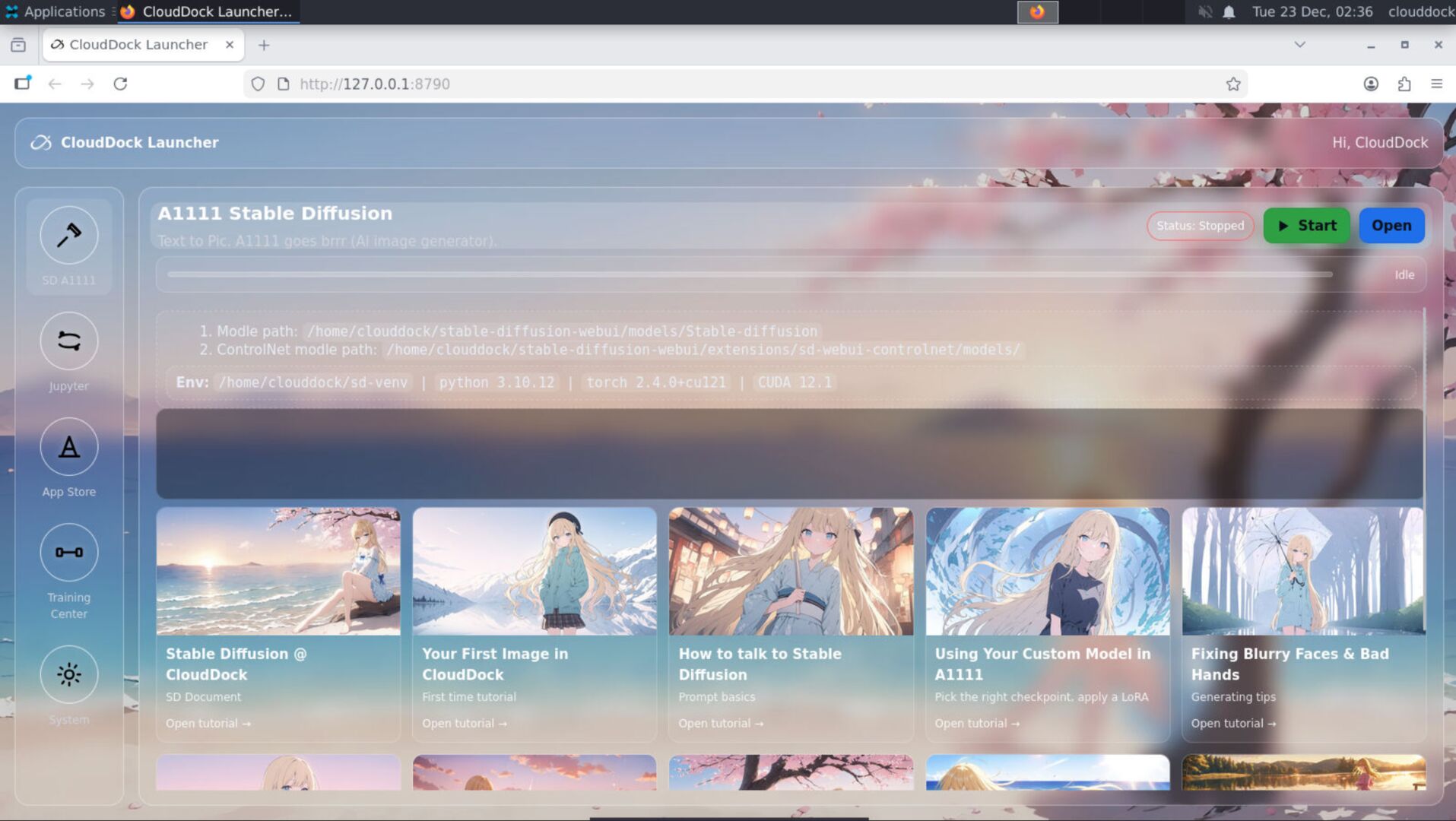
Buttons wired per container (no dead links)
CloudDock containers aren’t all identical — some flavors focus on SD, some on training, some on heavy compute. The Launcher respects that.
Buttons are wired per container: Usagi shows what belongs in Usagi (SD, Training Center, App Store, etc.), DeepSpeed containers show what belongs there (DeepSpeed Console, tools, docs).
No SSH circus
For normal SD work, SSH is an anti-feature. It turns a creative workflow into a sysadmin workflow. CloudDock’s goal is to make the default path: click → create, not SSH → fix → pray.
CloudDock App Store: installs that don’t ruin your day
SD ecosystems are powerful, but they’re chaotic: random extensions, random scripts, random checkpoints from unknown sources, and installs that break the environment.
CloudDock App Store exists to make “adding tools” feel like adding apps: discover, install, track progress, and keep your workspace stable.
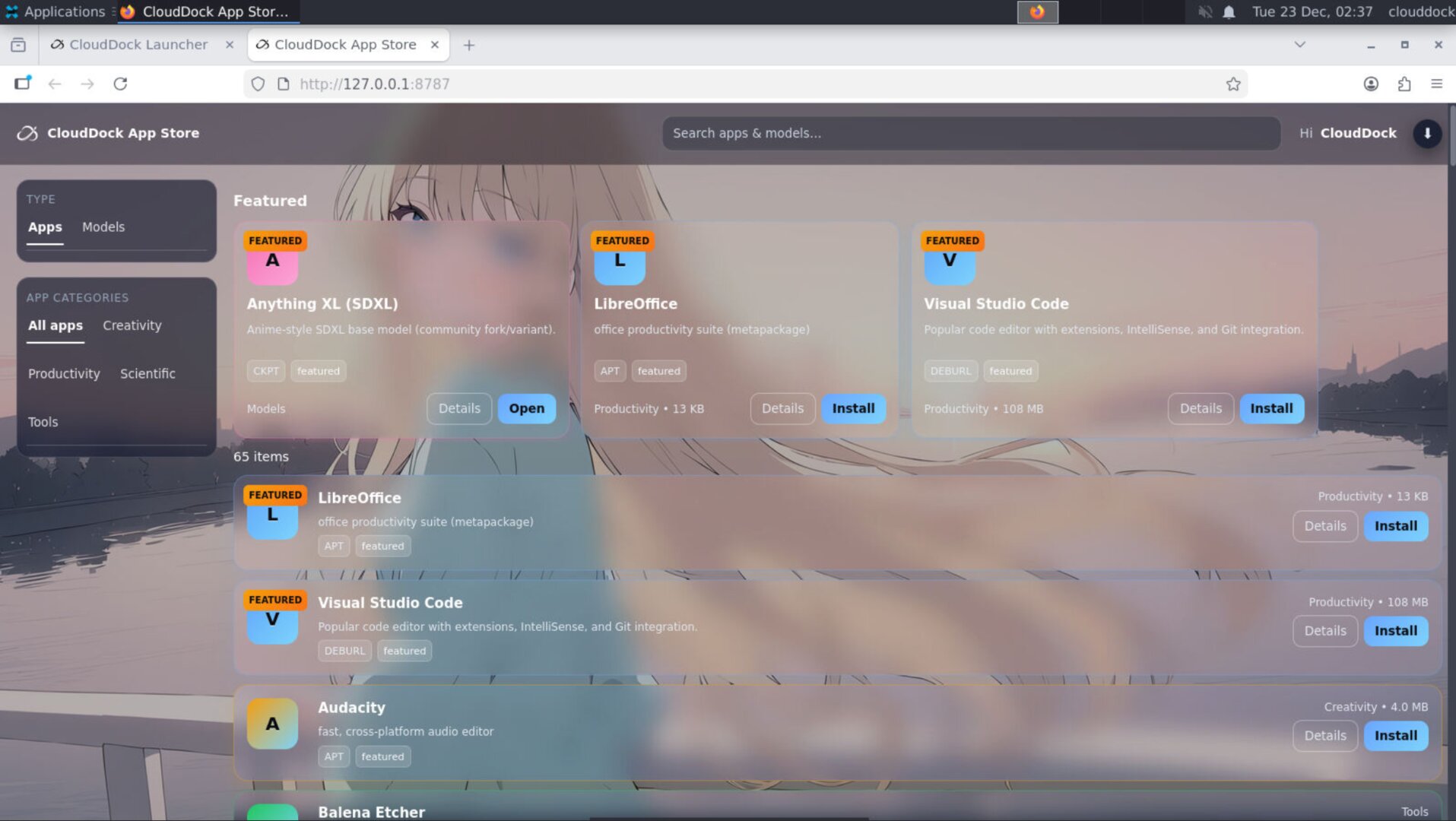
App Store 3.0: a real app page (not a list of zip files)
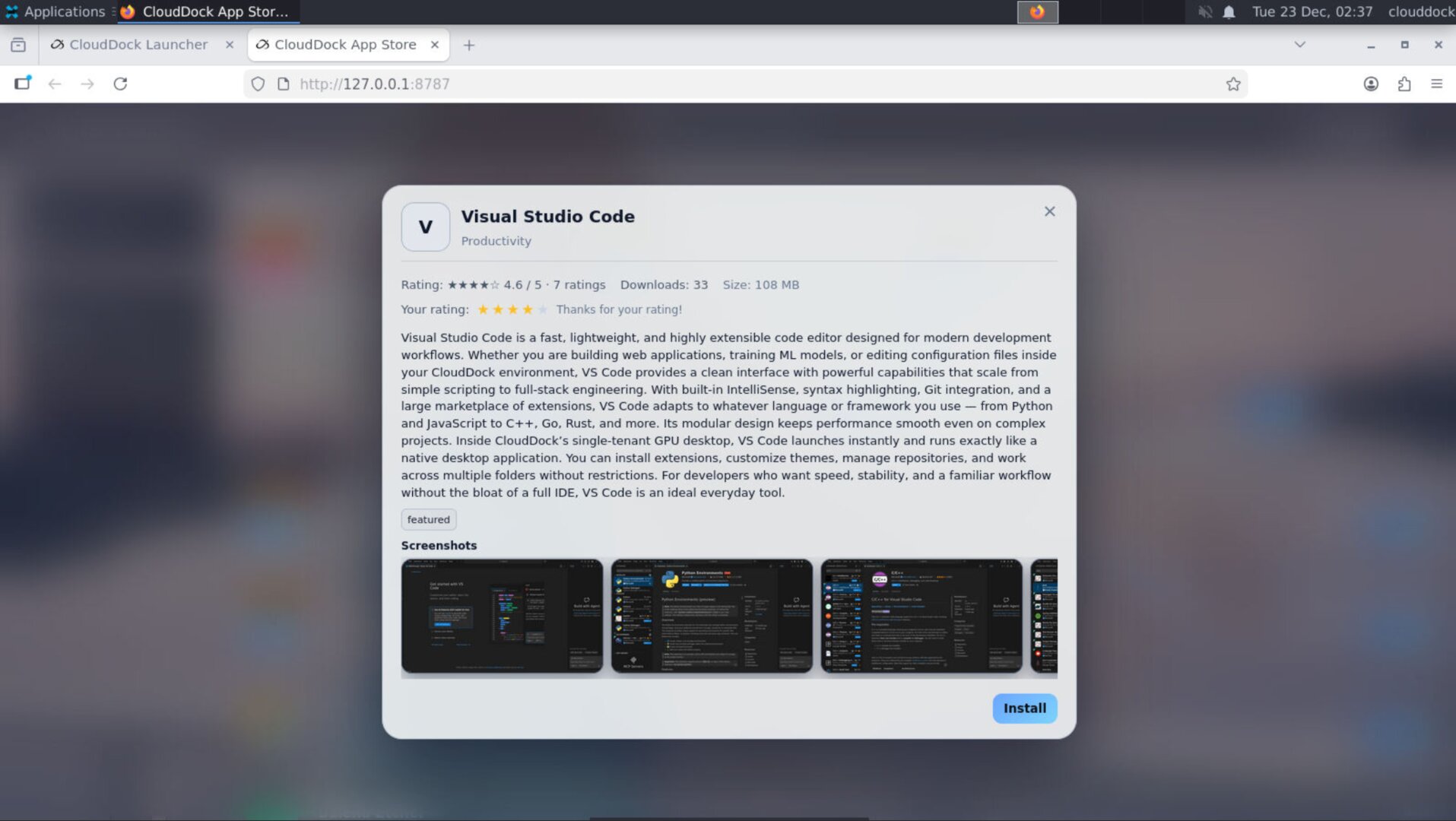
App Store 3.0 is built around the idea that each app is a product page:
- Per-app page with description and requirements
- Screenshots so you know what you’re installing
- Ratings to avoid wasting time on bad tools
- Download status that survives refresh (no more “did it install?” panic)
Hash-verified models only (no mystery checkpoints)
Models are the core of your output — and also the biggest source of risk and confusion. A “mystery checkpoint” from random corners of the internet can be: broken, mislabeled, low quality, or worse.
CloudDock’s approach is simple: hash-verified models only. If it’s in the Model Store / App Store pipeline, it’s traceable and verifiable.
How this changes your day-to-day workflow
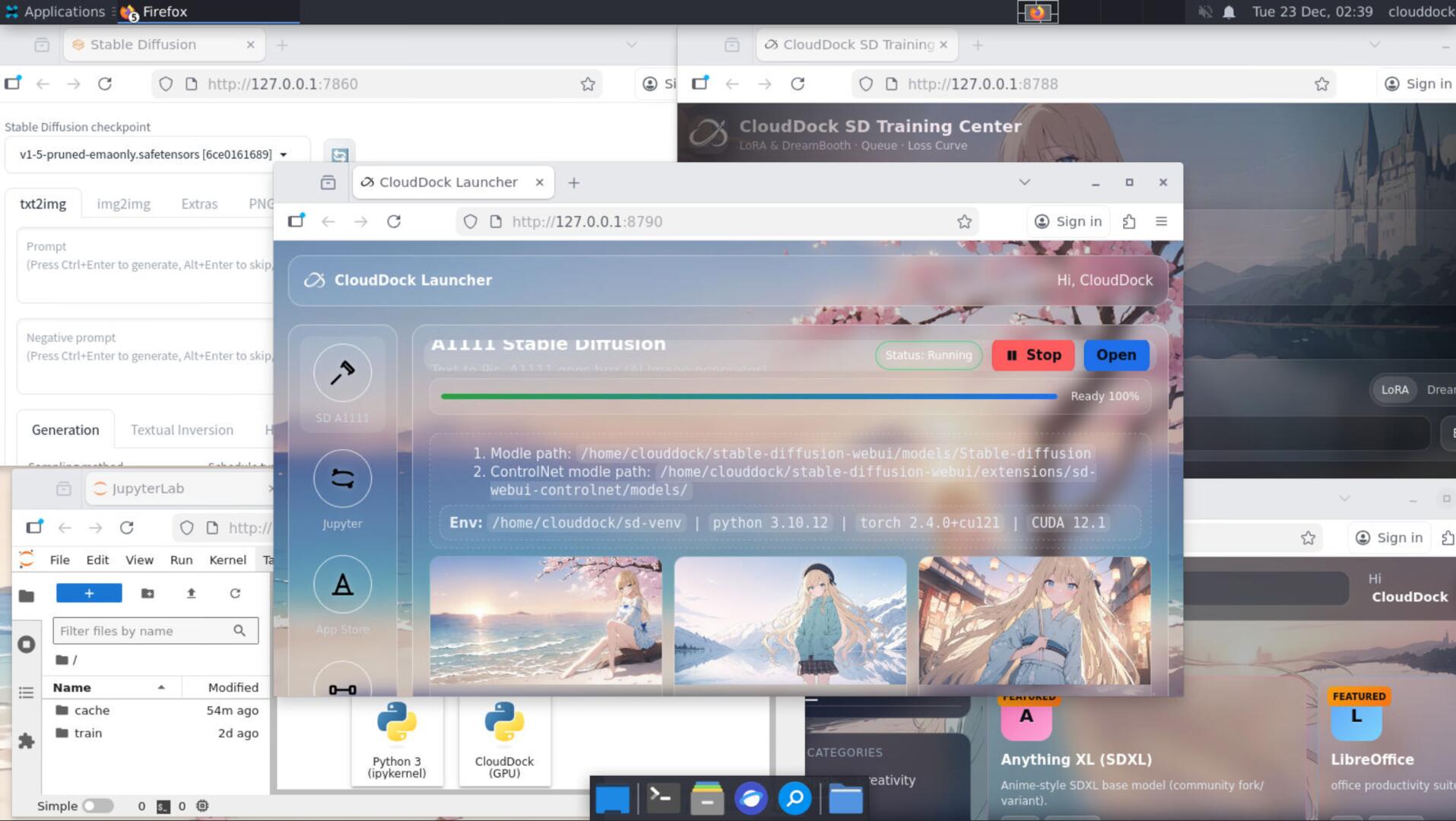
When Launcher + App Store are working together, the SD experience becomes:
- Open a machine → land in Launcher.
- Click SD → generate and iterate.
- Need a tool? Click App Store → install with visible progress.
- Need training? Click Training Center → run a guided workflow.
- Need serious compute? Click DeepSpeed Console (when available in your container).
FAQ
“Can I still access ports directly if I want?”
Power users can do power-user things — but CloudDock is designed so you don’t have to. The Launcher is the default because it’s consistent and hard to mess up.
“Why does ‘survives refresh’ matter so much?”
Because in most web UIs, refreshing mid-install turns the process into a mystery. App Store 3.0 keeps state so you don’t waste time repeating installs or guessing outcomes.
“What does hash-verified models mean?”
It means the model you download is exactly the model intended — not an altered file with the same name. Verifying hashes reduces broken installs and eliminates “mystery checkpoints.”
What’s next?
-
Universal Usagi: the full SD workspace designed to avoid terminal dependency.
Go to “Universal Usagi →” -
Universal Usagi & Momonga: two faces, one brain — beta lane vs stable lane.
Go to “Usagi & Momonga →” -
Choosing Your Machine: pick A/B/C/D based on VRAM and workflow.
Go to “Choosing Your Machine →”