
The rule (read this first)
CloudDock containers are temporary workspaces. They are designed to be disposable: fast to start, clean to use, easy to destroy.
What you should always save
- Outputs (final images, previews, grids, samples)
- Generation metadata (A1111 PNG info / prompts)
- Models you trained (LoRA / DreamBooth outputs)
A1111: export images the simple way
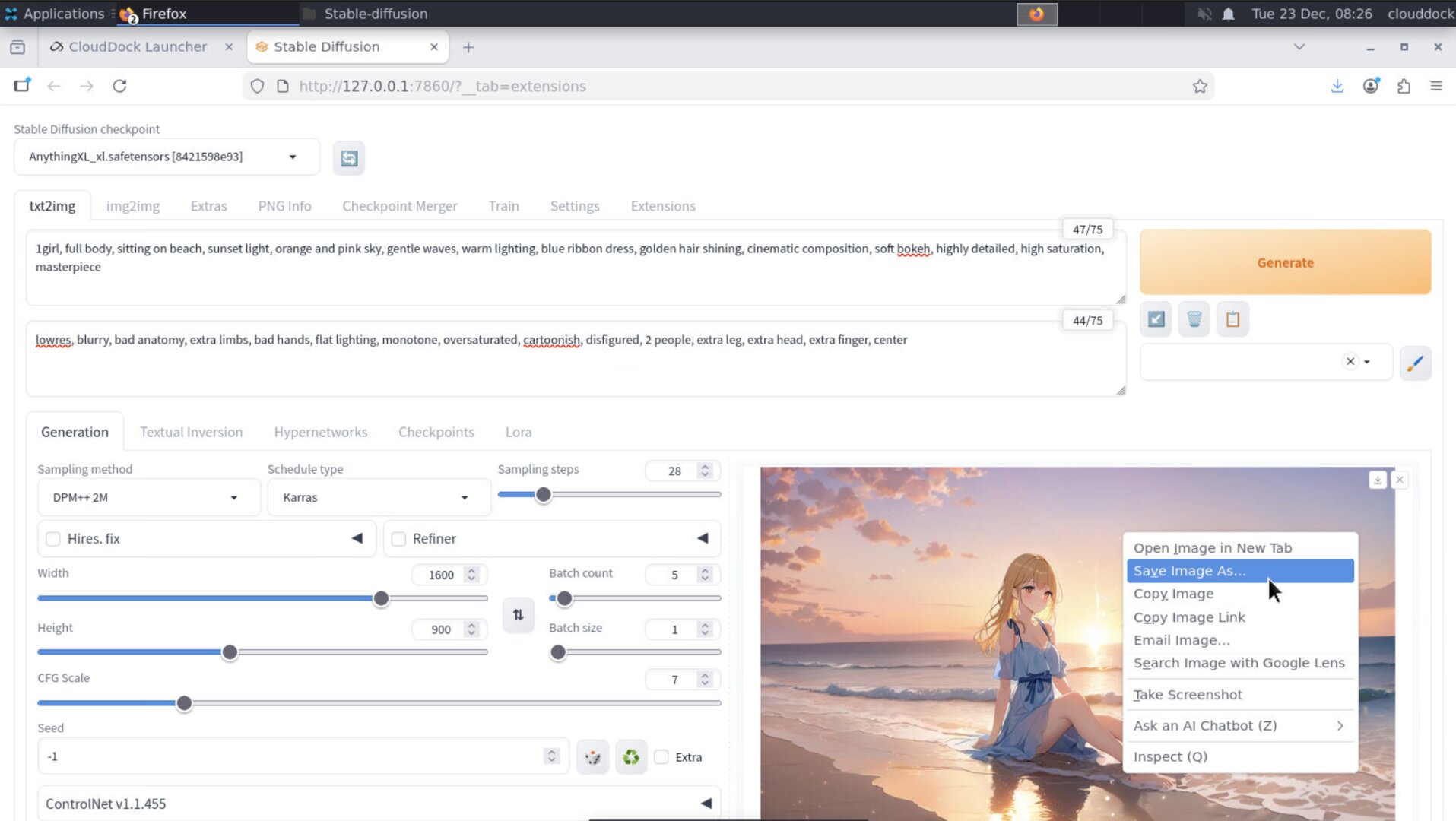
A1111 outputs are easy to keep: right-click → Save image as… and put it wherever you want.
- Save to your computer
- Save directly into a synced folder (Google Drive / Dropbox desktop folder)
- Or upload to your cloud drive from the built-in browser
Jupyter: default workspace path
In CloudDock containers, the default working directory is:
/workspace
If you’re using notebooks, scripts, or file-based workflows, keep your project files under
/workspace and export them when done.
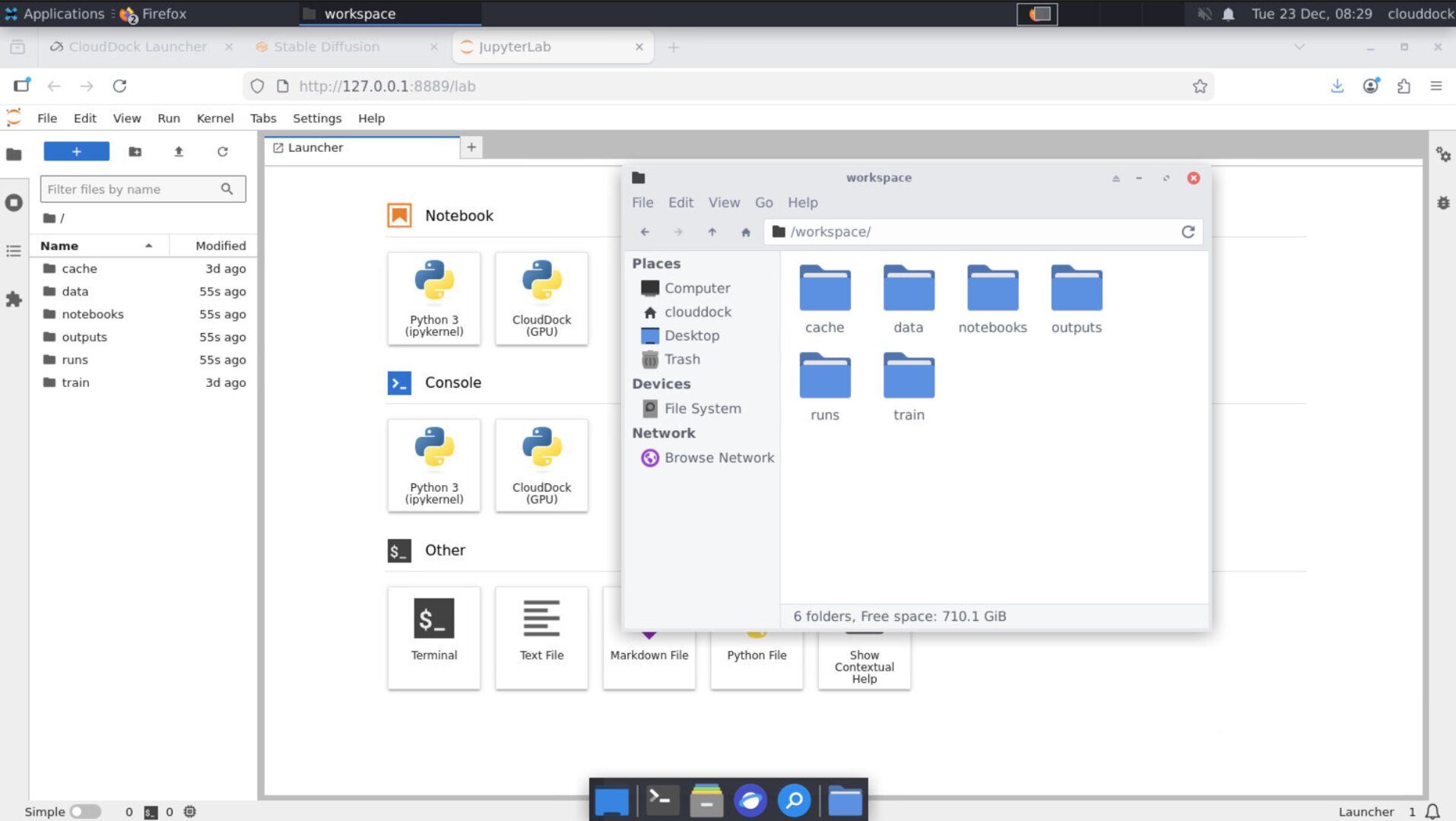
/workspace. Keep important files organized there.SD Training Center: where outputs
CloudDock SD Training Center saves outputs to:
/workspace/train/outputThis folder typically contains:
- Trained artifacts (LoRA / checkpoints, depending on the job)
- Logs / progress records (if enabled by the job)
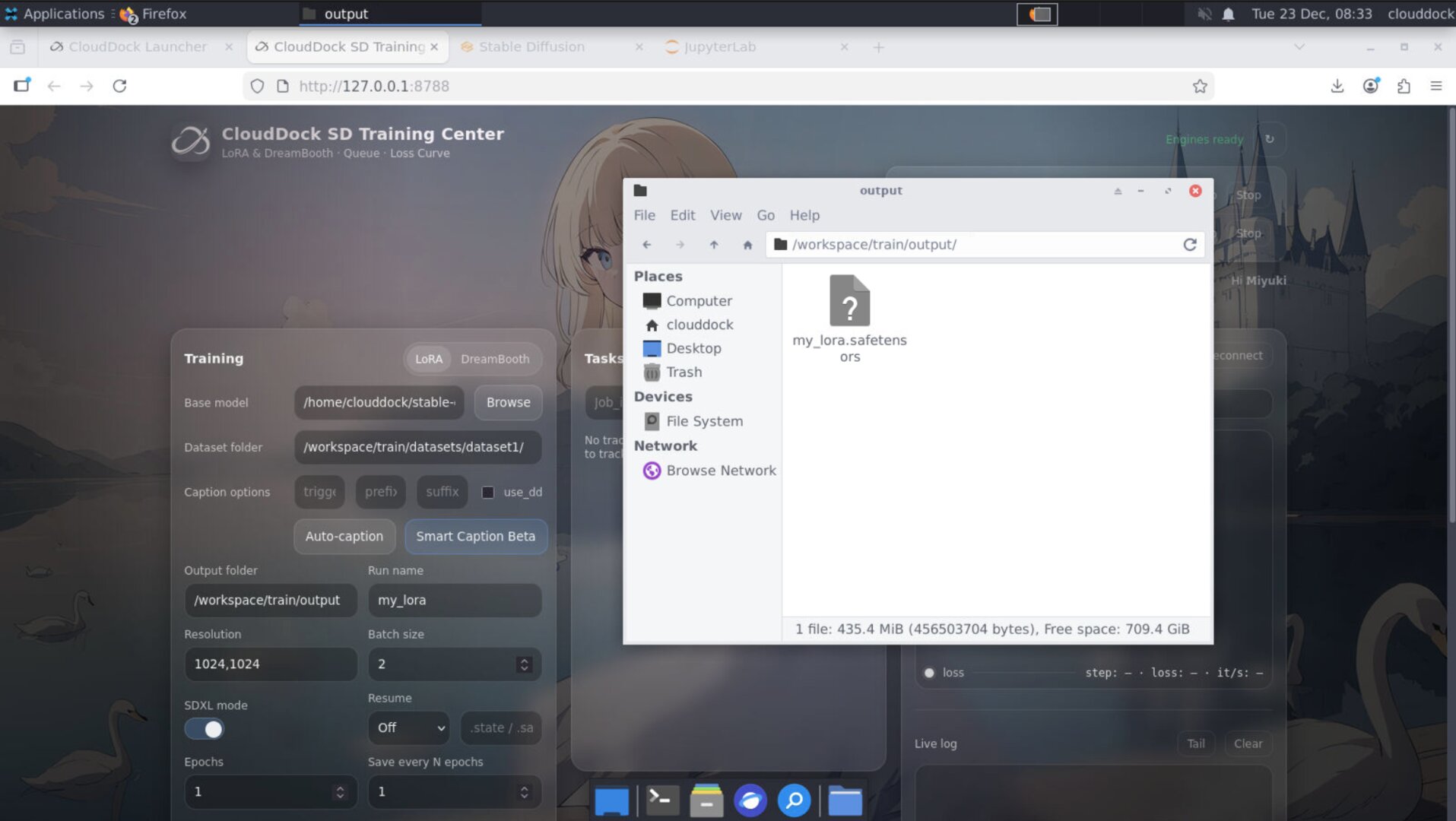
/workspace/train/output — export this folder to your drive.Upload to any cloud drive you like
Once your files are in your workspace (or downloaded to your computer), upload them to whatever storage you trust:
- Google Drive
- Dropbox
- OneDrive
- S3-compatible storage
- Your own NAS / server
Backup frequency: every 24 hours (minimum)
No matter what workflow you run, you should back up at least once every 24 hours. Containers are temporary by design — and “I’ll do it later” is how people lose data.
Time management: check remaining time and extend early
Backups take time — especially large training outputs. You should regularly go back to the Dashboard to check remaining time.
If you’re getting close to the end, extend the session before you start a big export.
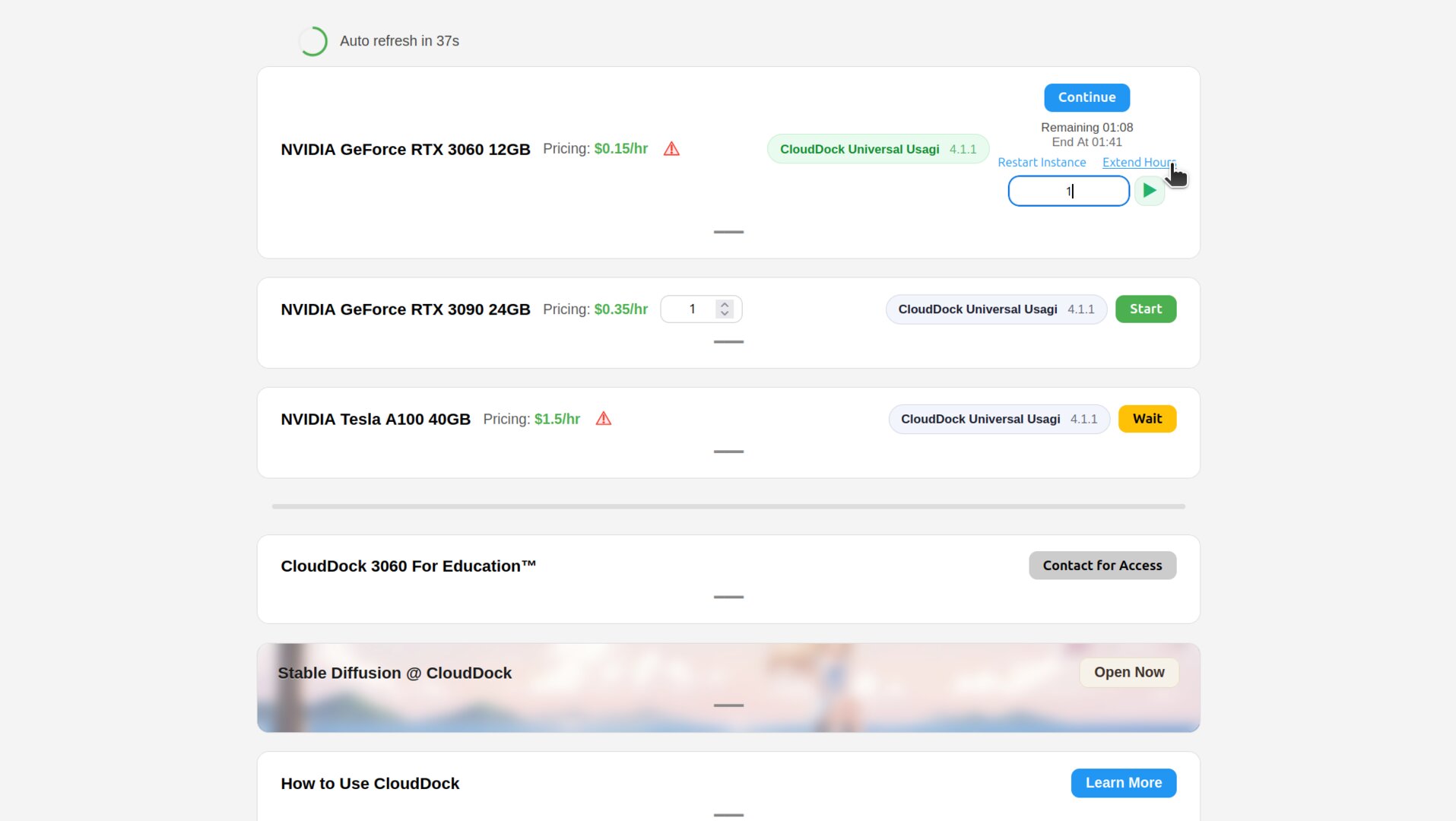
How to extend hours
- Go back to the CloudDock Dashboard.
- Find Extend hours (or your time extension control).
- Enter the number of hours to add.
- Click the small triangle / confirm control to apply.
FAQ
“Why are containers temporary?”
Disposable containers keep the environment clean, consistent, and reproducible. It prevents “state rot” — the slow accumulation of broken installs and untraceable changes.
“Can support restore my files if I forgot to export?”
No. If the container is destroyed, the data is gone. There is nothing support can pull back. Please export regularly.
“What’s the minimum backup set?”
Your final outputs.
If you have time, back up the full output folder under /workspace/train/output.
What’s next?
-
Switch between SD · Jupyter · DeepSpeed: powered doors, not SSH.
Go to “Switch Containers →” -
Launcher · App Store: why they exist and what they do for you.
Go to “Launcher · App Store →” -
Universal Usagi: the full SD workspace.
Go to “Universal Usagi →”