
Why hires “melts” on small VRAM
On smaller GPUs, the usual hires approach (jumping straight to 2×, high denoise, heavy upscalers) often turns clean lines into mush:
- faces become over-smoothed
- hair becomes a painted blob
- hands get re-rolled into new anatomy
- and you hit VRAM limits faster than you think
The fix is not “more power.” The fix is a ladder: smaller steps, less noise, and a final repair pass that preserves the original composition.
The two-stage ladder recipe
The workflow is:
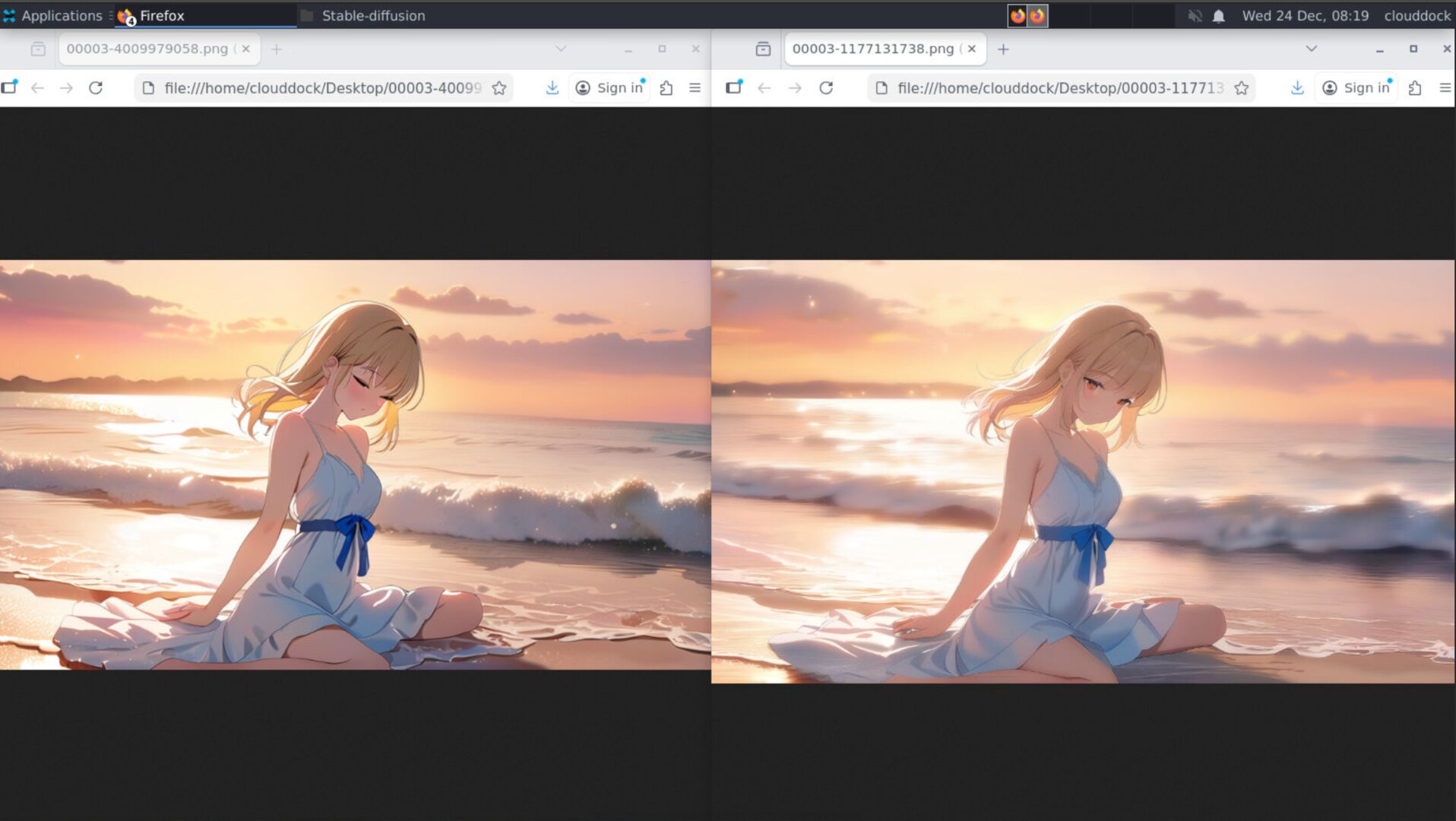
- Stage 1: 1.3× hires (detail lift)
- Stage 2: low-noise img2img repair (anti-mush polish)
Stage 0: Start with a sane base size
If your base image is already huge, hires won’t save you — it’ll just amplify problems. For A-group (smaller VRAM), start here:
- Portrait / half-body:
512×768,576×832,640×896 - Full body:
512×896or576×1024(tall canvas) - Don’t start at 2K. That’s how you summon OOM.
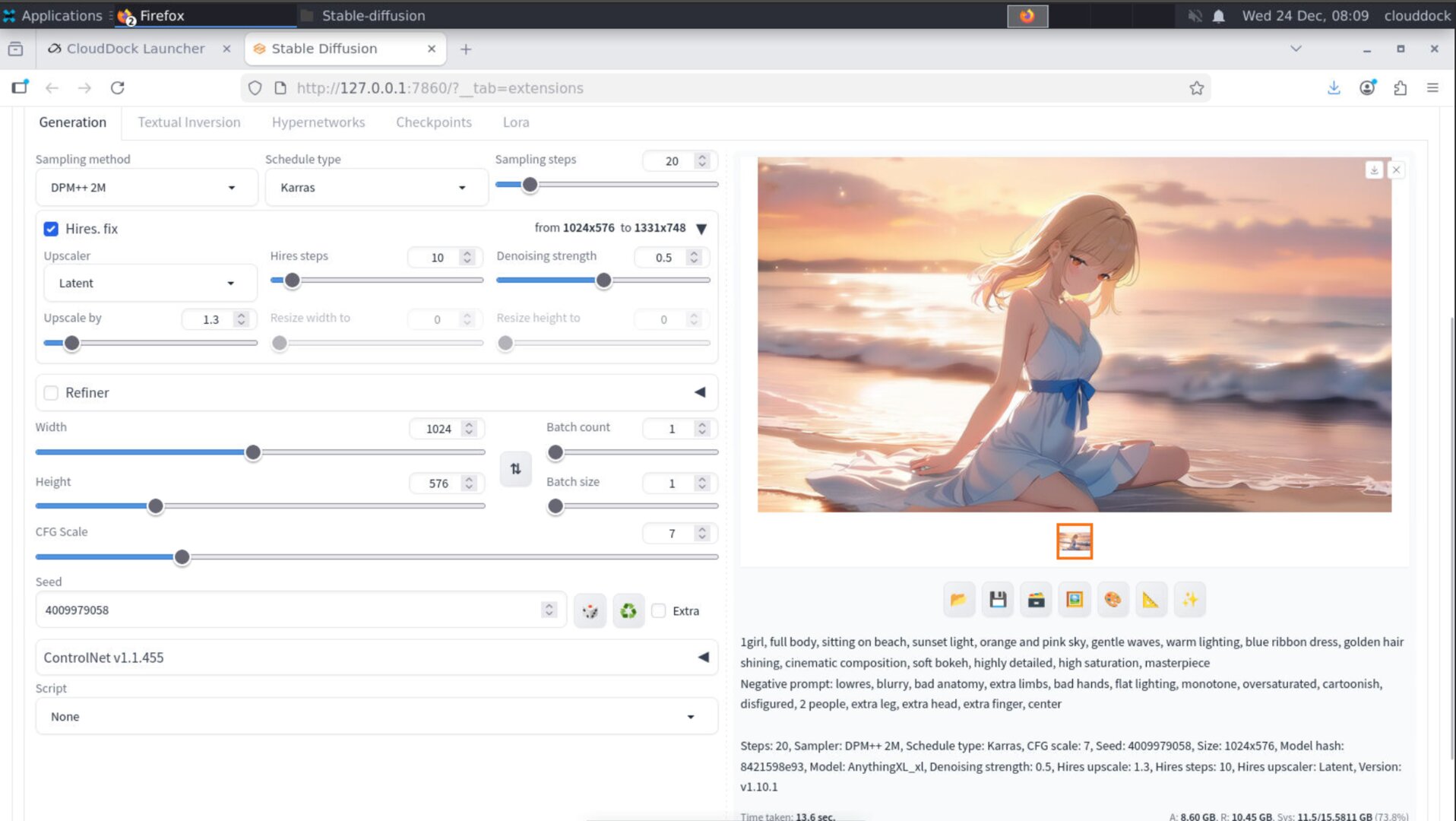
Stage 1: 1.3× hires (detail lift)
This stage is not meant to “change the image.” It’s meant to gently add micro-detail without breaking identity.
Recommended settings (A-group friendly)
- Hires scale:
1.3 - Hires steps:
8–12(keep it light) - Denoising strength:
0.4-0.6 - Upscaler: pick a stable one you trust (don’t chase exotic)
- Batch size:
1for A-group (this alone avoids many OOMs)
Stage 2: low-noise repair (anti-mush polish)
After stage 1, the image is sharper — but you may still see: soft faces, slightly washed textures, or “AI plastic” areas.
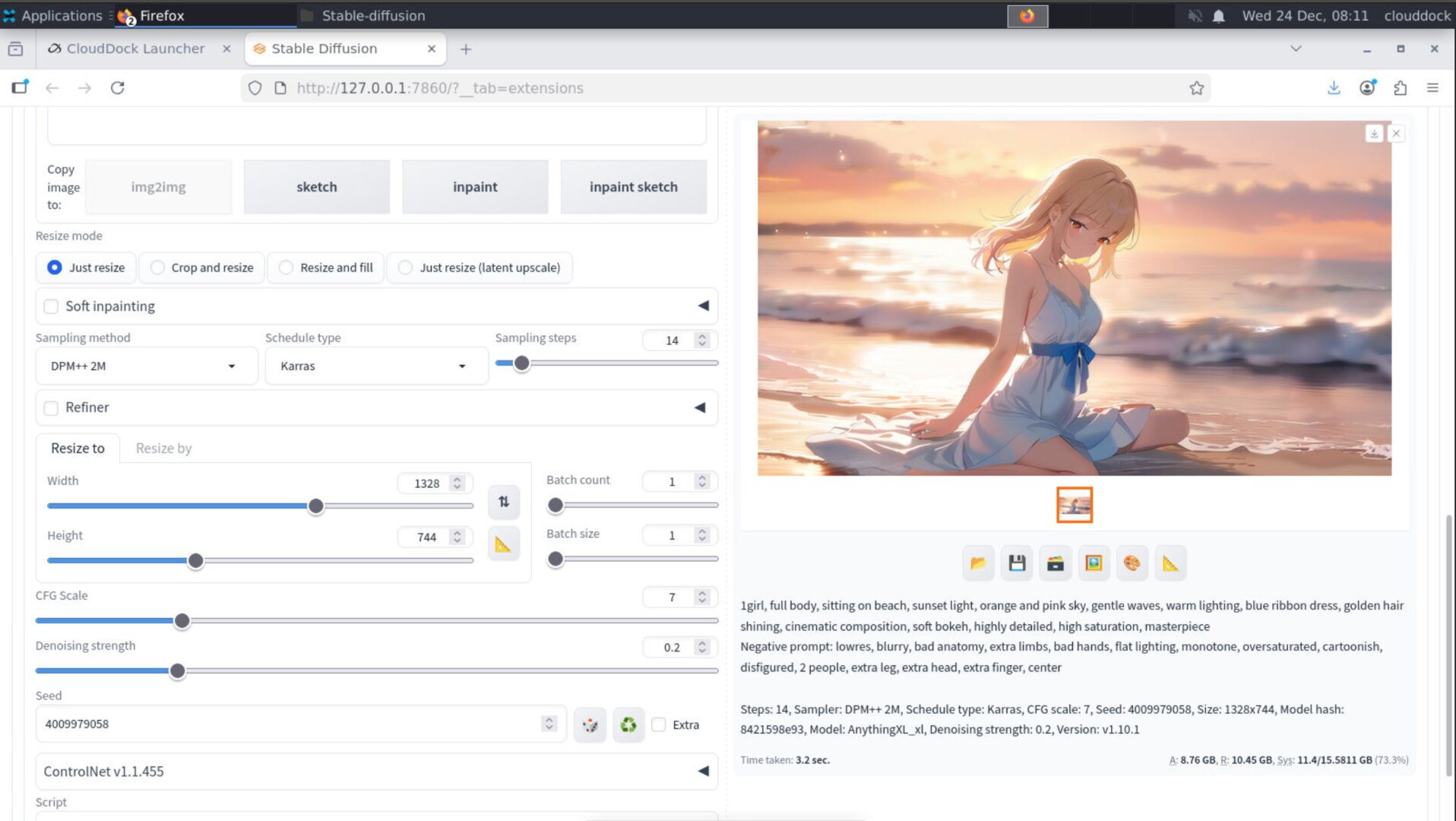
Stage 2 is a gentle repair pass using img2img: we keep noise low so the model “repairs” instead of “reinvents.”
Recommended settings
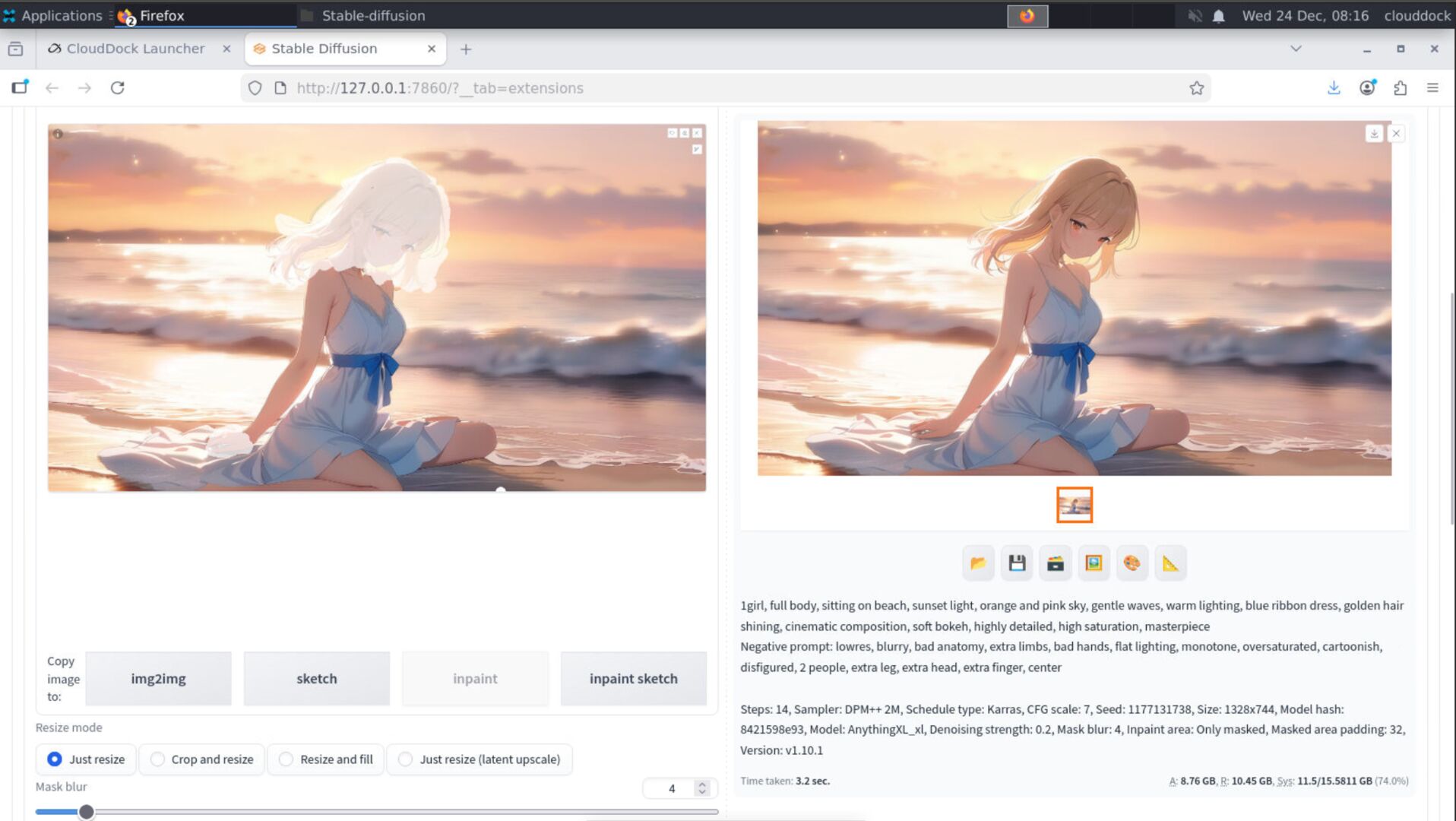
- Mode: img2img (or inpaint if only a region needs fixing)
- Denoising strength:
0.18–0.32 - Steps:
10–16 - Prompt: keep it close to the image (don’t add new concepts here)
- Negative: add anti-mush hints:
blurry, oversmooth, plastic skin
Targeted repair (best for small VRAM)
If VRAM is tight, don’t repair the whole image. Use Inpaint to fix only what matters:
- face / eyes
- hands
- hairline details
- text/logo regions

VRAM “danger” checklist (A-group)
- Batch size: keep it at
1while using hires. - Too many ControlNets + hires: reduce CN count or lower resolution.
- High hires steps: don’t brute force — it spikes VRAM and time.
- 2× hires on small VRAM: expect OOM unless the base is small and settings are gentle.
Quick presets (copy & go)
Preset: A-group safe hires
- Base:
576×832 - Hires:
1.3×, Steps10, Denoise0.32 - Repair: img2img Denoise
0.25, Steps12(or inpaint face only)
Preset: mid VRAM (still clean)
- Base:
640×960 - Hires:
1.3×, Steps12, Denoise0.30 - Repair: img2img Denoise
0.22, Steps14
Troubleshooting
“Still mushy after hires.”
Lower denoise in Stage 1 (0.25–0.32) and do Stage 2 as an inpaint repair on face/hands.
“Hires changes the face too much.”
Your denoise is too high. Drop it below 0.35, and reduce hires steps to 8–10.
“Out of memory.”
Reduce base resolution first, set batch size to 1, and keep hires at 1.3×.
If you use multiple ControlNets, temporarily disable one.
What’s next?
-
ControlNet & Hires Fix: pose/hand/face control + clean hires workflow.
Go to “ControlNet & Hires Fix →” -
img2img Basics: repair passes, denoise logic, and inpainting.
Go to “img2img Basics →” -
Choosing Your Machine: pick A/B/C/D for your workflow.
Go to “Choosing Your Machine →”