
Overview
CloudDock Universal 4.1 Beta 6 is not just a small maintenance build. It brings early access modules from the upcoming CloudDock Universal 4.2 experience into the current Universal line.
This release introduces CloudDock Launcher 4.2 Beta, a redesigned multi-zone launcher with a new SVG-based system abstraction view, early task management features, richer hardware usage panels, and a more human-centered interaction model. CPU, memory, GPU, and storage are no longer just numbers on a panel — they now have live history charts, detailed views, and quick access to the processes or paths that are actually consuming resources.
Universal 4.1 Beta 6 also updates CloudDock SD Training Center, improves CloudDock App Store progress and task handling, fixes multiple Training Center chart and history issues, and includes security updates for CloudDock Intelligent Dog.
What’s new in 4.1 Beta 6
- CloudDock Launcher 4.2 Beta: early access to the next-generation launcher layout, multi-zone structure, SVG system view, and improved interaction design.
- Hardware history charts: CPU, memory, GPU, and storage panels now show recent utilization history for the last 30 seconds.
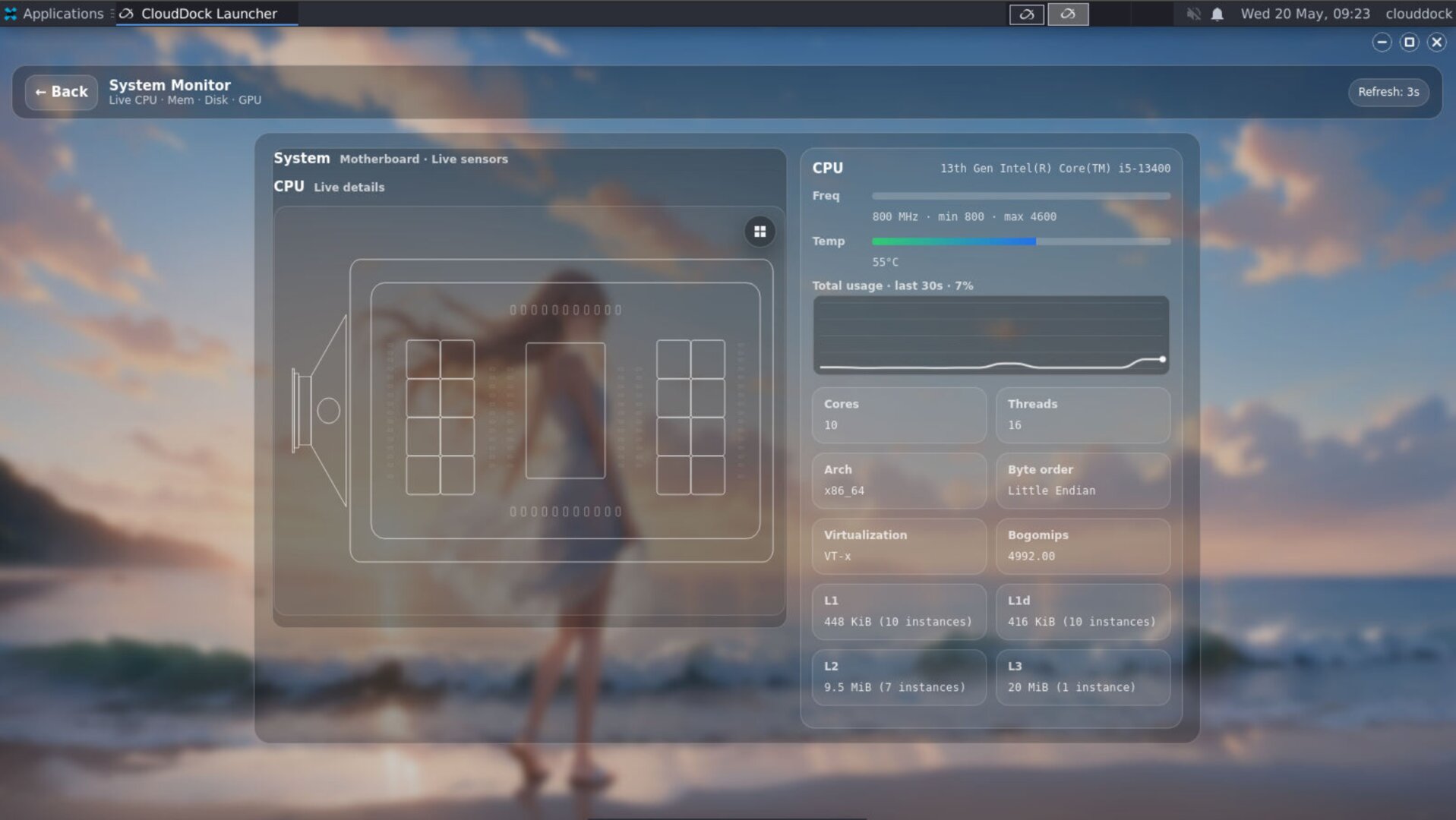
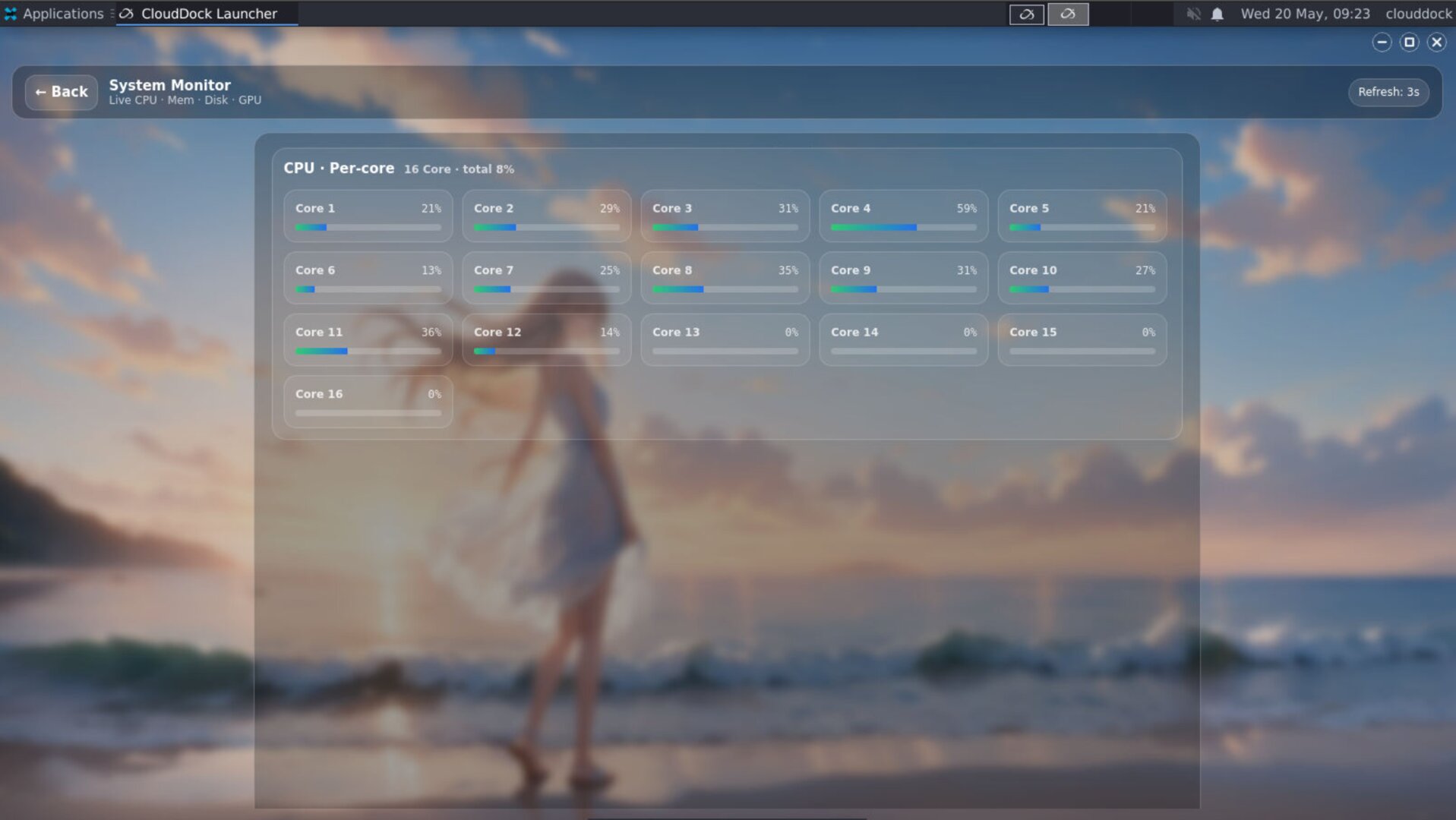
- CPU detail view: clicking the CPU area opens a detailed CPU panel; the hidden menu in the SVG corner can show per-core utilization.
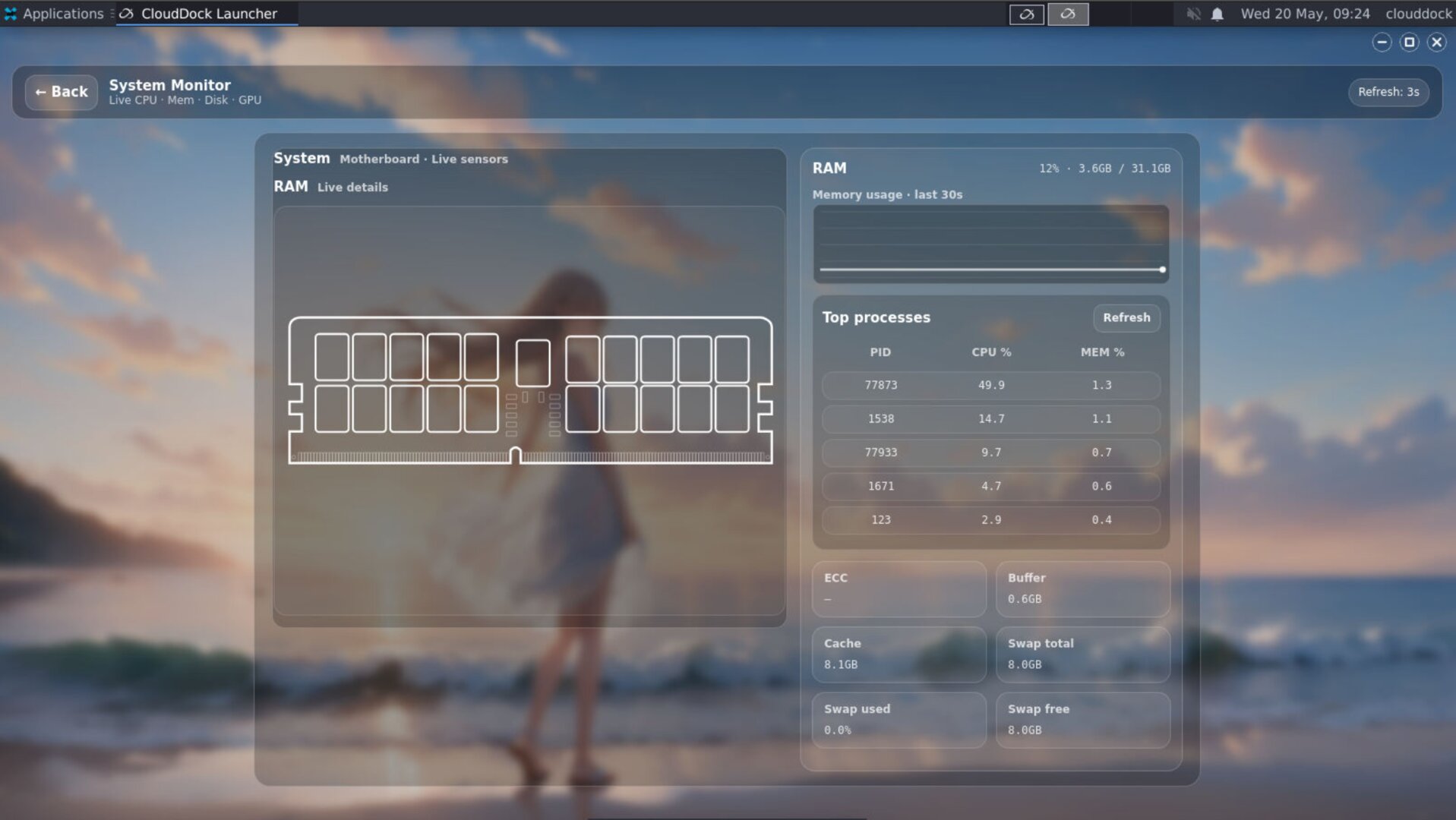
- Memory detail view: memory view now includes the top 5 memory-consuming processes, usage charts, and additional system memory parameters.
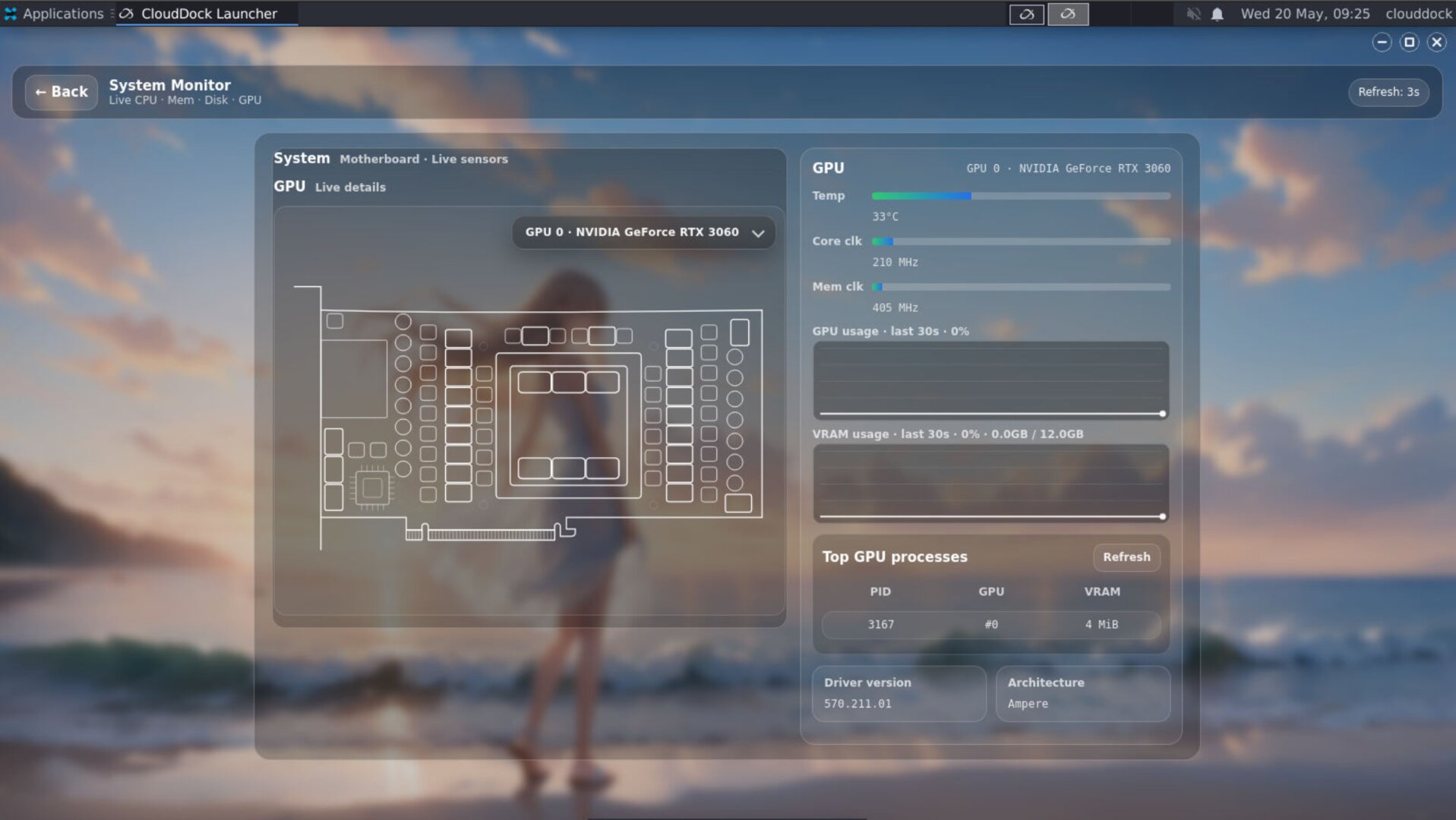
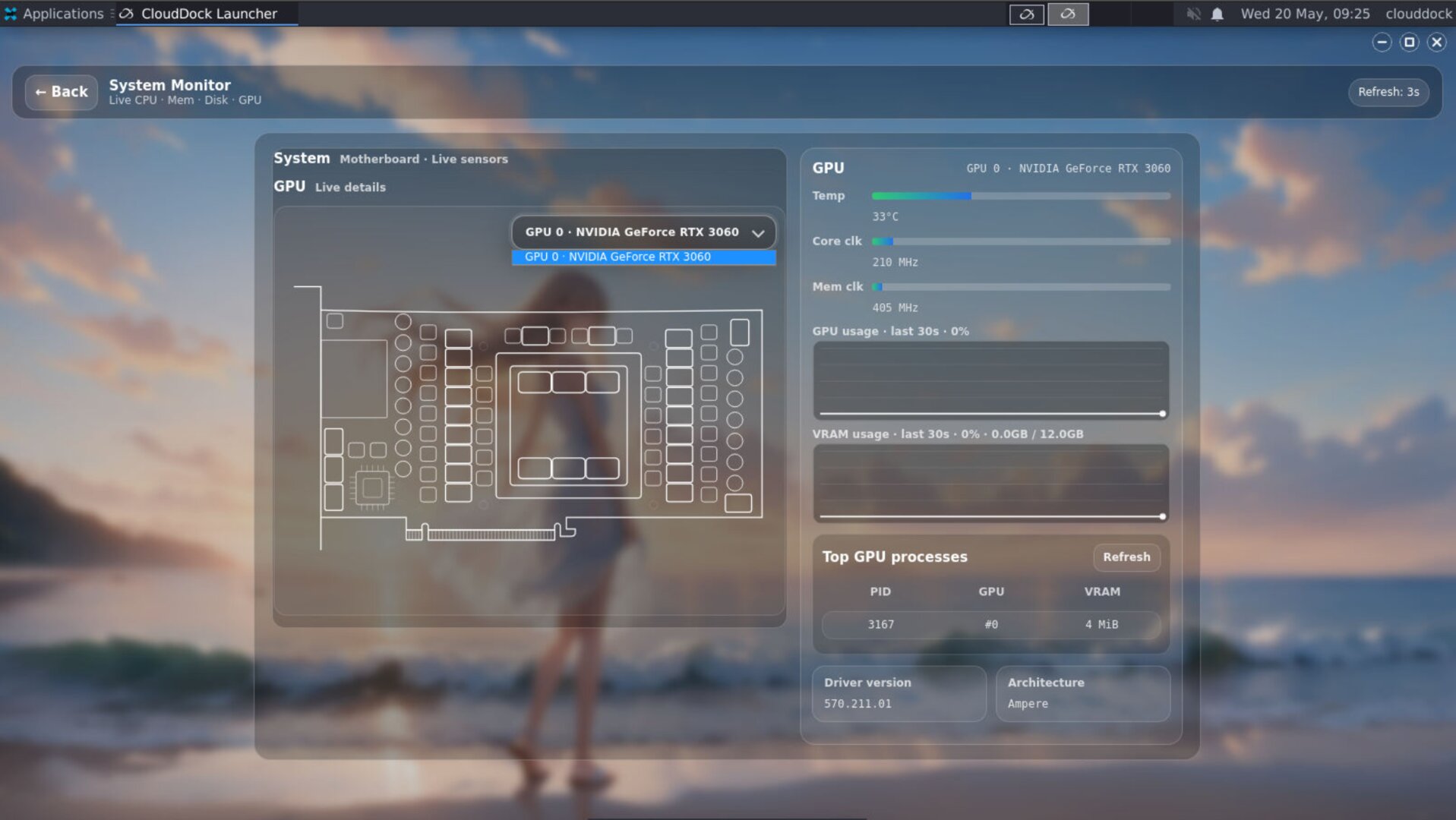
- GPU detail view: GPU panel now includes core usage, VRAM usage charts, multi-GPU switching for custom monthly users, and top VRAM-consuming processes.
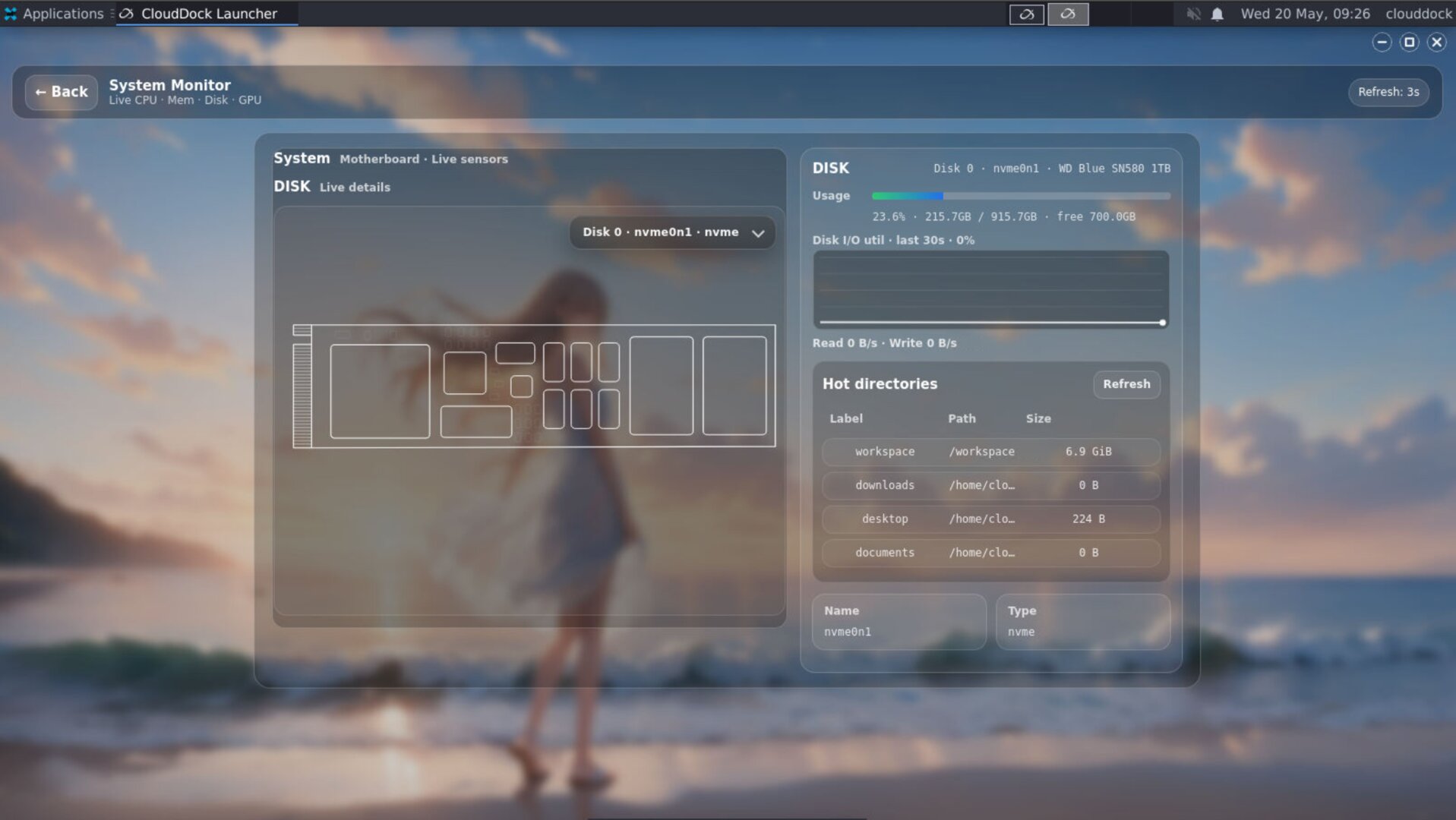
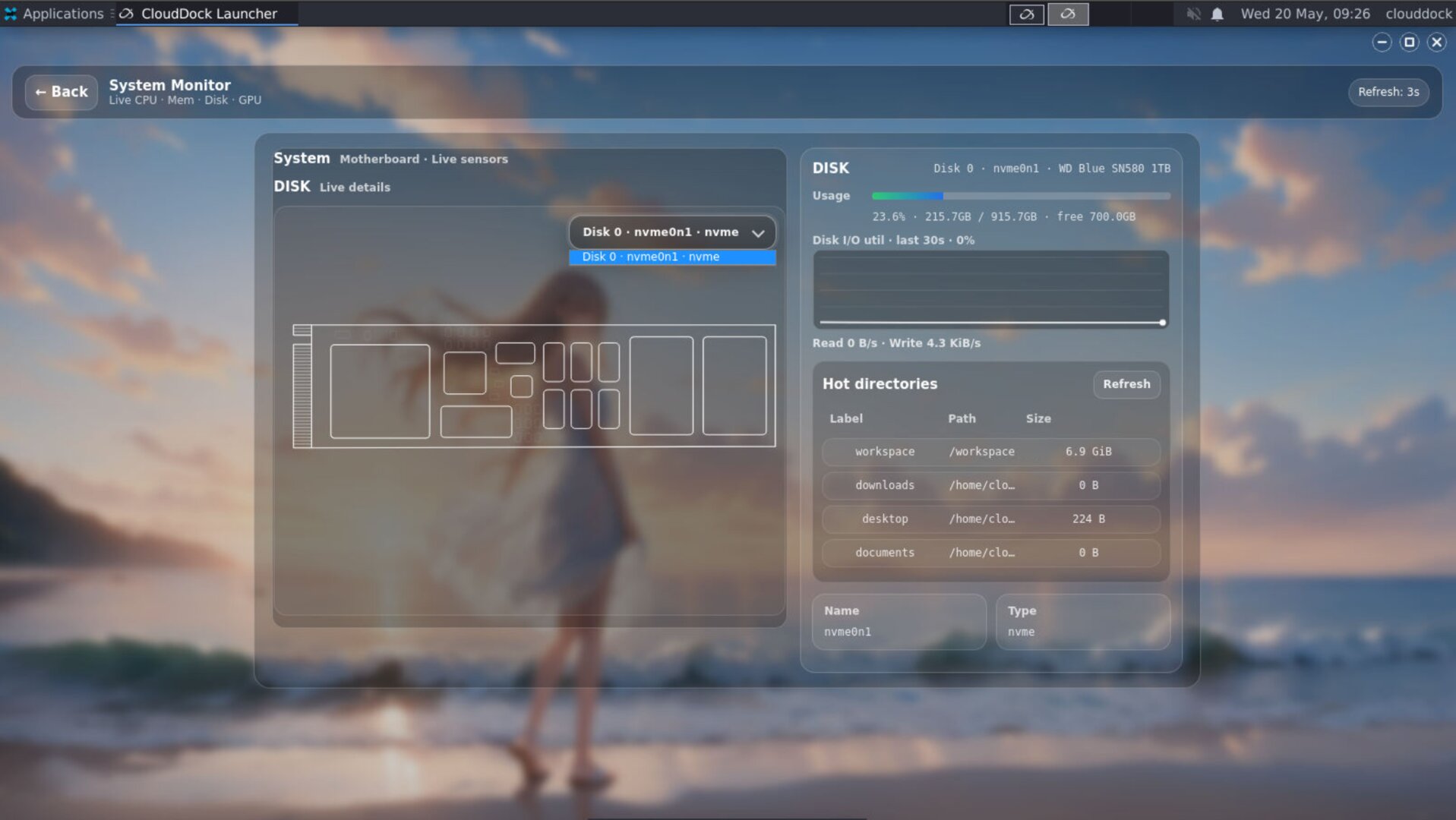
- PCH / Storage panel: storage view now shows disk data, I/O charts, usage bars, and hot path usage for key directories such as Workspace, Downloads, Desktop, and Documents.
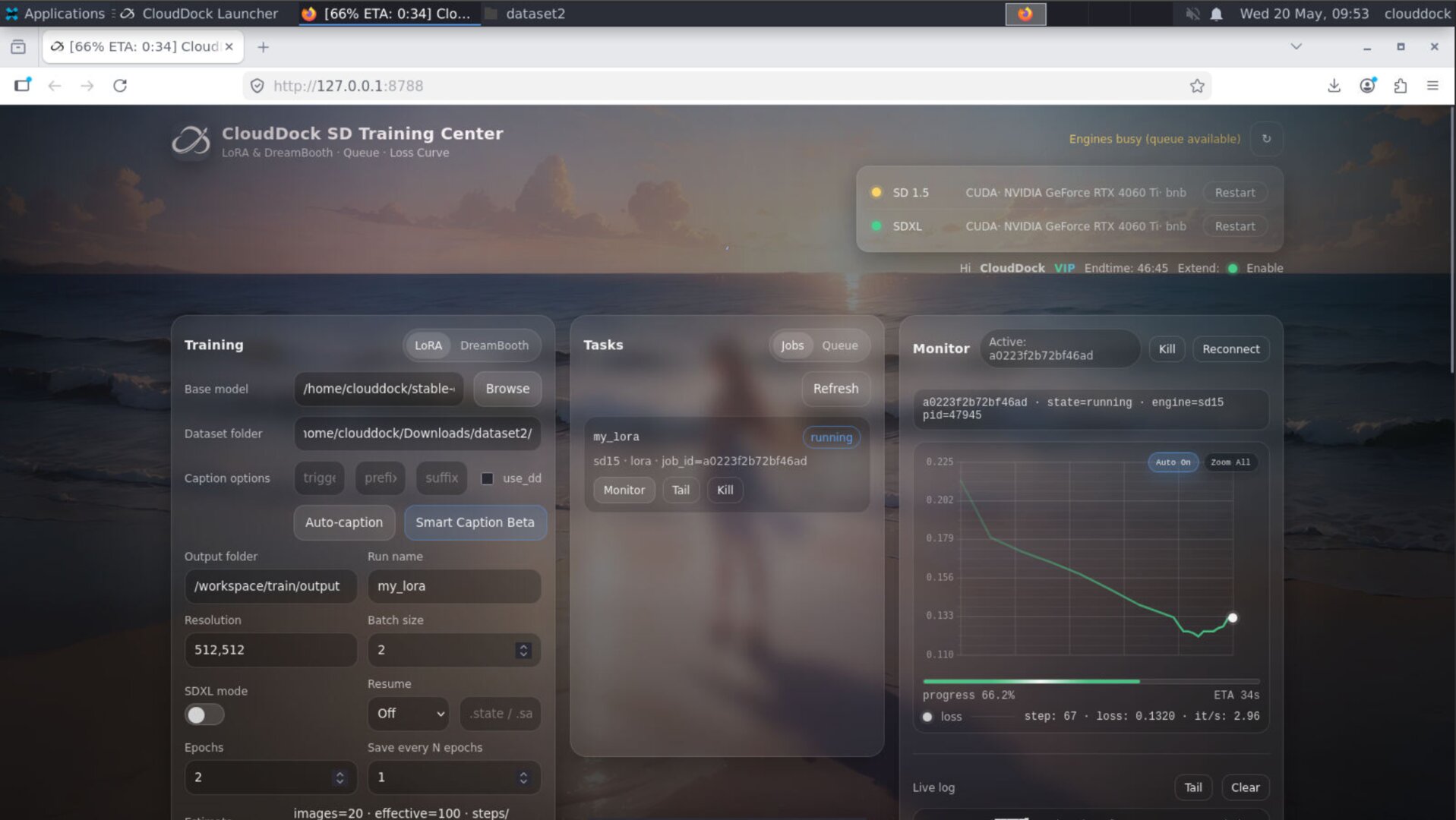
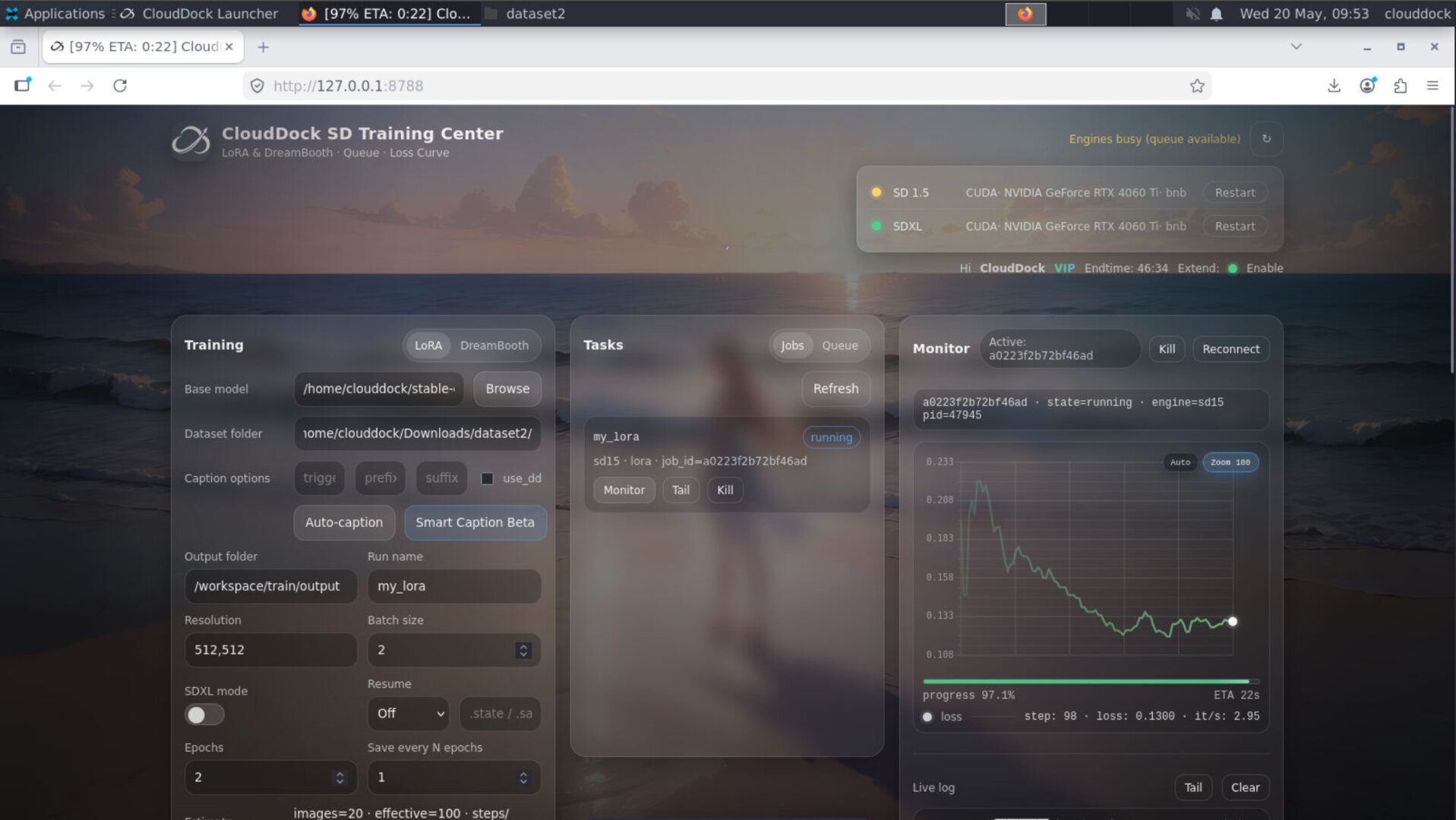
- Training Center fixes: improved error tips library, better Loss chart behavior, global / recent-100-step / Auto chart views, fixed spike display, fixed job switching history issues, and improved dataset path validation.
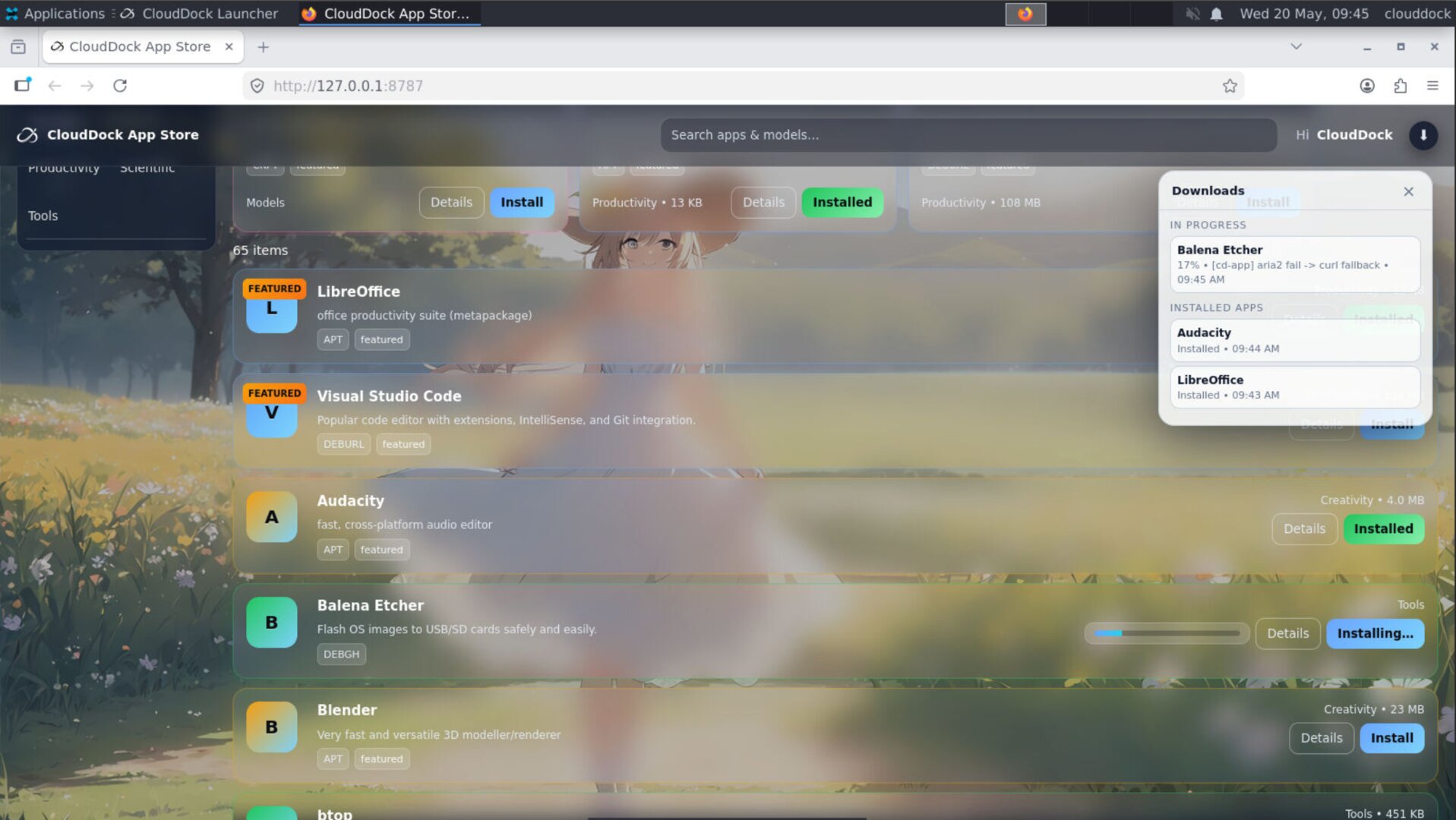
- App Store upgrades: optimized progress bars and task management, plus fixes for incorrect progress display.
- Security updates: CloudDock Intelligent Dog receives internal safety and behavior-monitoring updates.
CloudDock Launcher 4.2 Beta
Launcher 4.2 Beta is the main preview module included in Universal 4.1 Beta 6. The launcher interface has been reorganized around a multi-zone design so users can understand system state, running tasks, and hardware pressure without digging through terminals or separate tools.
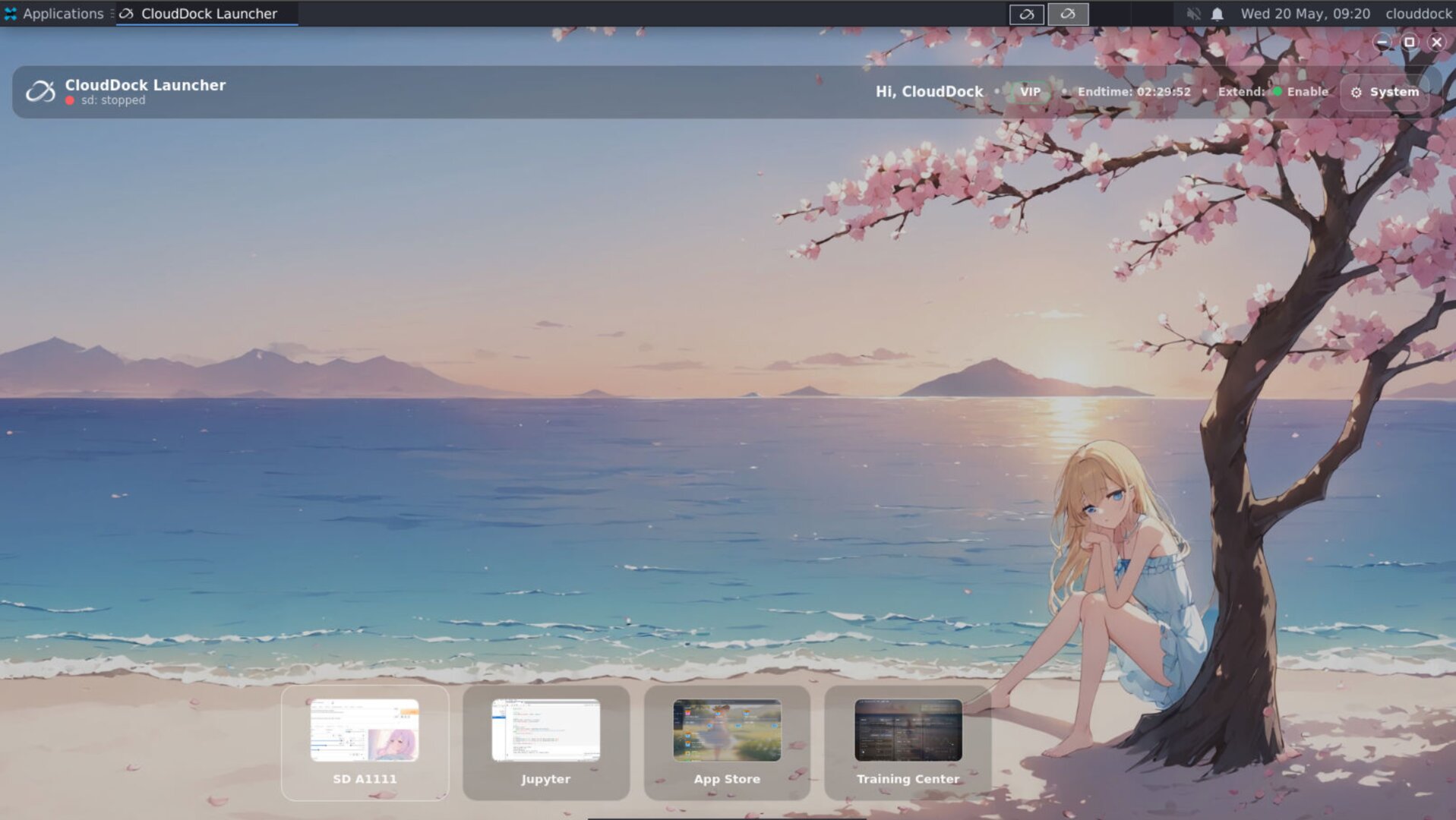
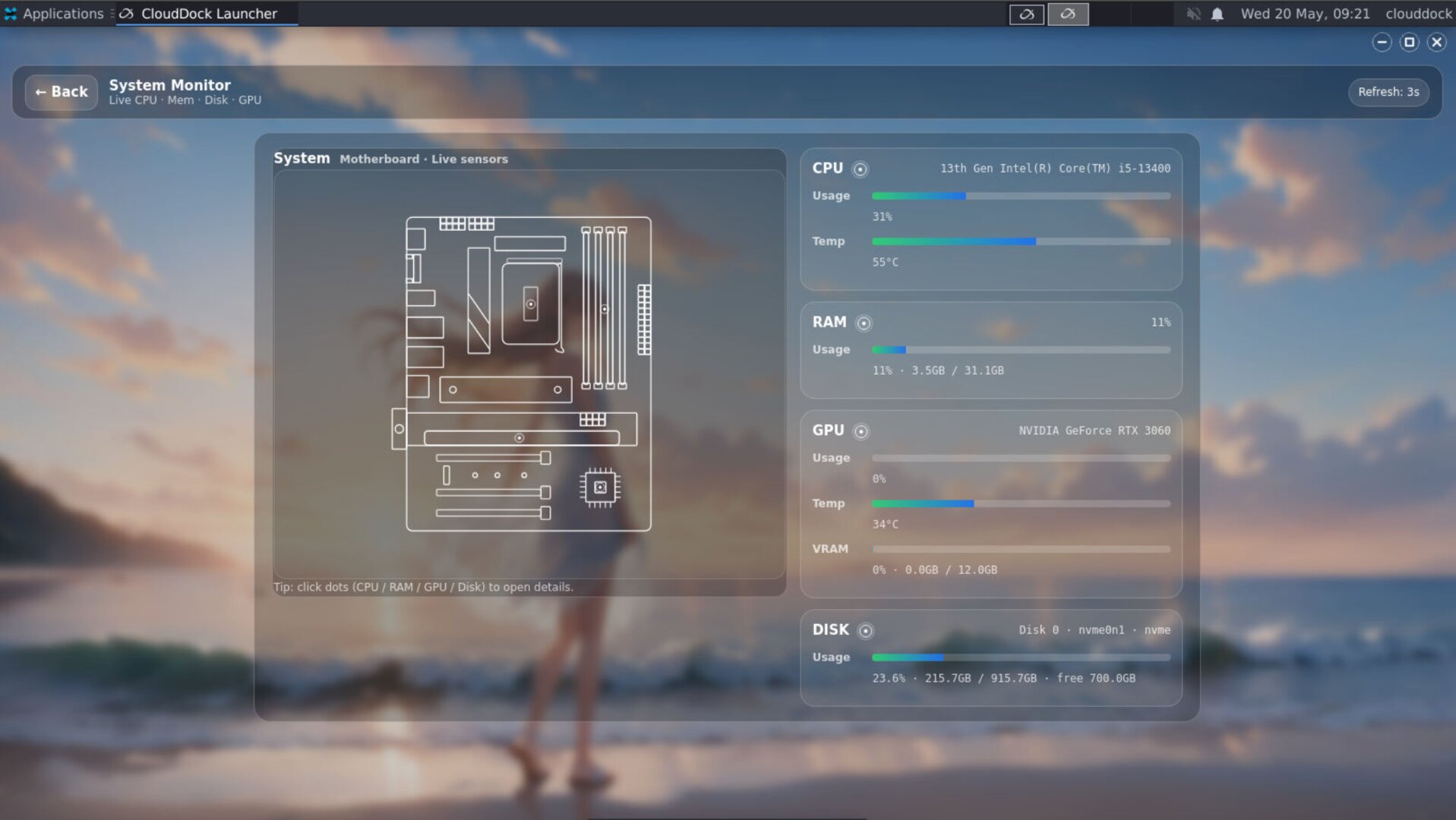
The new launcher design focuses on three goals:
- More visible: important information is shown directly in the launcher instead of hidden in logs or terminal commands.
- More interactive: users can click hardware regions to inspect deeper details.
- More readable: charts, SVG structure, and grouped sections make the system easier to understand at a glance.
Task Manager Beta
Universal 4.1 Beta 6 also includes an early Task Manager Beta inside Launcher 4.2. This module is designed to give users a clearer view of active jobs, background tasks, and app operations without forcing them to guess whether the container is idle, loading, or busy.
Task Manager Beta is still an early module, but it lays the foundation for future Universal 4.2 task visibility and control.
Last-30-second hardware history
Every major hardware section now includes a recent utilization chart covering the last 30 seconds. This makes short spikes, sudden memory pressure, VRAM jumps, and storage bursts much easier to see.
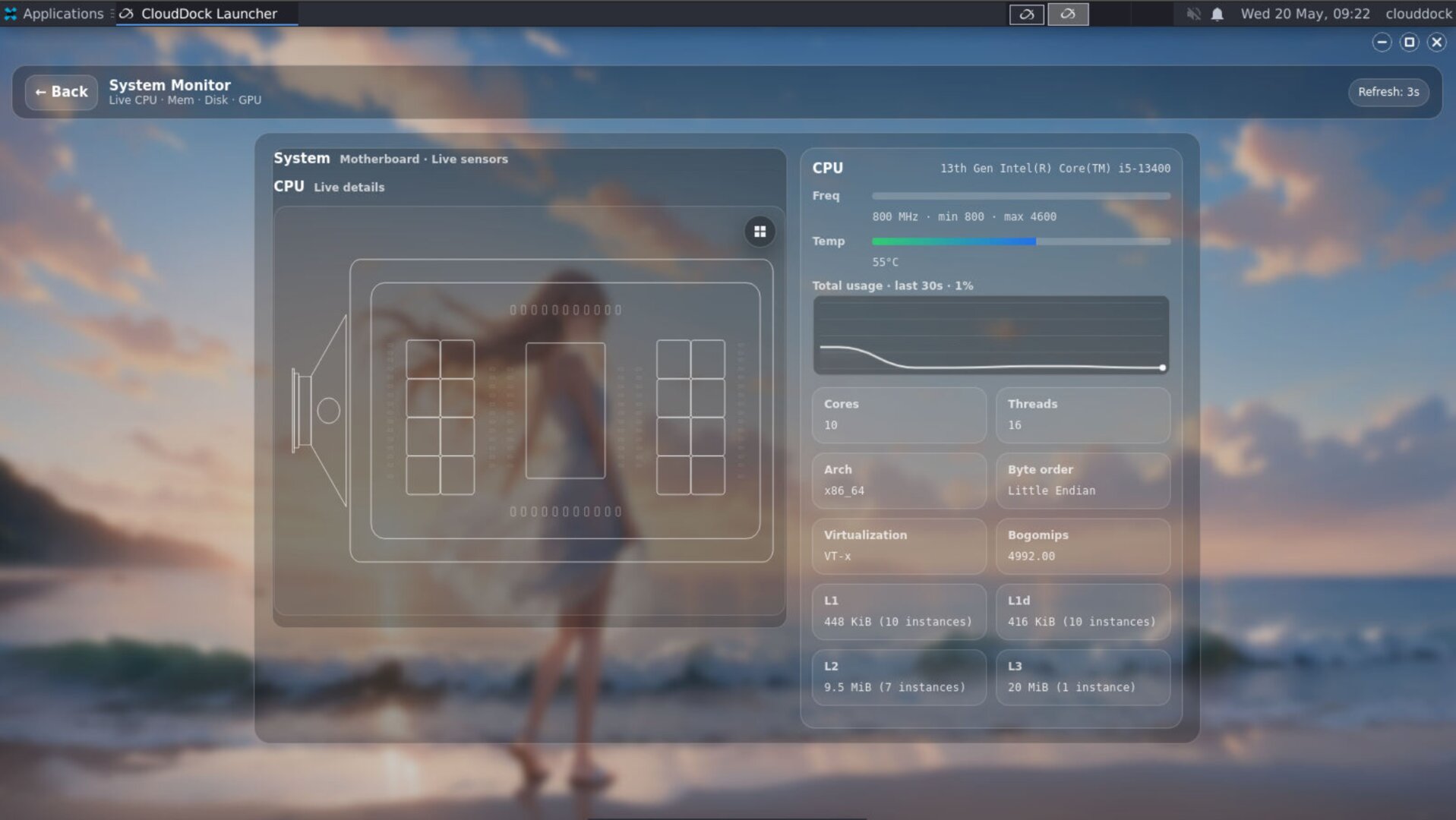
This is especially useful for AI workloads where resource pressure can appear in bursts: model loading, dataset scanning, training steps, App Store installs, or browser-based inference jobs.
CPU panel — detailed CPU view and per-core usage
The CPU area is now interactive. Clicking the CPU section opens a more detailed view with CPU parameters and live usage information.
- CPU utilization chart: shows recent CPU usage trends instead of only a single instant value.
- Detailed CPU information: exposes additional CPU status and operating parameters in a cleaner layout.
- Per-core usage: the hidden menu in the upper-right corner of the SVG system view can display individual core utilization.
Memory panel — top processes and usage charts
The memory area now provides more than a basic used/free number. Universal 4.1 Beta 6 adds process-level visibility and richer memory statistics to help users understand what is actually occupying RAM.
- Top 5 memory processes: quickly identify the largest RAM consumers.
- Memory usage chart: see whether memory pressure is stable, increasing, or spiking.
- Additional memory parameters: more system-level memory data is exposed in the detail view.
GPU panel — core, VRAM, multi-GPU switching
The GPU view receives one of the most important upgrades in 4.1 Beta 6. GPU load and VRAM usage are now separated into clearer charts, making it easier to tell whether a workload is compute-bound, memory-bound, or simply waiting.
- GPU core usage chart: shows recent GPU compute utilization.
- VRAM usage chart: tracks recent video memory pressure.
- Top 5 VRAM processes: displays the processes consuming the most GPU memory.
- Multi-GPU switching: custom monthly users with multiple GPUs can switch between GPU views from the panel.
PCH / Storage panel — disk, I/O, and hot paths
The PCH / Storage section has been expanded into a practical storage diagnosis panel. Instead of only showing disk usage, the new view gives users a better idea of where space is going and whether the disk is currently under I/O pressure.
- Disk data: shows storage information for the active disk or selected mounted storage area.
- I/O chart: displays recent disk activity so users can tell when the system is actively reading or writing.
- Usage bars: provide a quick visual summary of occupied and available space.
- Hot path usage: highlights major user-facing directories such as
/workspace, Downloads, Desktop, and Documents. - Multi-disk switching: monthly users with multiple rented disks can switch between disk views.
CloudDock SD Training Center updates
Universal 4.1 Beta 6 also updates CloudDock SD Training Center with a stronger error tips library, improved Loss chart display, better job switching behavior, and dataset path validation fixes.
Expanded error tips library
The Training Center error tips library now includes additional known errors. When a run fails, users have a better chance of seeing a useful explanation instead of a raw backend failure with no context.
Loss chart upgrades
The Loss chart receives several visual and functional upgrades in this release:
- Global view: shows the full Loss curve across the whole job.
- Recent 100 steps view: focuses on the latest 100 steps for short-term trend analysis.
- Auto mode: automatically switches views every 30 seconds.
- Spike display fix: fixes abnormal sharp spike rendering behavior in the Loss curve.
- Y-axis labels: adds Y-axis ticks and numeric labels so the chart is easier to read.
Job switching and history fixes
4.1 Beta 6 fixes an issue where switching between jobs could cause abnormal historical data reads. Training Center now handles job history more reliably when users move between different training runs.
Dataset path permission fix
This release also fixes a dataset validation issue where certain directories could incorrectly show Permission Denied / ERR 13 and mark the dataset directory as invalid. Dataset directory validation is now more tolerant and more accurate across supported workspace paths.
CloudDock App Store updates
The App Store receives progress and task management improvements in Universal 4.1 Beta 6. These updates focus on making install progress more accurate and task state easier to understand.
- Progress bar optimization: progress display is now more stable and better aligned with backend task state.
- Task management improvements: App Store jobs are handled more cleanly in the task layer.
- Progress display fix: fixes cases where the progress bar could display incorrectly during installs or updates.
CloudDock Intelligent Dog security updates
CloudDock Intelligent Dog receives security updates in this release. These updates continue to improve container safety, abnormal behavior handling, and internal protection logic while keeping the system focused on security signals rather than user privacy invasion.
As before, Intelligent Dog is designed for platform safety: process behavior, shell activity, privilege-sensitive actions, and abnormal container behavior. It is not a browsing-history collector.
Quick Checks
watch -n 1 nvidia-smidu -h --max-depth=1 /workspace 2>/dev/null | sort -hps aux --sort=-%mem | head -n 10ps aux --sort=-%cpu | head -n 10Troubleshooting
- Launcher hardware charts look empty: wait a few seconds after opening the Launcher. The charts need recent samples before the last-30-second view becomes meaningful.
- Per-core CPU menu is not visible: open the SVG system view and check the upper-right hidden menu area. This feature is part of Launcher 4.2 Beta and may be refined in later releases.
- GPU process list does not show expected apps: confirm the workload is actually using CUDA / VRAM. Some CPU-only tasks may appear active in the Launcher but not in the GPU process list.
- Storage usage looks too high: check Workspace, Downloads, Desktop, and Documents first. Model downloads and training outputs usually explain most sudden storage growth.
- Loss chart looks different after switching views: Global, Recent 100 Steps, and Auto mode intentionally show different ranges. Use Global for the full job and Recent 100 Steps for short-term behavior.
- Dataset path still fails: verify the dataset is inside a supported workspace directory and that the files are readable by the training service.
- App Store progress appears stuck: check whether the backend task is still running. If the install repeatedly fails, contact support with the app name, approximate time, and container version.