
Overview
Usagi 4.1 Beta 1 is a major upgrade to the CloudDock SD Training Center. The entire experience is redesigned around a real Job Queue with full job management, reliable history restore, and a brand-new loss curve view.
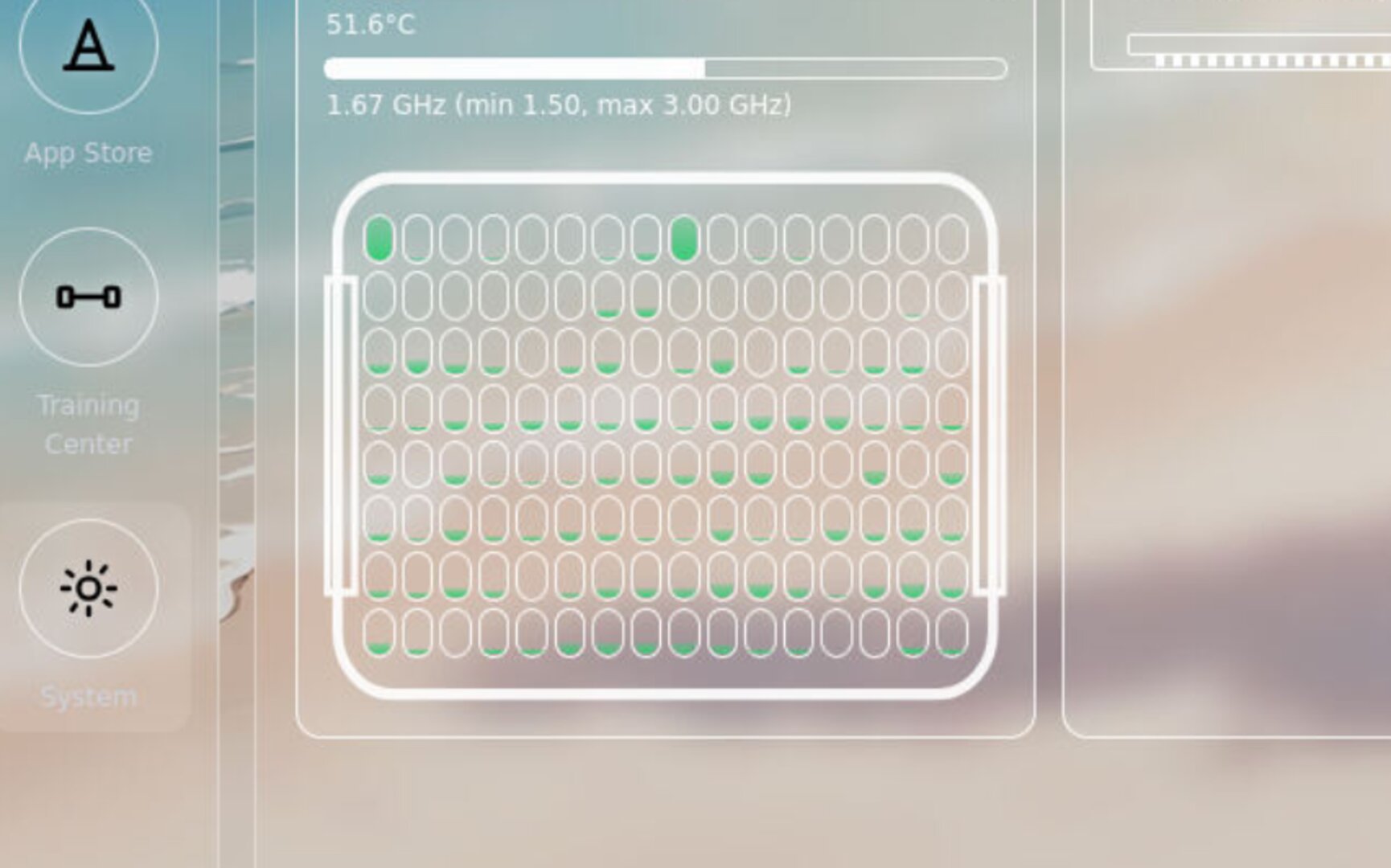
This release also tightens the platform around long-running workflows: App Store now supports rollback on install failure, queue management is smoother, and the Launcher/System panel is refined for high-core-count CPUs so monitoring stays readable even on big nodes.
Highlights
- SD Training Center — redesigned: new layout, clearer job lifecycle, and smarter status detection.
- Job Queue: enqueue multiple jobs, manage ordering, and let the system run them while you sleep.
- History restore (no more “refresh and it forgets”): return to the page and your job state, progress, and history come back correctly.
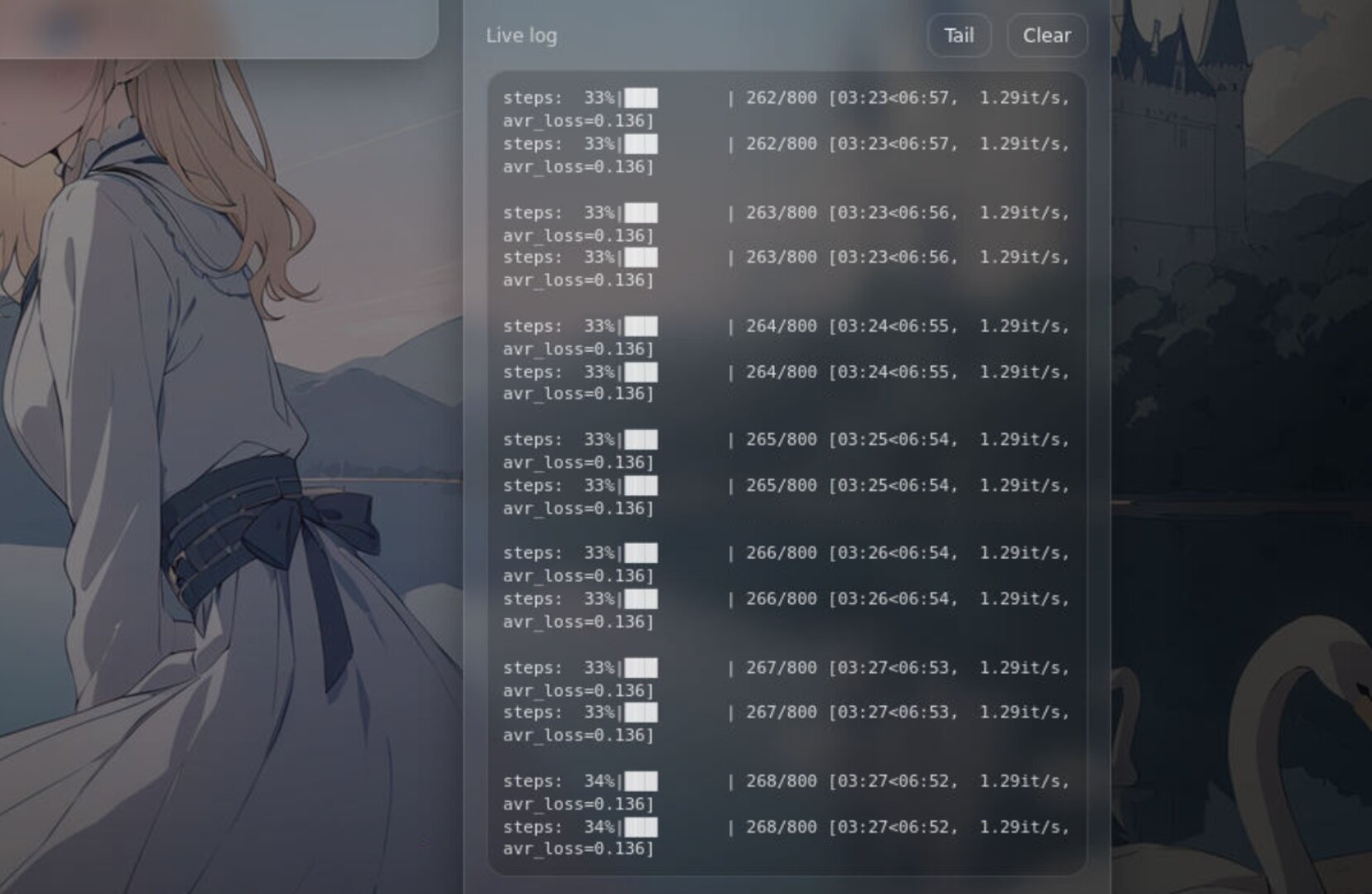
- Loss curves: visualize training quality and stability; review any job’s historical data.
- App Store rollback on failure: failed installs automatically revert to a clean state to avoid half-installed limbo.
- Launcher + System panel upgrades: improved UI plus better CPU core rendering for high-core systems.
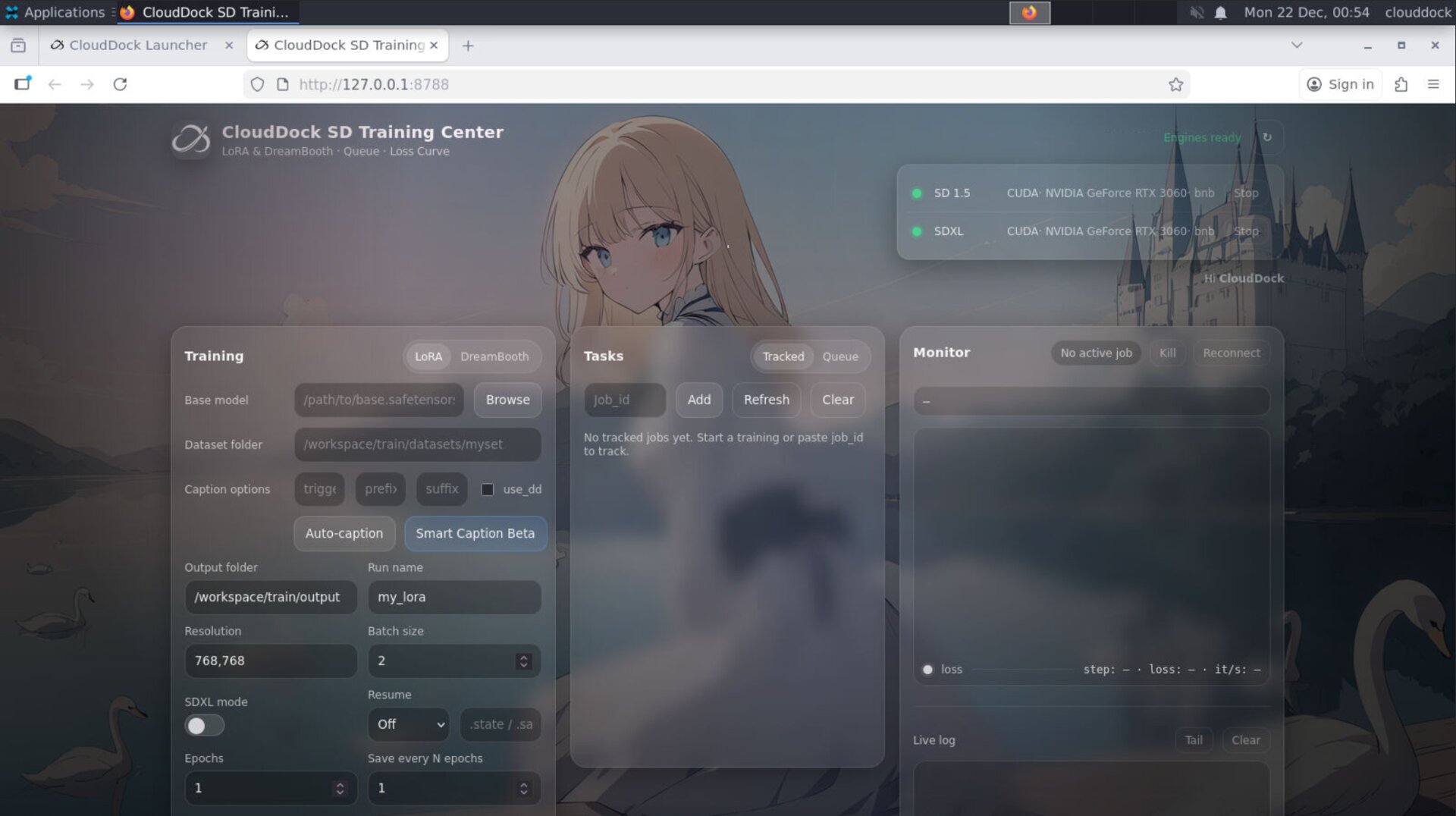
CloudDock SD Training Center — all-new design
Beta 1 introduces a redesigned Training Center that treats training like a first-class workflow, not a one-off script run. The UI is rebuilt around jobs: create them, queue them, monitor them, review them, and resume your context even after a refresh.
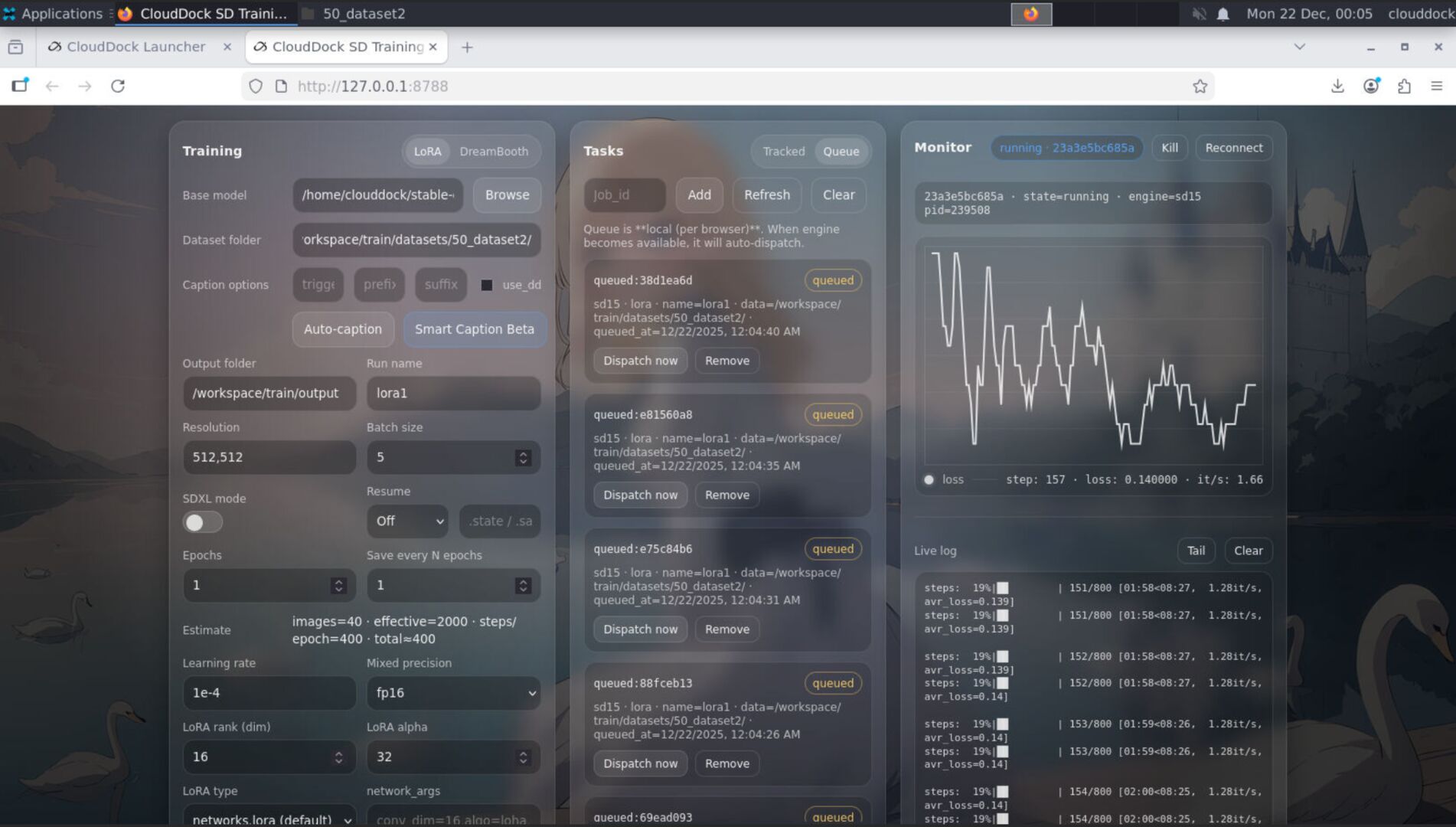
Job Queue — “sleep to morning” mode
The new Job Queue lets you line up training tasks and let the system run them one by one. You can enqueue jobs, reorder the queue, pause or cancel entries, and keep your GPU busy without babysitting the page.
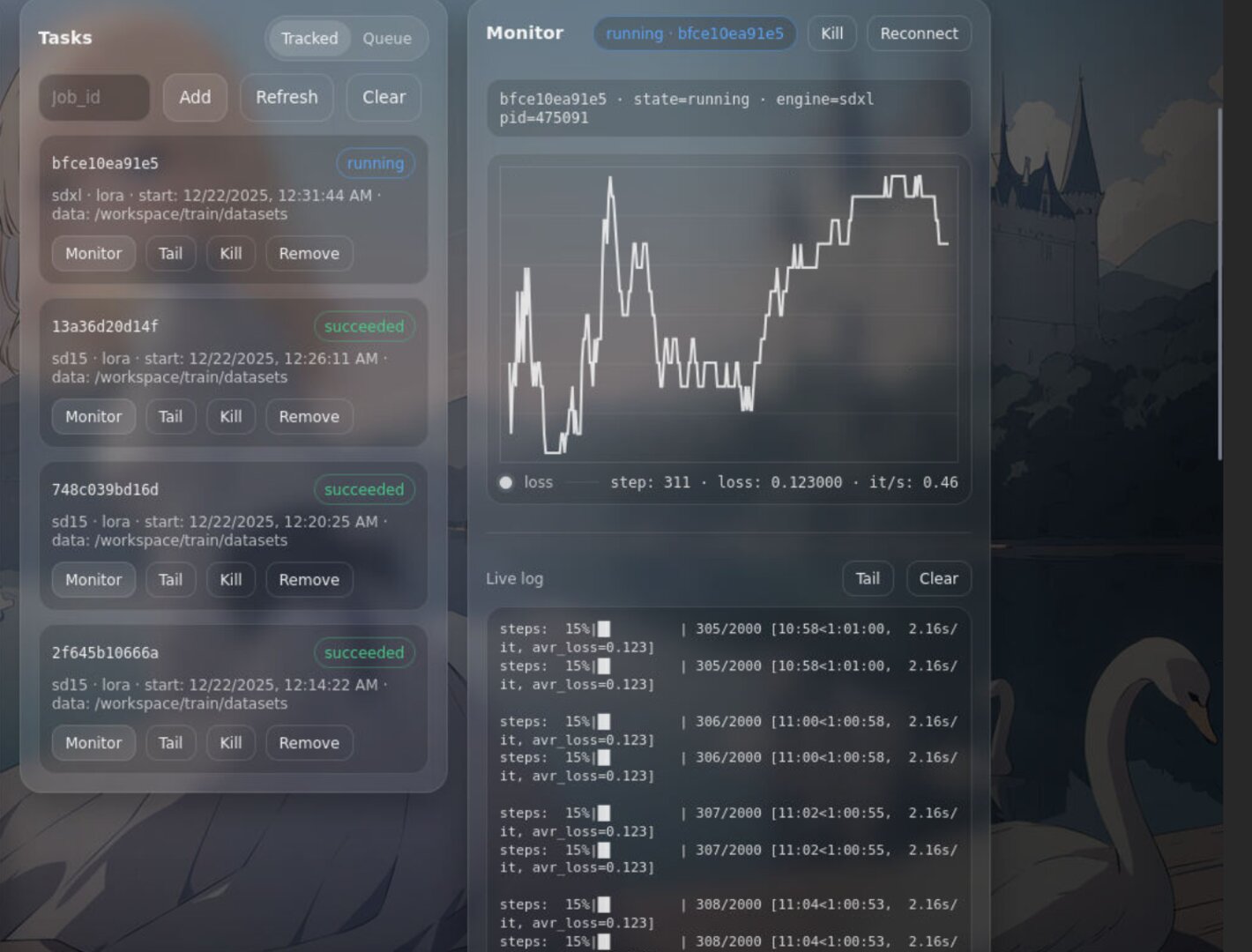
Typical use cases:
- Queue multiple LoRA experiments with different caption settings.
- Run a sequence of datasets overnight and review results in the morning.
- Keep a “safe default” training job behind a risky experimental job, without losing time.
History restore — refresh without losing reality
Earlier builds could lose context after a refresh: a job might keep running, but the page would “forget” what it was doing. In 4.1 Beta 1, Training Center restores the job view reliably:
- State restore: status, progress, and key metadata are recovered when you return.
- History access: you can open historical records for any job, not only the current one.
- Smarter status detection: the UI infers job status more accurately and avoids misleading “stuck” states.
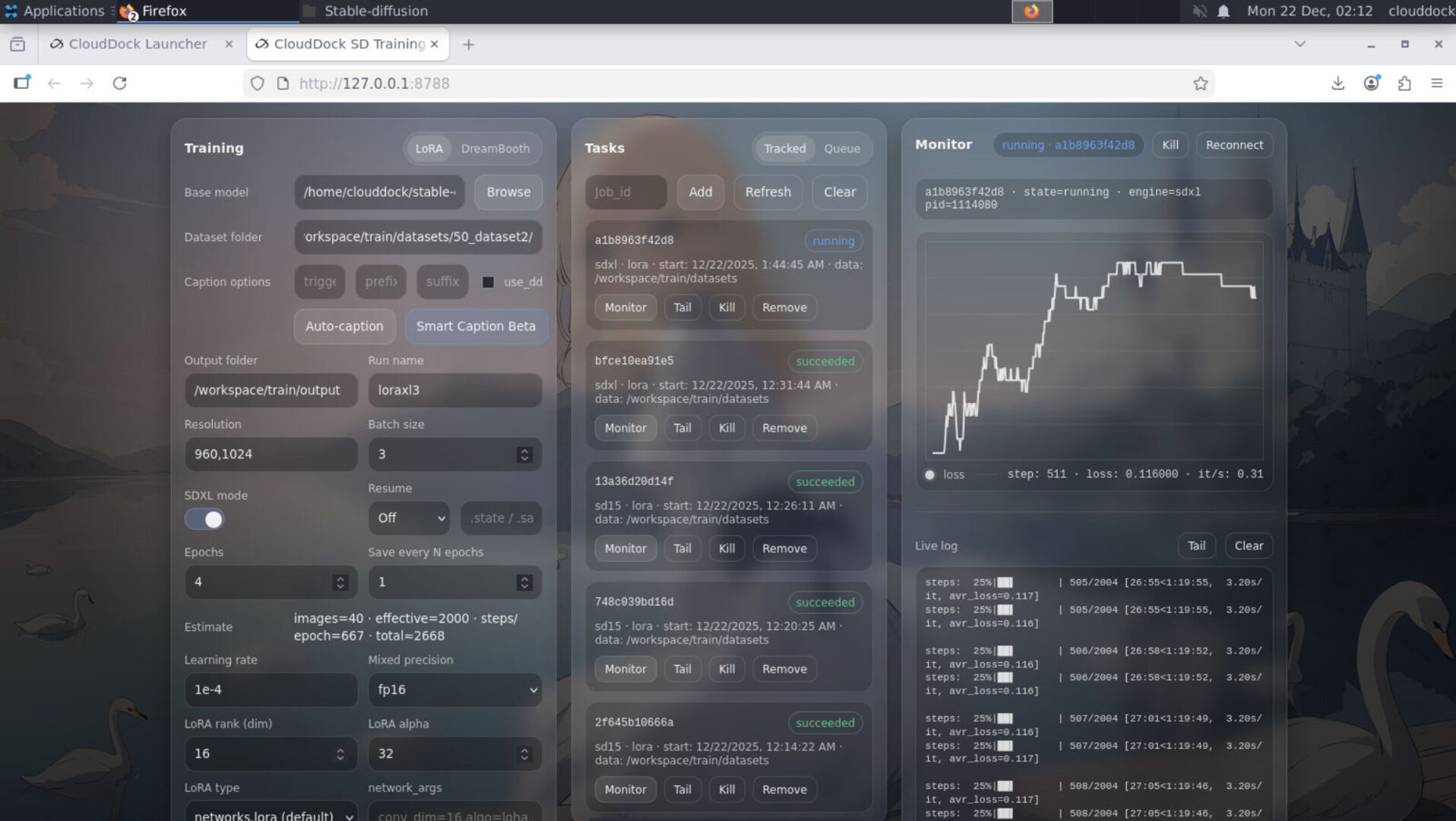
Loss curves — see quality, not just speed
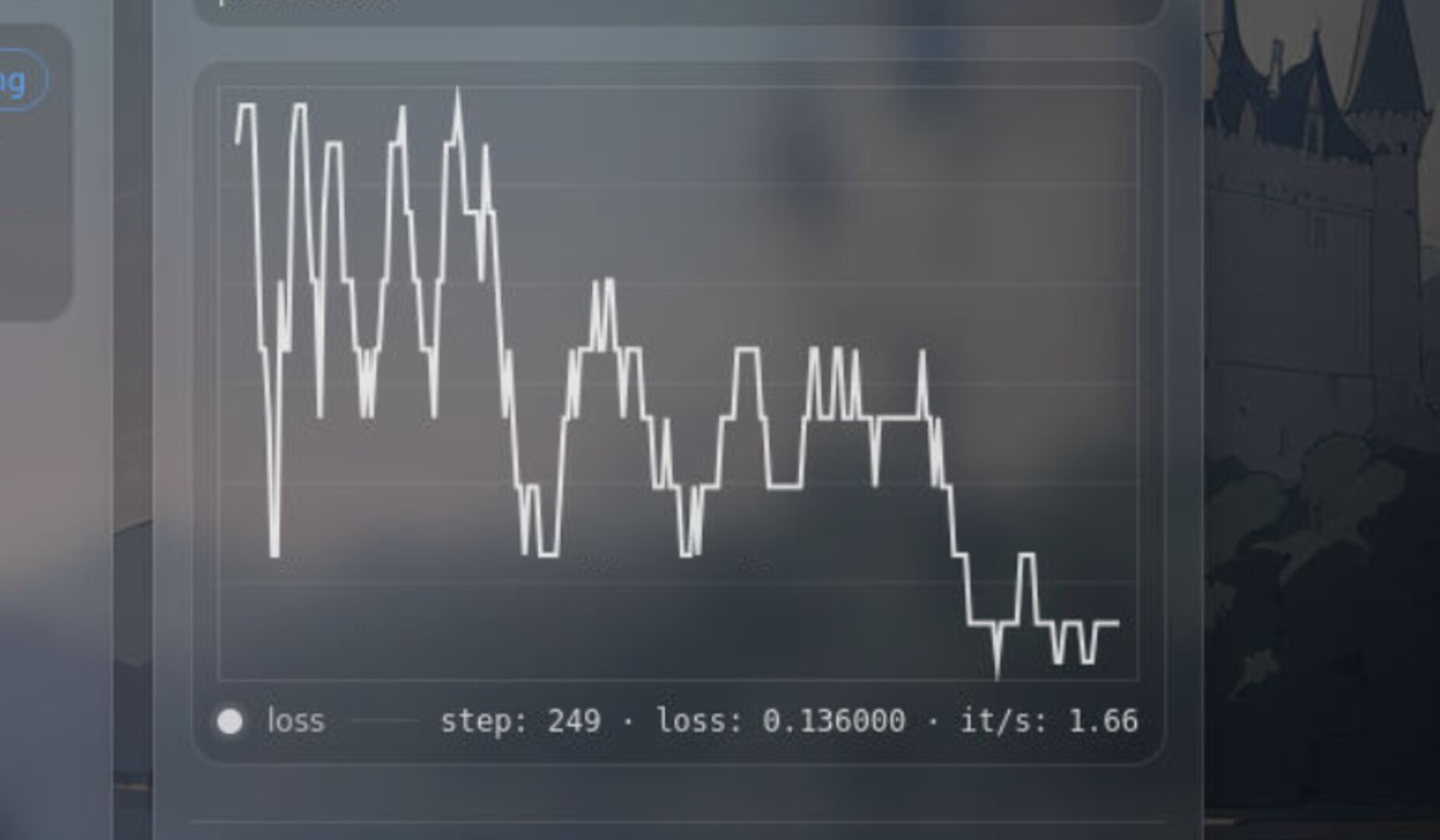
Training Center now includes a dedicated Loss Curve view. Instead of guessing whether a run is healthy, you can visualize loss trends, compare segments, and review the curve later from job history.
What it helps with:
- Detect early overfitting or unstable caption settings.
- Validate whether a resume or parameter tweak improved training.
- Explain outcomes to support with real evidence, not vibes.
CloudDock App Store — rollback on install failure
App Store installs are now safer. If an installation fails, the system can roll back to a known-good state instead of leaving the environment half-changed. This reduces “ghost installed” states and avoids breaking future installs.
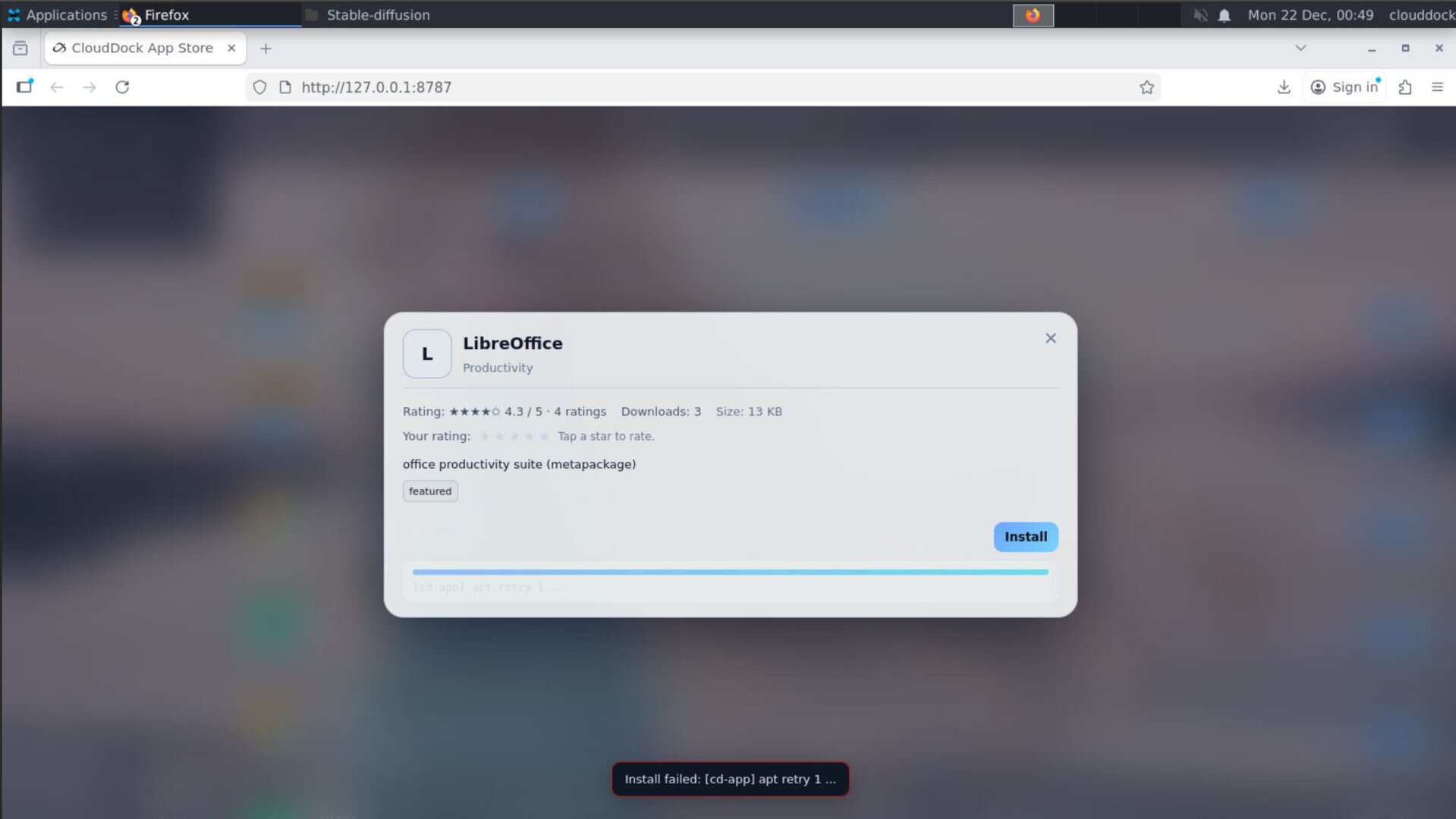
Queue management in App Store is also refined to behave better under multiple installs and refreshes, especially when large assets are involved.
Launcher & System panel — better on big CPUs
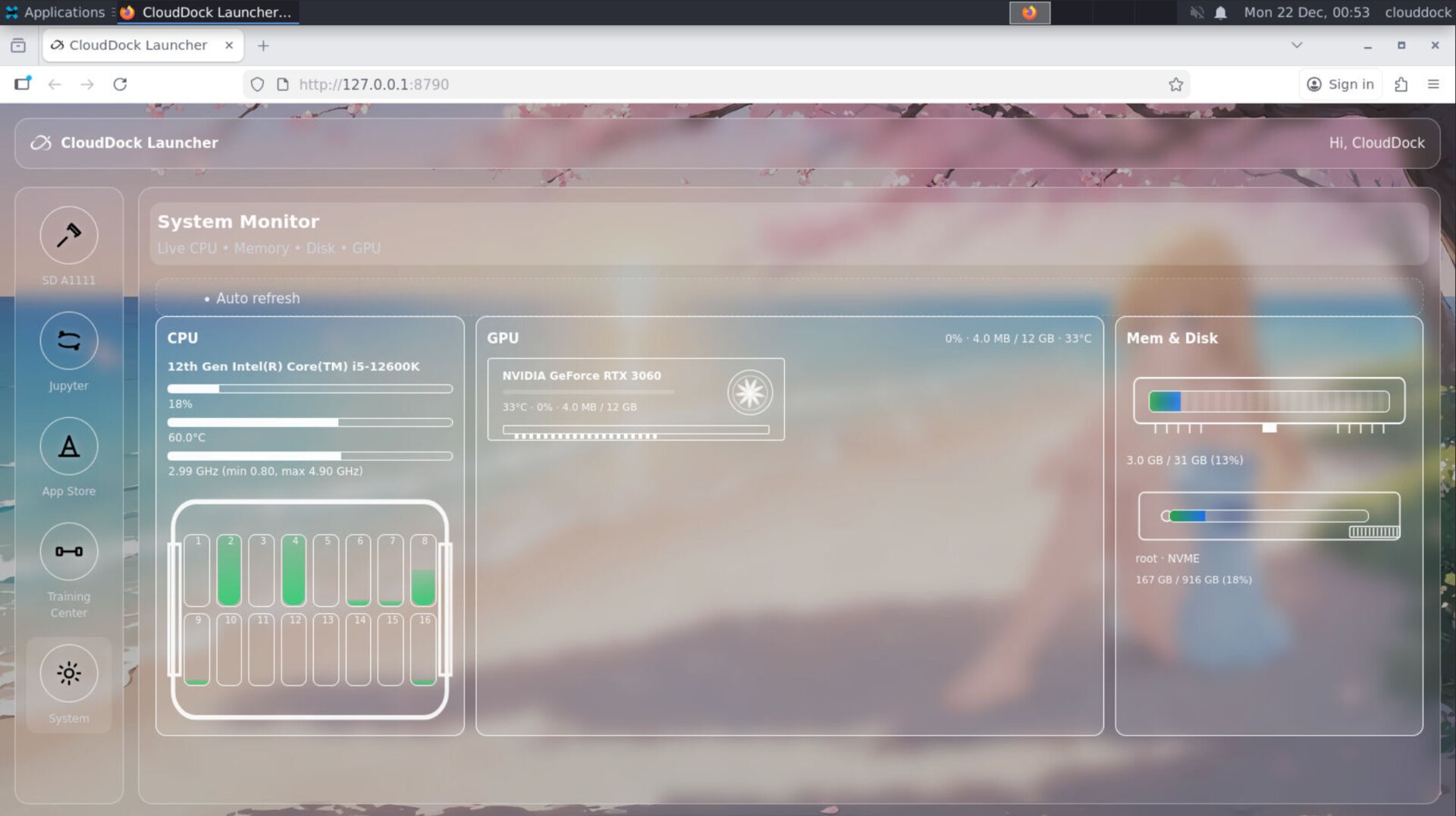
Launcher UI receives polish, and the System panel is improved for high-core-count CPUs. Core rendering and layout scale more gracefully, so the panel remains readable even when the node has a large number of vCPUs.
Quick Checks
watch -n 1 nvidia-smips aux | egrep "train|kohya|sd-scripts"# Open job history + loss curve first.
# If needed, pause & resume the queue from UI.# Retry after rollback completes.
# If repeated, capture the error code + time.Troubleshooting
- Queue runs but UI doesn’t update: refresh the page. Beta 1 is designed to restore job state and history after reload.
- Loss curve is empty: verify the job produced metrics; open the job’s history panel and confirm the timeline contains recorded points.
- App Store fails repeatedly: wait for rollback to finish, then retry. If it still fails, contact support with the app name, timestamp, and the visible error.
- System CPU cores look dense: on very high core counts, the panel compresses cores intentionally to preserve readability.