
Overview
Usagi 4.0 Beta 6 is a refinement release. Beta 5 brought the unified CloudDock Launcher, per-app guides, a system panel, and CloudDock Intelligent Dog Engine v2. Beta 6 keeps that architecture but makes it easier to live with — especially on small screens and in split-view workflows — and makes the Dog smarter and more talkative when something goes wrong.
The Launcher UI has been tuned for laptops, tablets, and split-screen setups; the guide area is now scrollable so you can pack in more shortcuts without crowding the screen; and Intelligent Dog integrates a multi-path decision system to reduce false kills while automatically sending first-hand incident summaries straight to support.
What’s new vs Beta 5
- Launcher UI tuned for small screens: better layout and spacing for narrow viewports and split-screen usage. Cards reflow more gracefully and stay readable when you dock the window to half the screen.
- Scrollable guide area: the guide section now scrolls independently, so you can keep more tutorial shortcuts visible without making the whole Launcher feel cramped.
- Multi-factor Dog decisions: CloudDock Intelligent Dog now aggregates multiple signals (commands, processes, timing, context) before acting, making it much less likely to overreact to legitimate workflows.
- First-hand incident reports for support: when a container gets into trouble, Intelligent Dog prepares a basic reason summary and sends it directly to support, skipping long “we are still investigating” loops.
Launcher for small screens & multitasking
In Beta 5, the Launcher already replaced four scattered icons. Beta 6 focuses on how that Launcher behaves when you don’t have a 4K monitor in front of you.
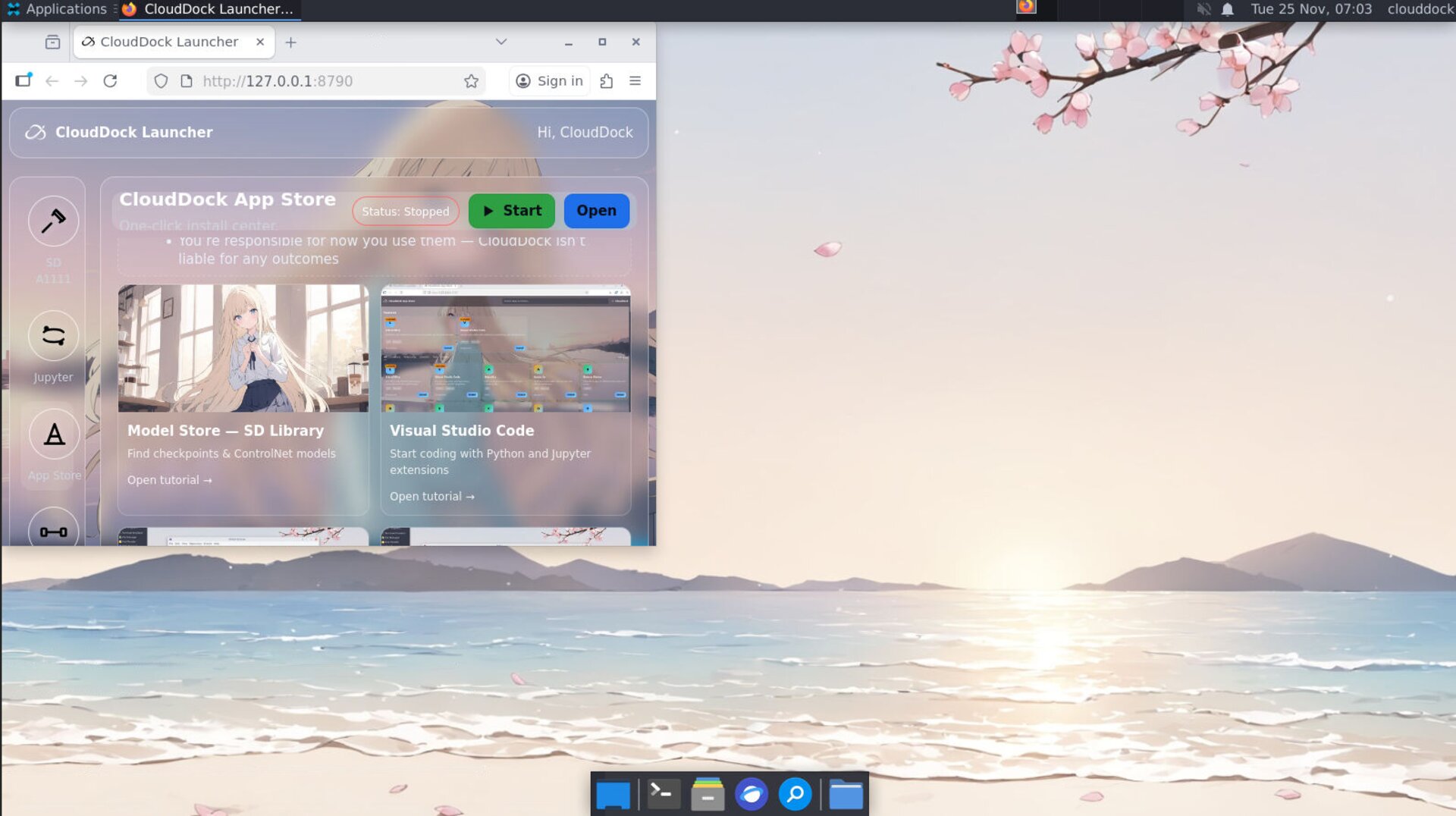
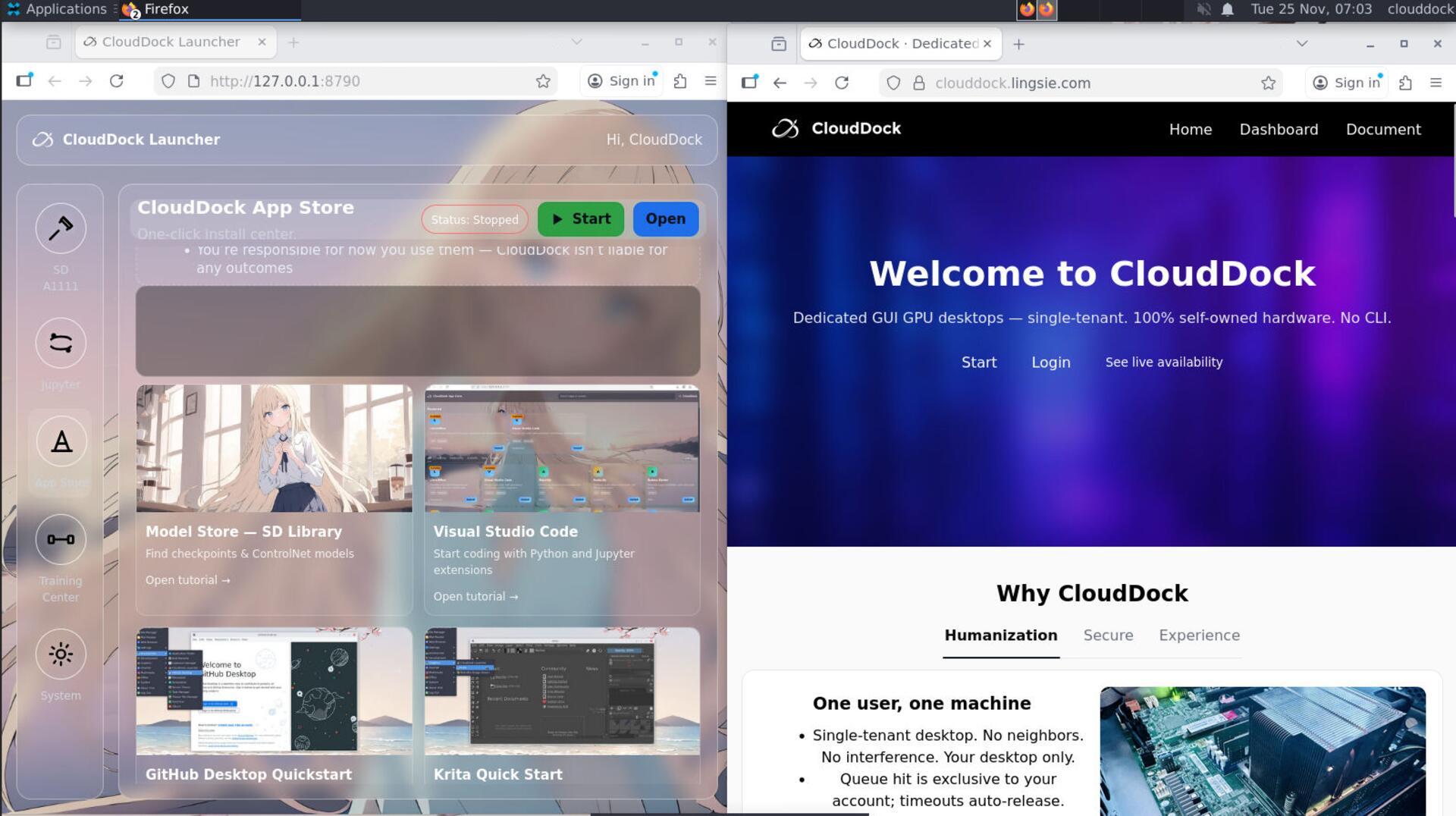
Typical Beta 6 workflow improvements:
- Run A1111 full-screen while keeping a narrow Launcher on the side to manage App Store or Training Center.
- Dock Launcher + System panel to the left, JupyterLab to the right, and still have readable cards and guides.
- Use a smaller laptop or tablet without the UI feeling like it was designed only for a 27" desktop.
Scrollable guides & more shortcuts
The guide section under each app in Beta 5 was intentionally simple, but it also meant you had to choose only a few links to avoid clutter. Beta 6 makes the guide area scrollable, so you can add more shortcuts without making the Launcher taller or messier.
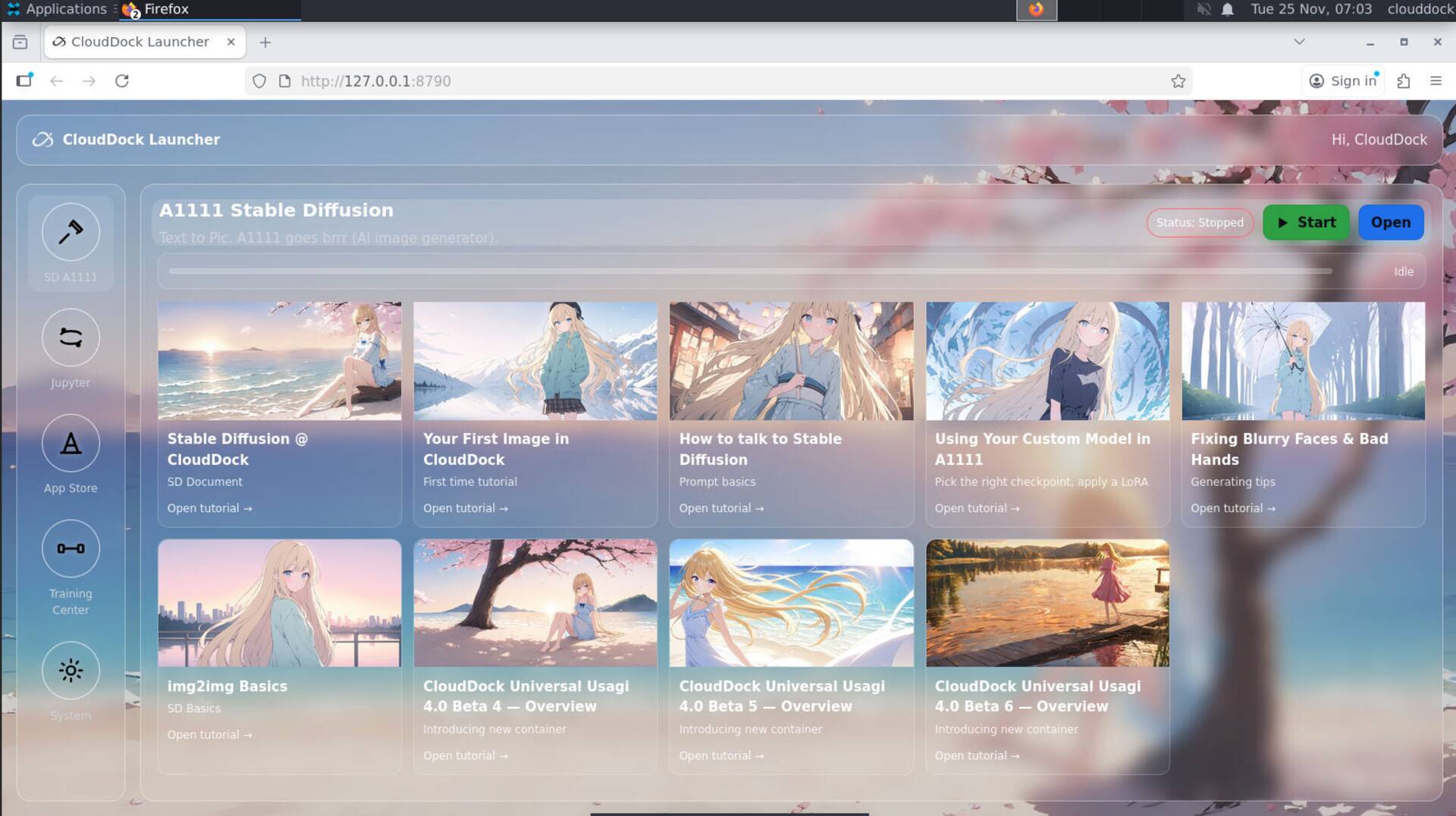
What this looks like in practice:
- A1111 tile might have quick links for “Basic txt2img,” “LoRA usage,” “ControlNet workflow,” and “Troubleshooting OOM.”
- Training Center tile can keep separate guides for LoRA vs. DreamBooth, plus dataset preparation tips.
- App Store tile can link directly to documentation on model updates, versioning, and safe rollback strategies.
The guides scroll independently from the rest of the Launcher, so header, status, and buttons stay fixed and easy to click.
Smarter Intelligent Dog: multi-factor decisions
CloudDock Intelligent Dog Engine in Beta 6 gains a multi-link aggregation decision system. Instead of reacting to a single trigger, the Dog combines several signals before deciding whether an operation is dangerous:
- what commands were just run;
- which processes are active and how they change over time;
- how the action lines up with known “normal” patterns in CloudDock containers;
- whether the behavior looks like misconfiguration, user mistake, or clearly malicious use.
First-hand incident reports to support
When something does go wrong, Beta 6 focuses on reducing the amount of “mystery” around it. If Intelligent Dog has to intervene, it now prepares a first-hand basic reason report and sends it directly to support.
This helps with:
- Faster answers: support starts with a structured summary (for example: “watchdog kill due to repeated forbidden command pattern in shell”), rather than digging through raw logs from scratch.
- Less back-and-forth: in many cases, the high-level cause is already clear and can be explained to you without a multi-department investigation.
- Better decisions: refunds, extensions, and follow-up actions can be tied to an actual timeline of what the Dog observed.
Quick Checks
tail -n 50 /var/log/cd/dog.audit.logps aux | grep launcherwatch -n 1 nvidia-smiTry resizing the window first —
Launcher will reflow for small screens.Troubleshooting
- Launcher layout looks broken on small screens: try restoring the window to normal size once, then resize again. If the issue persists, log out and back in to reset the desktop session.
- Guide area doesn’t scroll: hover the cursor over the guide section itself and use the mouse wheel or trackpad scroll. The outer area intentionally does not move.
- Dog intervened and container stopped: check your default communication method or support replies for the Dog’s incident summary. If it looks like a mis-detection, contact support with the time, app, and what you were doing.
- Support asks “what happened”: mention that you are on Usagi 4.0 Beta 6 so they know to look for Intelligent Dog incident reports as well as traditional logs.