
Overview
Usagi 4.0 Beta 5 turns the Stable Diffusion stack into a Launcher-first experience. Instead of four separate desktop icons and a pile of terminal windows, you get one CloudDock Launcher with four major apps — A1111 WebUI, JupyterLab, CloudDock App Store, and CloudDock Training Center — plus a live system panel and built-in account awareness.
From here you can see which apps are running, start or stop them, check their CUDA/PyTorch environments, open per-app guides, and watch A1111 warm up without ever touching a shell. Under the hood, Beta 5 also introduces CloudDock Intelligent Dog Engine v2 to keep sessions safer and gently remind you before a rental ends.
What’s new vs Beta 4
- Unified CloudDock Launcher: replaces scattered desktop shortcuts with a single hub for A1111, JupyterLab, App Store, and Training Center. Per-app status, one-click start/stop, and detail views are all in one place.
- Per-app environment panels: each app has a Details view showing key environment info (CUDA, PyTorch, Python, venv path) so you know exactly what you’re running.
- Inline guides: a Guide link under every app takes you to the relevant CloudDock tutorial — no more hunting through documentation folders or guessing which wiki page applies.
- System monitor in the Launcher: new System tab shows CPU, GPU, memory, and disk activity as graphs and gauges, so you can see at a glance whether you are bottlenecked on VRAM, RAM, or I/O.
- Account-aware apps: A1111, JupyterLab, App Store, and Training Center display “Hi <username>” in the top-right so you can confirm which CloudDock account is active in the container.
- A1111 warmup bar: a dedicated warmup/progress indicator for A1111 shows you how far launch has progressed — you no longer need to stare at logs to guess when WebUI is ready.
- CloudDock Intelligent Dog Engine v2: second-generation watchdog quietly improves safety, adds pre-end reminders, and is more proactive about catching dangerous behavior early.
CloudDock Launcher
Beta 5 centers everything around the CloudDock Launcher. When the desktop appears, this is the first window you open — and usually the last one you need.
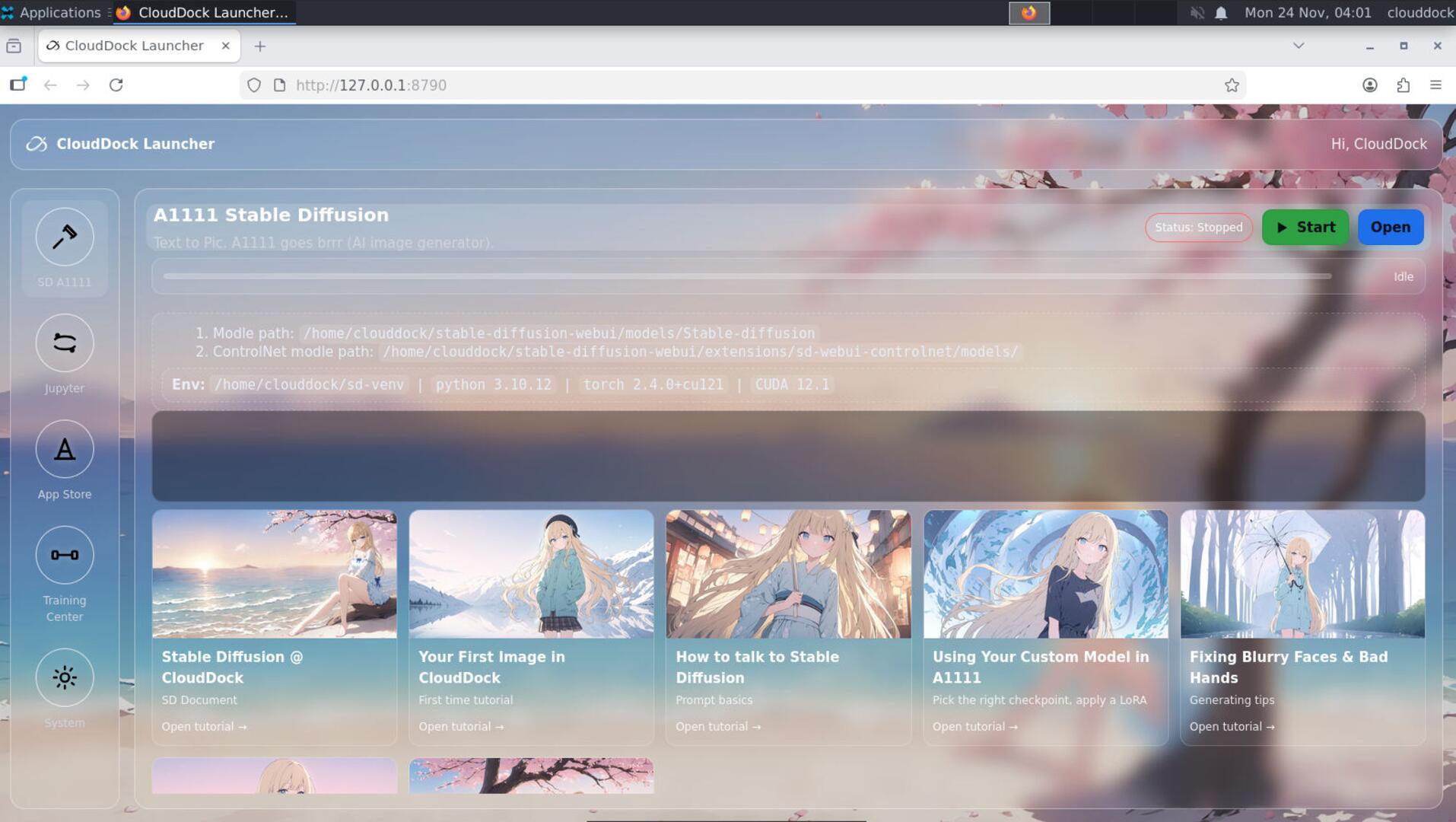
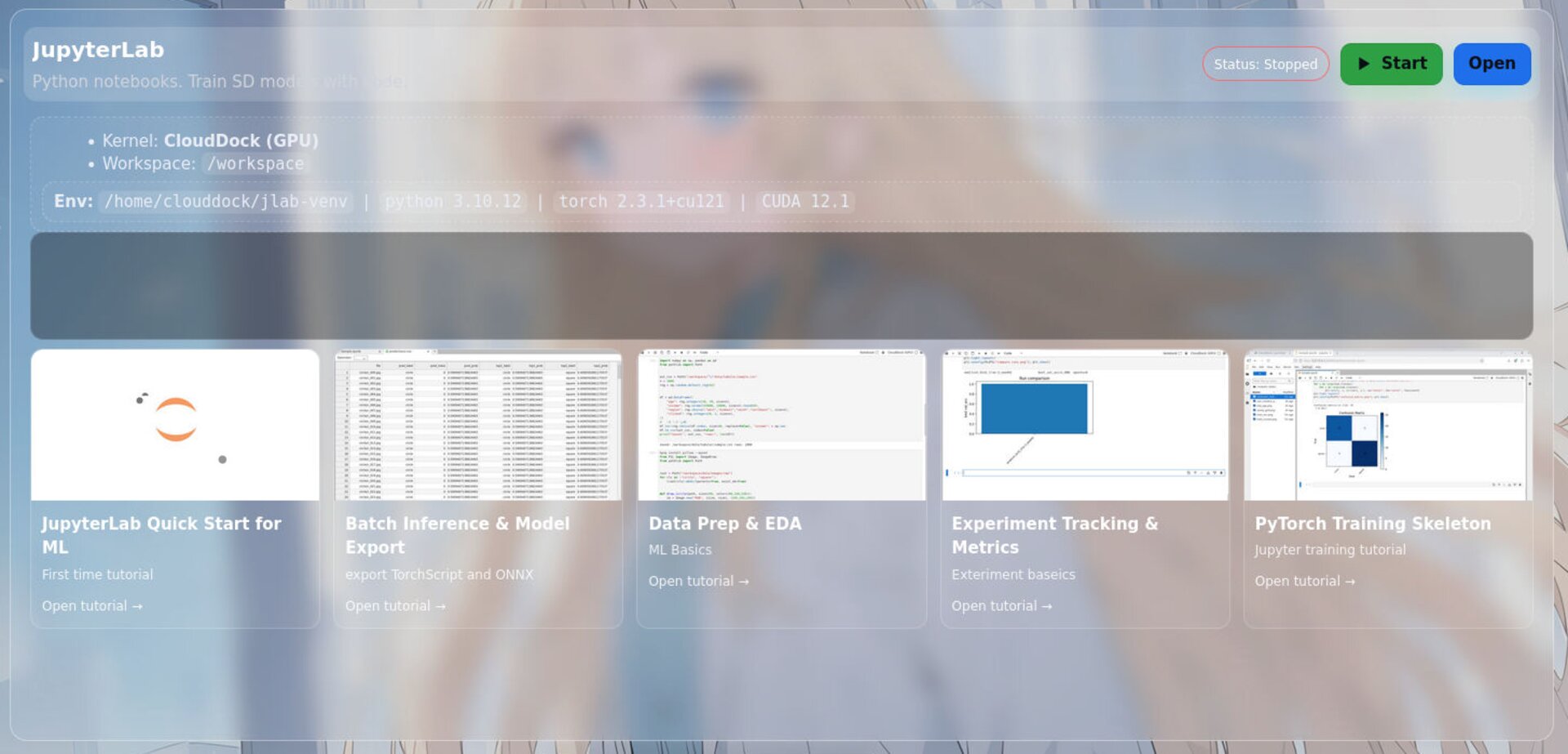
Each tile in the Launcher represents one of the core apps:
- A1111 Stable Diffusion WebUI
- JupyterLab
- CloudDock App Store
- CloudDock Training Center
You can start or stop any of them with a single click. Status badges reflect whether an app is idle, starting, running, or stopping, so you don’t have to guess what the system is doing.
Per-app guides and environment info
Every app tile has two small but important pieces under it:
- Guide: opens the official CloudDock documentation for that specific app or workflow (for example, A1111 basics, LoRA training in Training Center, or how to move datasets into JupyterLab).
- Environment summary: the detail view shows the venv path, CUDA version, PyTorch build, and other core dependencies so power users can sanity-check the stack at a glance.
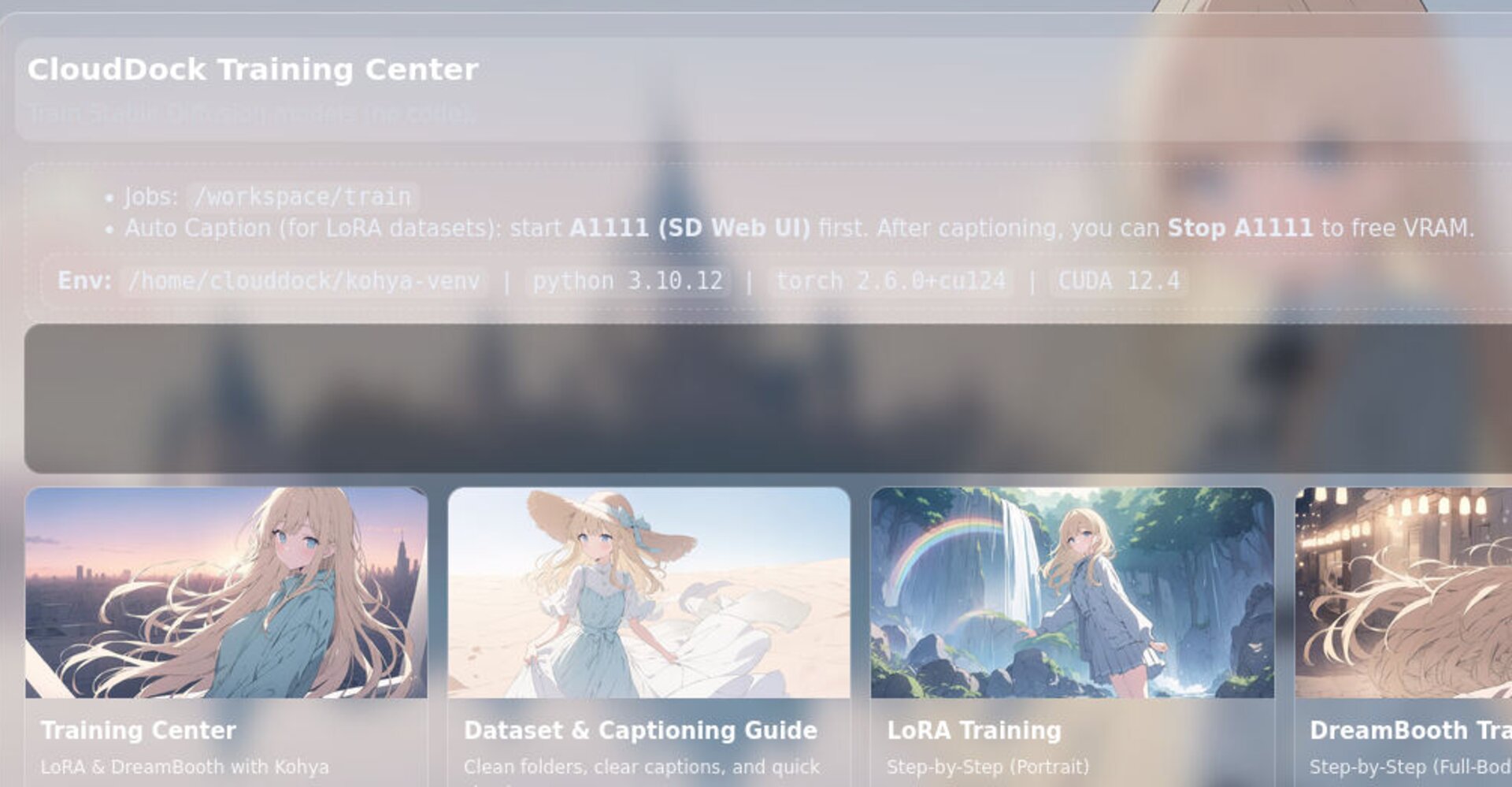
This combination is deliberate: new users click Guide and follow the screenshots, while advanced users can confirm that the right CUDA/PyTorch combo is loaded before pushing the GPU to 100%.
System monitor inside the Launcher
Beta 5 adds a System section to the Launcher so you can see how the whole container is behaving without opening a separate monitoring tool.
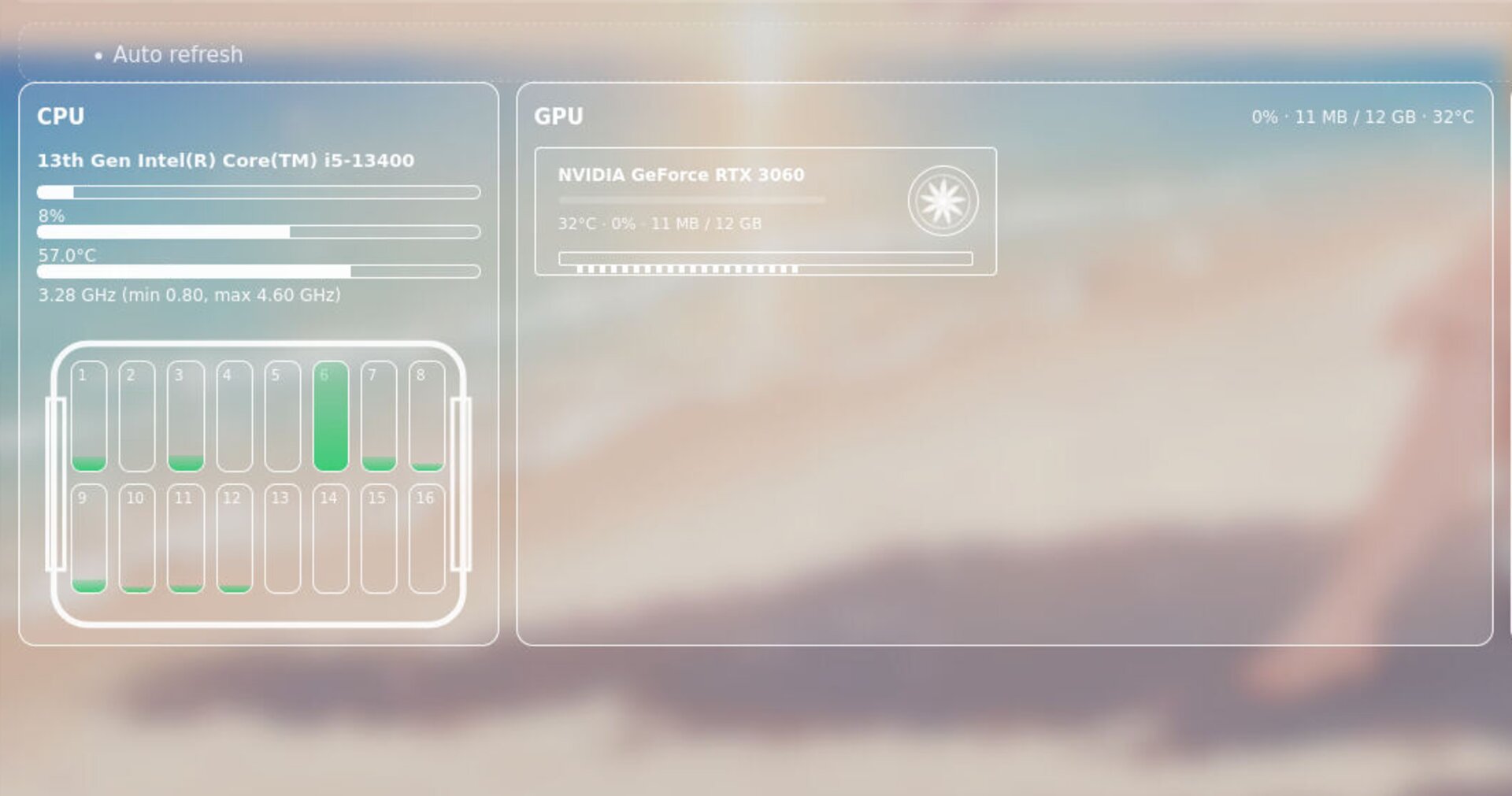
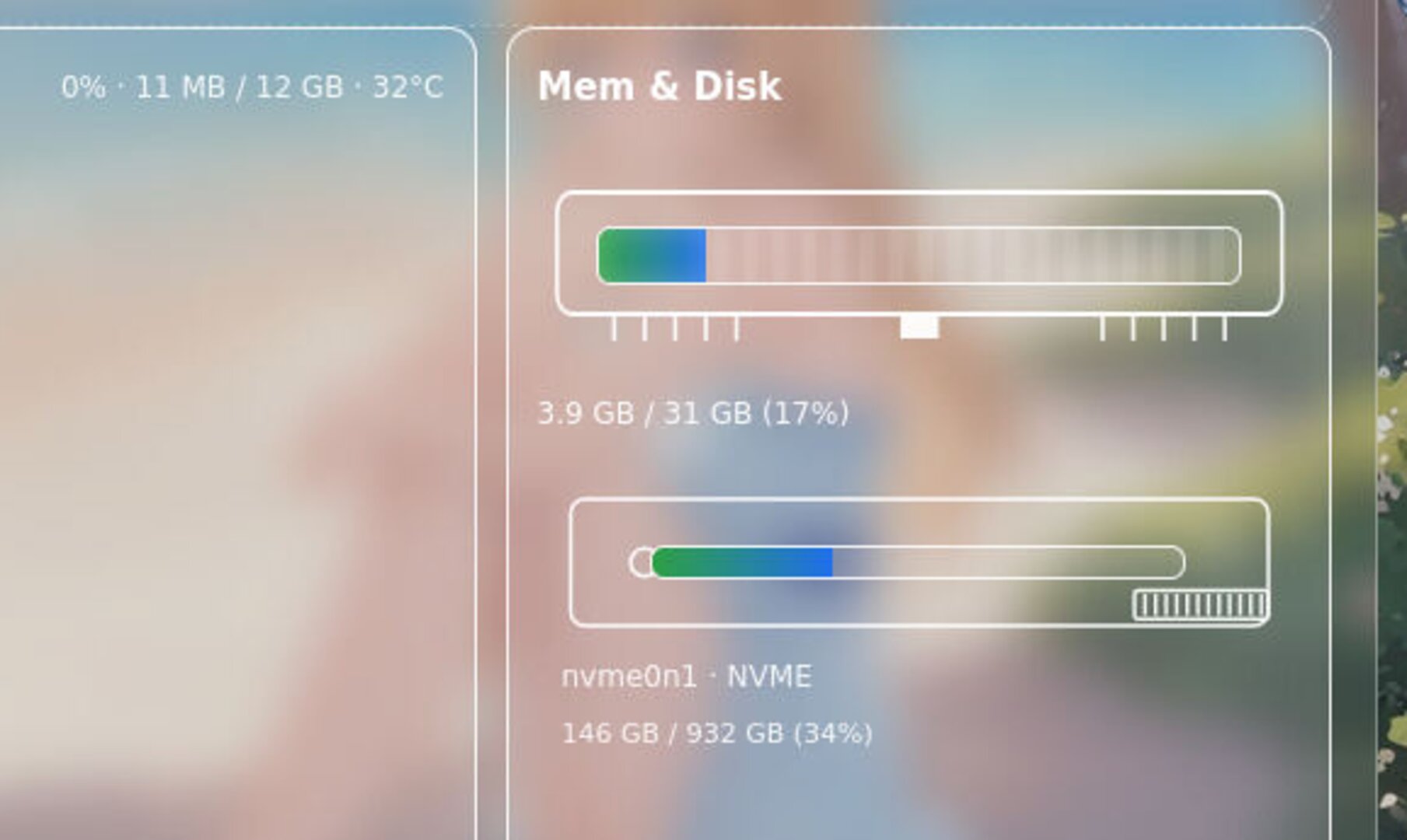
Typical uses for the System panel:
- Check if the GPU is idle before starting another heavy training run.
- Confirm whether you’re bottlenecked on CPU, RAM, or disk during dataset prep.
- See disk usage trends while pulling large models from App Store or writing checkpoints.
Account-aware apps (“Hi username”)
All CloudDock apps in Usagi 4.0 Beta 5 are now identity-aware. The top-right corner of CloudDock Launcher, App Store, and Training Center shows a small greeting such as “Hi CloudDock”, based on your CloudDock account.
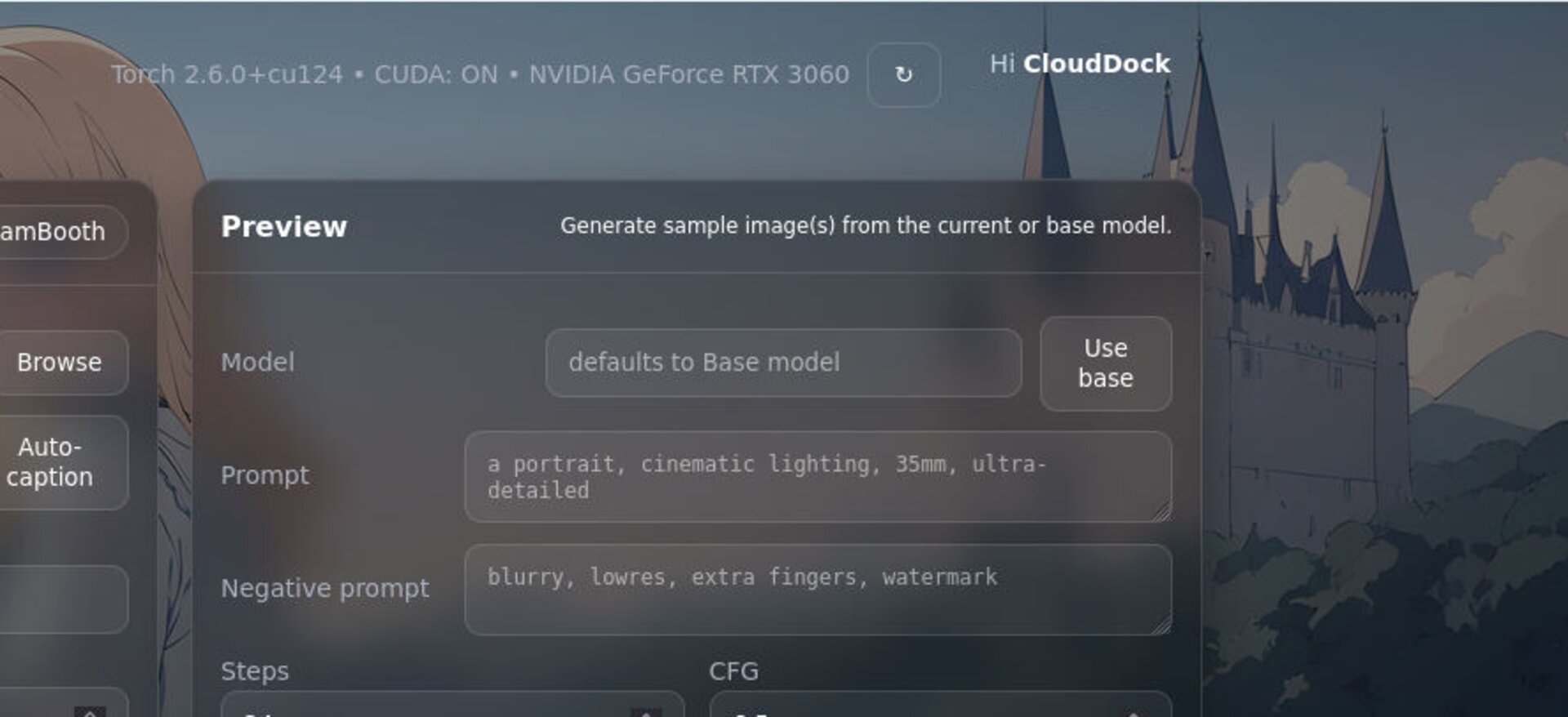
This sounds minor, but it matters when:
- you use multiple accounts (for example, personal vs. business or student vs. non-student);
- you take screenshots for support and want to confirm which user and plan were active;
- you simply want one more sanity check that you’re working inside the right session.
A1111 warmup progress bar
In Beta 4, you could feel that Usagi launched faster, but you still had to guess exactly when A1111 was ready or keep an eye on logs. Beta 5 fixes this with a dedicated warmup bar for A1111.
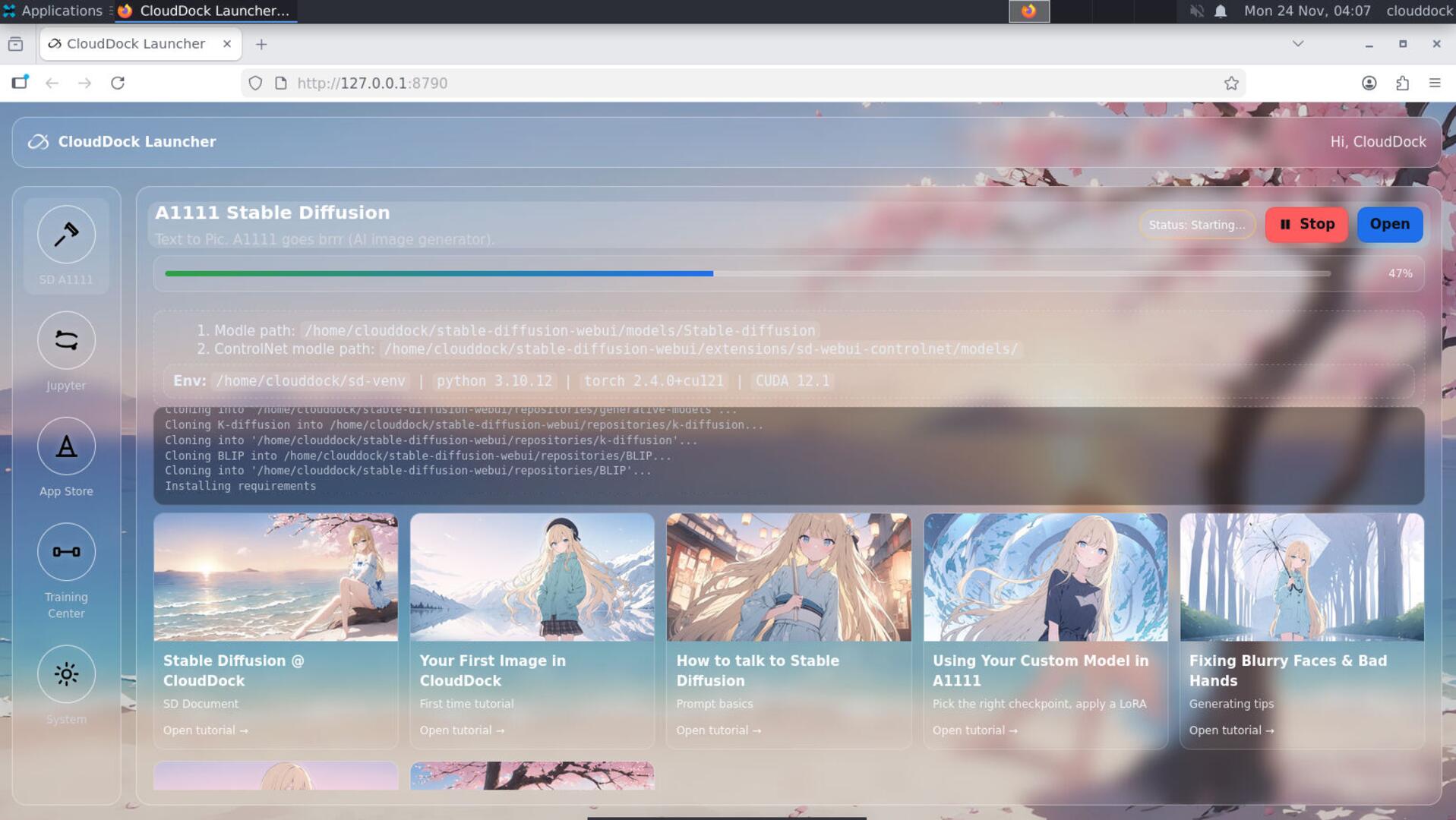
The warmup indicator shows a rough percentage and phase (starting backend, loading models, warming CUDA, etc.). Once the bar completes, the WebUI is expected to be ready in your browser. This helps you:
- avoid spam-clicking reload while the backend is still initializing;
- get a feel for how long the current model configuration takes to warm up;
- spot when something is clearly stuck (for example, progress frozen early).
CloudDock Intelligent Dog Engine v2
CloudDock Intelligent Dog Engine v2 is the second generation of our internal watchdog system. It runs in the background, not in your browser, and focuses on two main goals:
- Protect your work: before a session reaches the configured end time, the system sends an on-screen reminder so you have a chance to save checkpoints, export results, or extend your rental if needed.
- Improve safety: suspicious or clearly dangerous behavior is detected much earlier and handled more cleanly, so issues are stopped while they are still small instead of turning into bigger incidents later.
The idea is simple: you focus on drawing and training; the Dog watches the boring stuff. In typical use you will only notice two things:
- a polite alert when your remaining time is low; and
- more predictable behavior if something goes obviously wrong in the container.
Quick Checks
watch -n 1 nvidia-smitopps aux | grep jupyterxfce4-panel --restartTroubleshooting
- A1111 warmup bar stuck: wait a little longer, then try refreshing the browser. If the bar never completes, restart A1111 from the Launcher tile. If the issue repeats, reboot the container.
- Launcher shows app as running but window is missing: click Stop on the app tile, wait for it to fully stop, then click Start again.
- System panel shows 0% GPU during training: confirm that the correct GPU device is selected in A1111 or Training Center and that no previous job is still running in the background.
- Time up before you finish: if Intelligent Dog shows a pre-end warning, save your work immediately. Extending the session is always safer than relying on unsaved checkpoints.